If you have a new product or a seasonal item — like a special gift for Mother’s Day — you want it to get as much attention as possible. Adding a product to your homepage as a “Featured Product” is the best way to drive higher traffic and catch the customer’s eye the moment they land on your store.
No searching. No extra clicks. Just right there, front and center, ready to be explored.
Take that same Mother’s Day necklace — the one with engraving, charm stones, and extra charms — and feature it proudly on your homepage. Add a clear button like “View full details” that links directly to the product page.
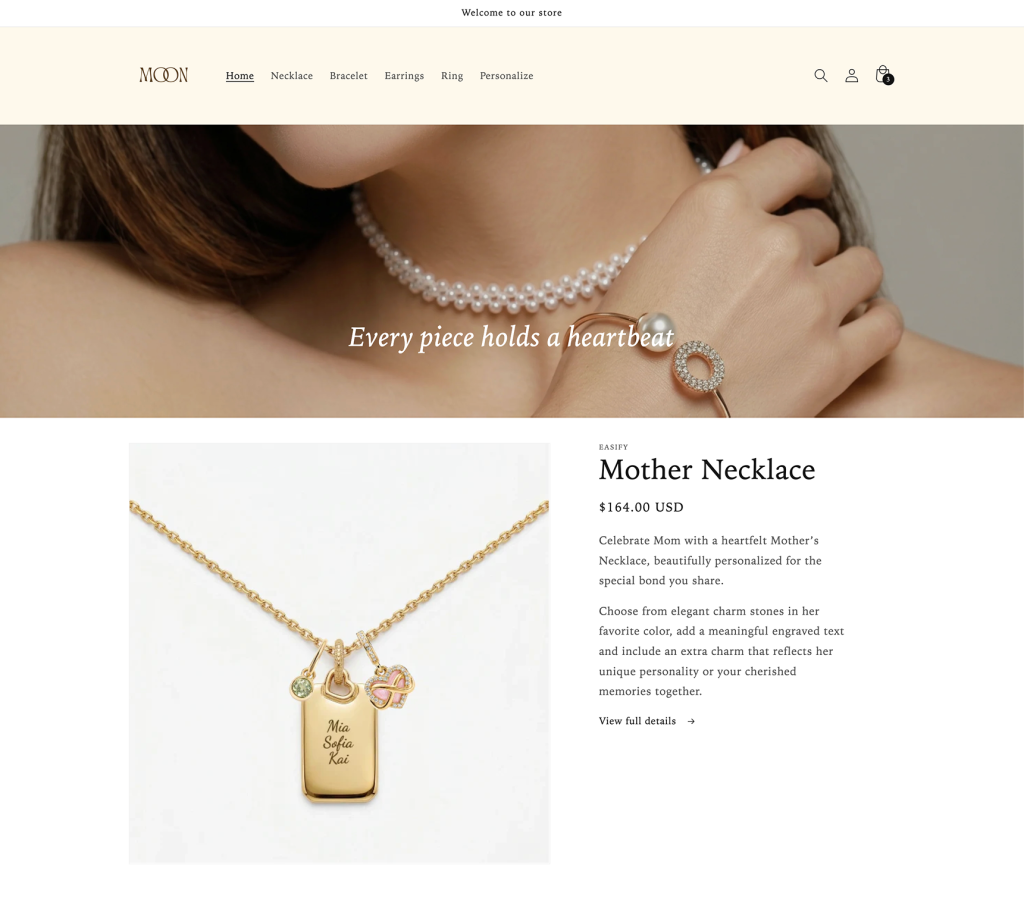
🎯 Why this matters for the 1st Order Challenge:
First-time visitors don’t know your store yet. They won’t dig through menus or collections unless something grabs them immediately. A featured product on your homepage does exactly that — it grabs attention, builds trust, and removes hesitation.
When customers see a beautiful, gift-ready product right away, they’re more likely to think: “This is perfect for Mom. Let me check it out.” And once they click, your Easify Product Options make it easy for them to customize and complete that first order.
Step-by-Step Setup #
Step 1: Open the Theme Editor #
Log in to your Shopify admin and go to Online Store. Click the Edit theme button next to your active theme to open the editor.
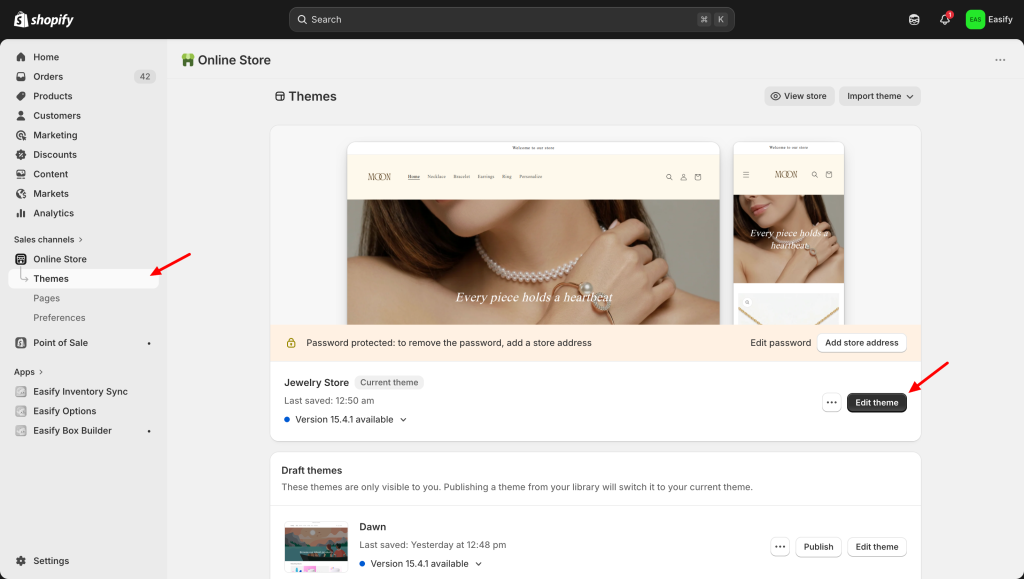
Step 2: Add the Featured Product Section #
- On the left-hand sidebar, make sure you are viewing the Home page.
- Scroll down to the area where you want the product to appear.
- Search for and select Featured product.
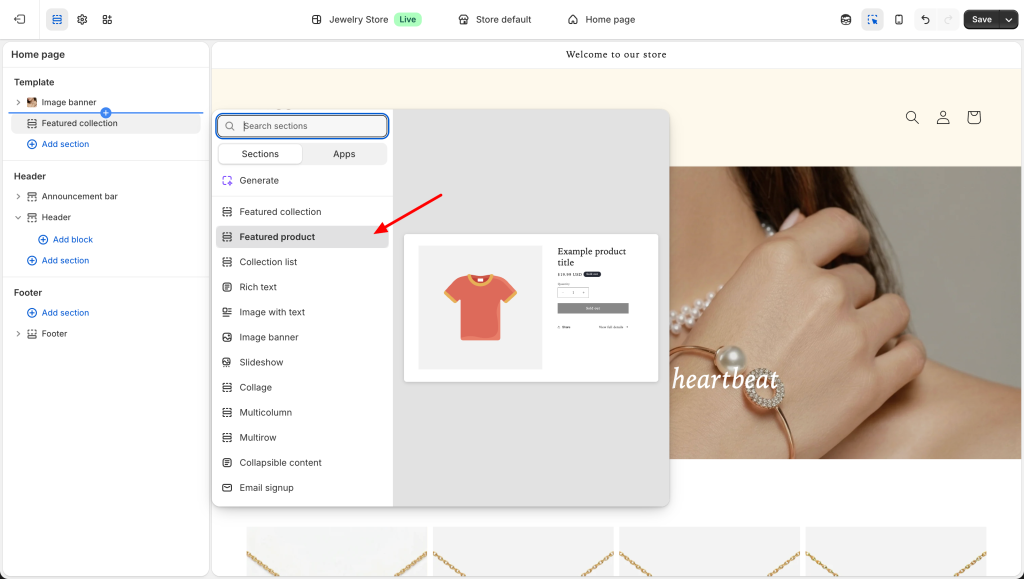
Step 3: Select Your Product #
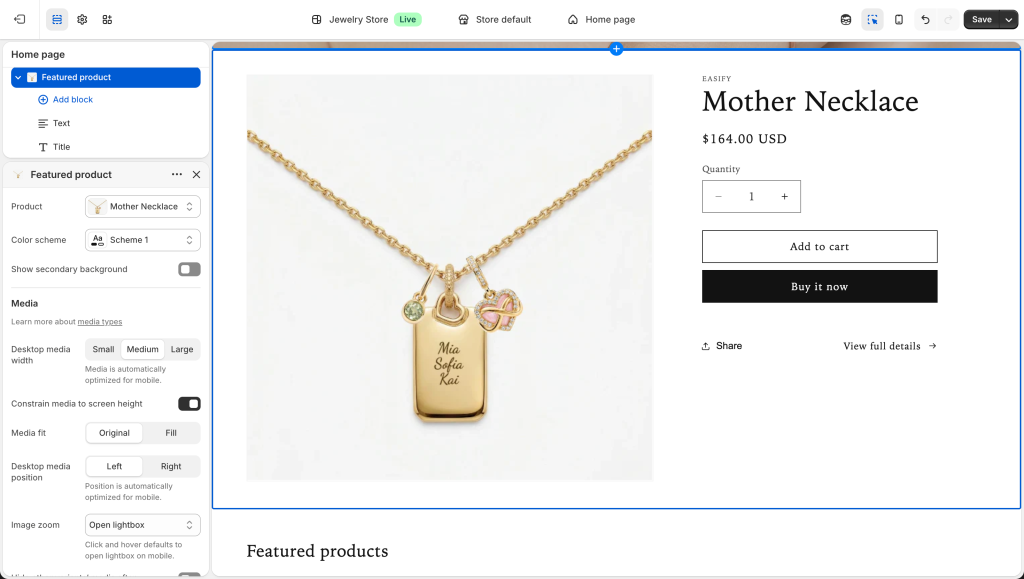
- Click on the new Featured product section you just added.
- In the settings panel on the left, click Select product.
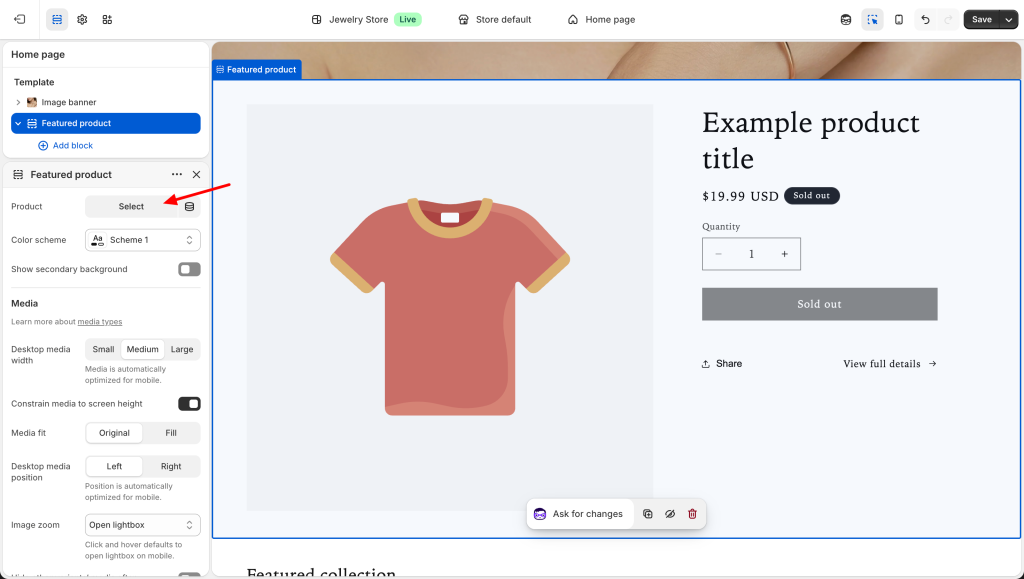
- Choose the product you want to highlight (for example, your “Mother Necklace”) and click Select.
Step 4: Add Custom Text and Details #
You can personalize the section to make it more inviting:
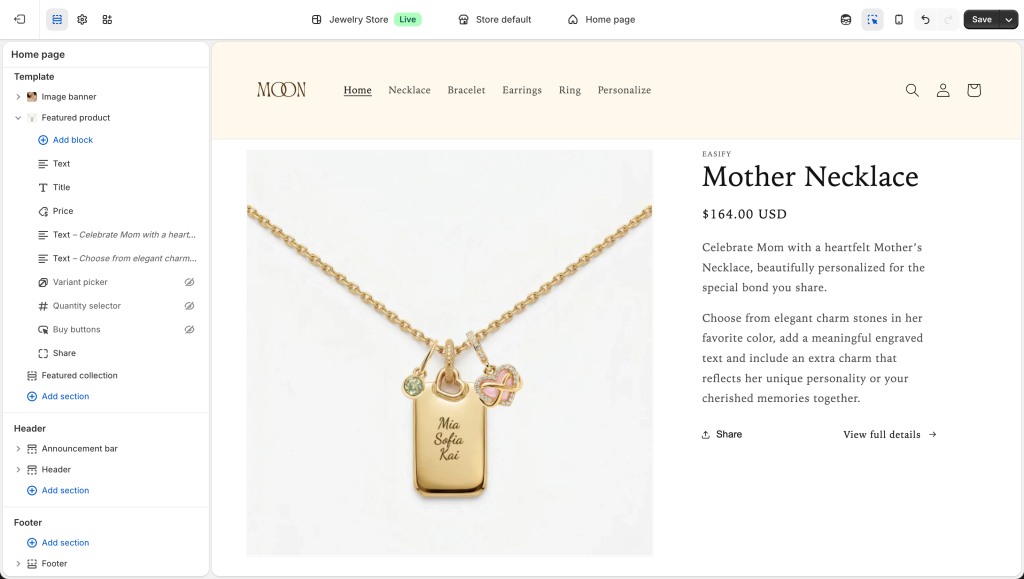
- Description: Add a few lines explaining why this product is special.
- Show details: Choose whether to show or hide the quantity picker, buy button, variant options, social sharing buttons, or view details.
Step 5: Save and Publish #
Once you are happy with how it looks, click the Save button at the top right of the screen. Your product is now front and center for everyone to see!
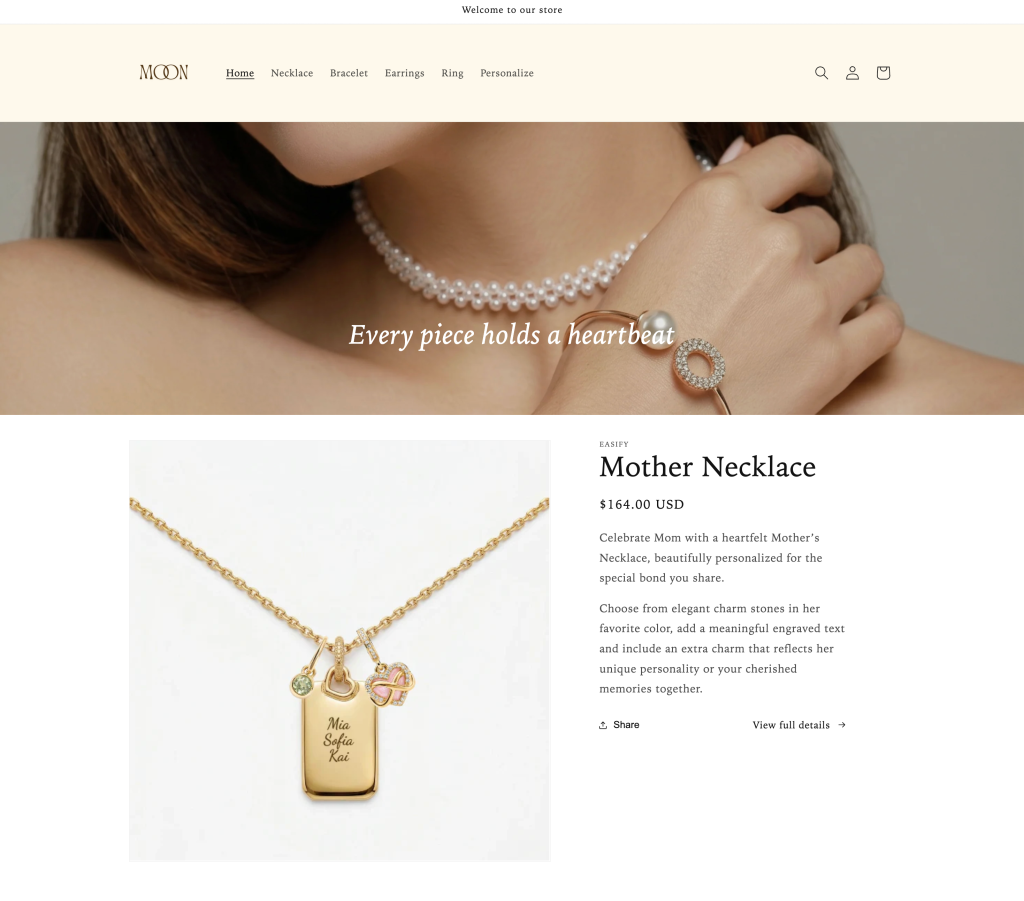
That’s how you make a strong first impression on your homepage. But what happens when customers click into your collection page? That’s where you need to keep the momentum going.
Let’s move to the next guide: “Highlight Products on Your Collection Page” — so your best-selling and personalized products stay visible at every step of the journey.
Need assistance? #
If you have any questions or encounter issues while following this guide to set up option value images, don’t hesitate to reach out through our in-app live chat. We’re always here to help!
