Adding extra charges helps you increase revenue by charging for special services or customizations, such as engraving, gift wrapping, or premium material upgrades.
This guide walks you through how to set up Add-on Prices for your custom product options using Easify Product Options.
🔔 This feature is available on paid plans only. You’ll need to upgrade to Pro plan to access it. Don’t worry, every paid plan comes with a 14-day free trial, so you can try it out first.
What is Add-on Price? #
Add-on Price is a powerful feature that allows you to attach an additional cost directly to a specific option or value without needing to create a separate Shopify product. The extra cost is seamlessly added to the main product’s price, providing a clean and efficient way to manage custom upsells.
Unlike an Add-on Product (which links to an existing item in your inventory), Add-on Price acts as a “virtual surcharge.”
Demo #
Here are some of our demos using Add-on Price:
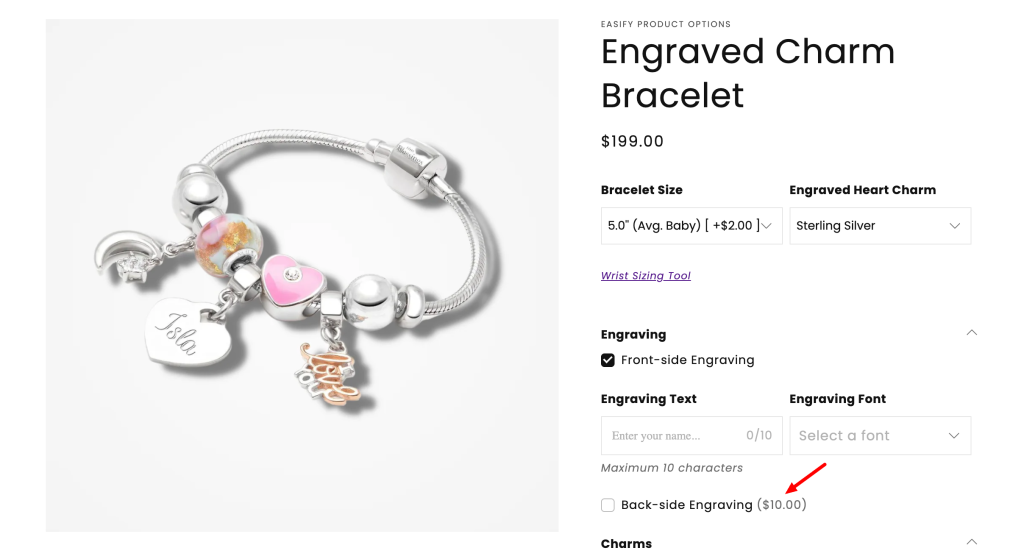
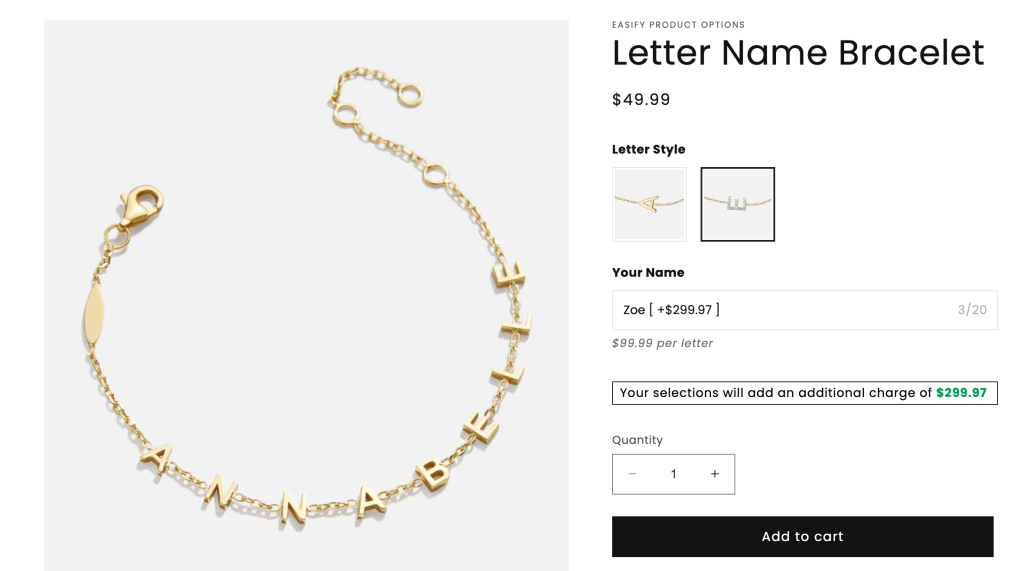
How to set up Add-on Price #
1. For Options Without Option Values #
Applies to: Text Box, Text Area, Number Box, Switch, File Upload, Dimension, Font Picker, Date Picker, Time Picker, Color Picker, Date Range, Quantity.
Steps:
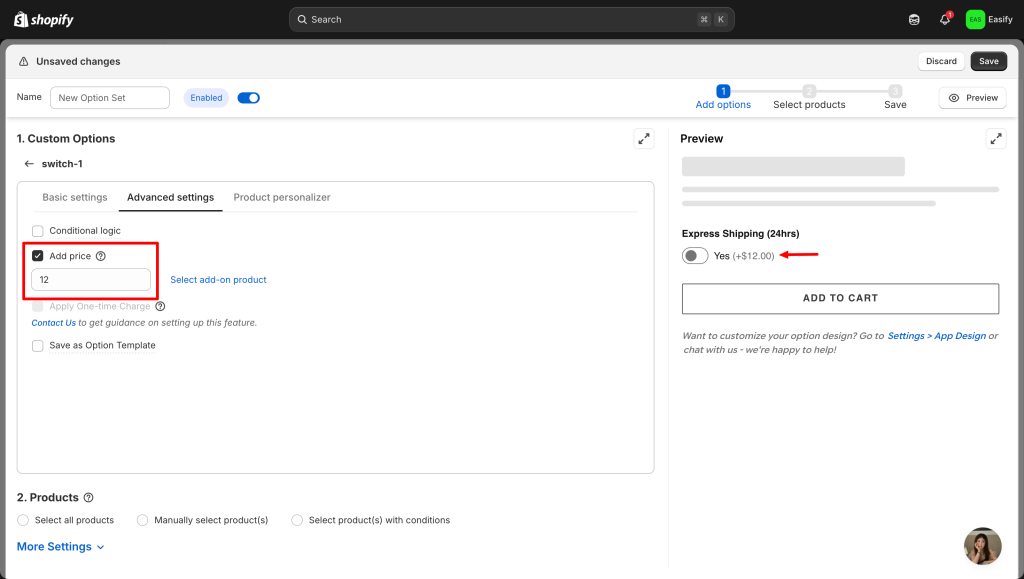
- Open the Advanced settings tab of the option.
- Check the “Add price” box.
- Set the price: Enter your desired surcharge amount in the text field.
💡 Use Case:
- Custom Engraving: Charge a flat $10 fee for any text entered into a Text Box for personalizing a piece of jewelry.
- Priority Processing: Add a $15 surcharge when a customer toggles a Switch or Checkbox to request “Rush Handling” for their order.
2. For Options With Option Values #
Applies to: Dropdown, Checkbox, Color Swatch, Image Swatch, Button, Radio Button, Product List.
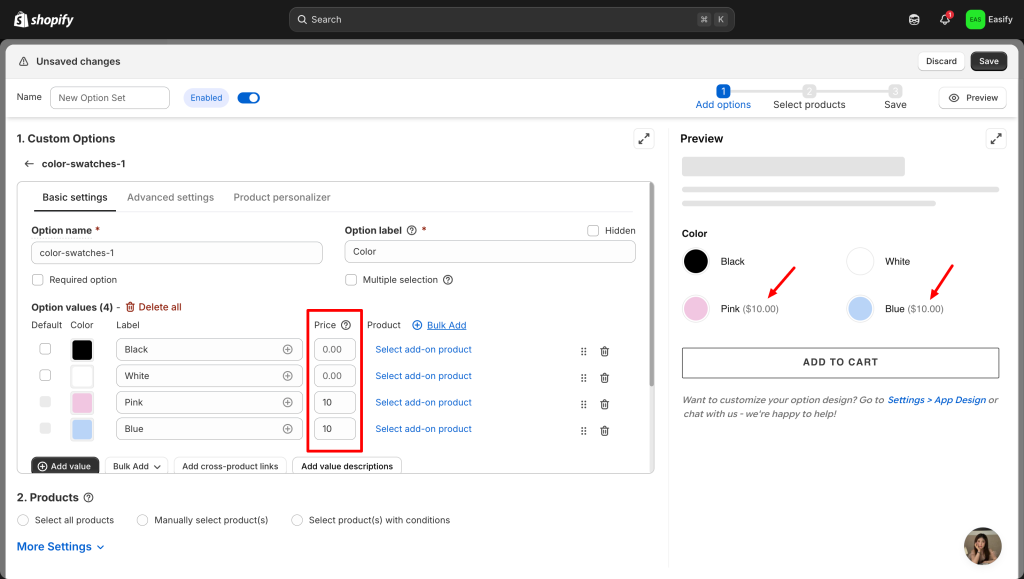
You can set prices directly in the Basic settings tab. Locate the Price field next to each option value and enter the specific surcharge for that selection.
💡 Use Case:
Exclusive Color Variants: For a Color Swatch, add a small fee for exclusive colors like Pink, Blue (+$10) while keeping Black, White at the original price.
Special Pricing Types #
Formula-based Pricing #
Two option types support dynamic price calculation:
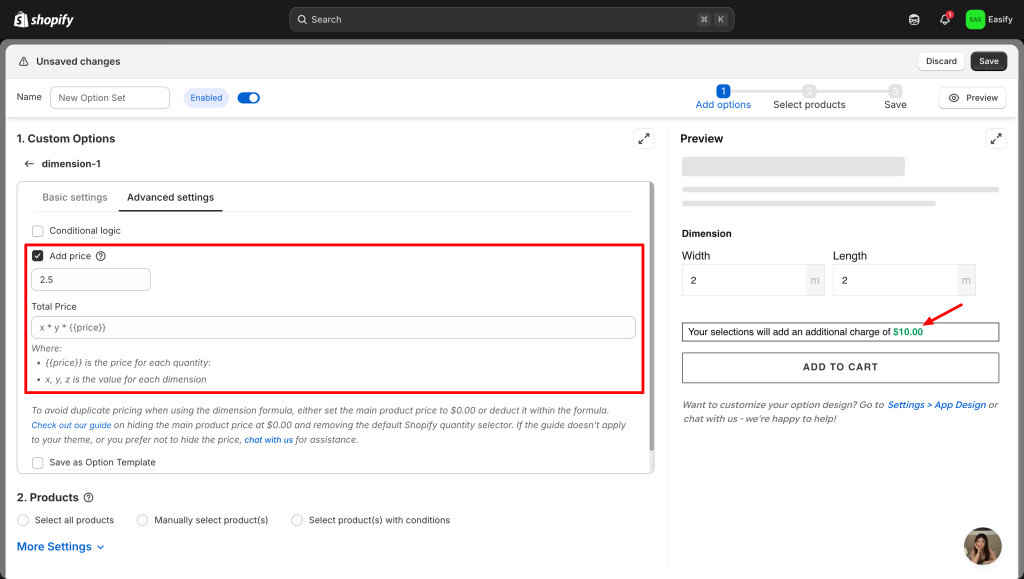
1. Dimension: Calculates price based on user input (e.g., width x height).
💡 Use Case:
Custom Wallpaper (Area-based): If you sell wallpaper at $2 per square foot, the app automatically calculates the price based on the customer’s wall size using the formula Width x Height x 2.
Fabric by the Inch (Length-based): For high-end textiles sold by length, the app ensures you get paid for the exact amount needed by calculating Length x Price per inch.
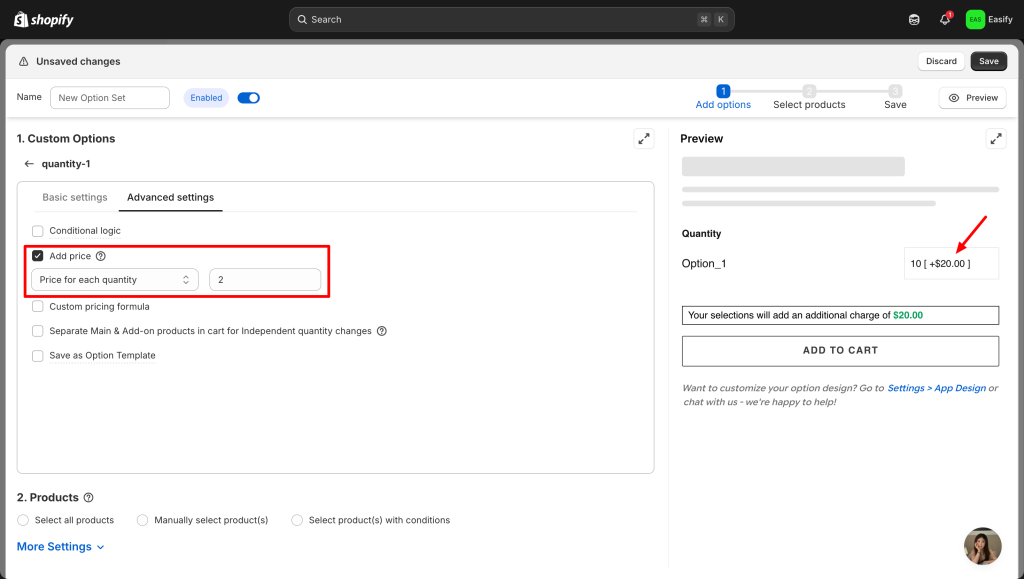
2. Quantity: Calculates price when “Price for each quantity” is enabled.
Text Box Pricing #
To set add-on price for text box, you need to:
- Select your Text Box
- Go to Advanced Settings tab
- Enable “Add Price”
Then, you can select one of these three ways to charge:
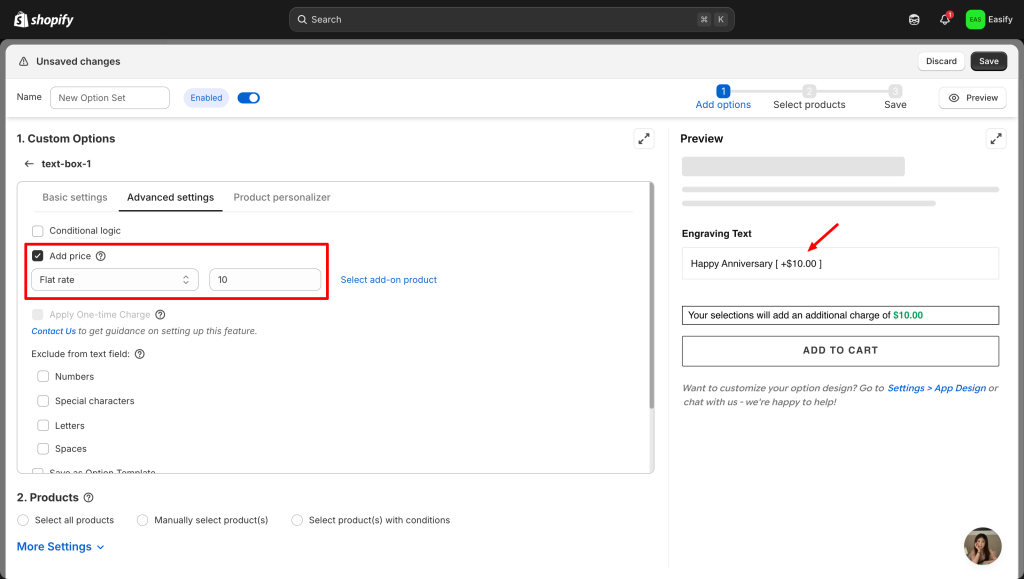
1. Flat rate: One price regardless of the text length. #
Ideal for a Fixed Engraving Fee. Whether the customer types “Joy” or “Happy Anniversary” on a watch, they are charged a single $10 fee for the service.
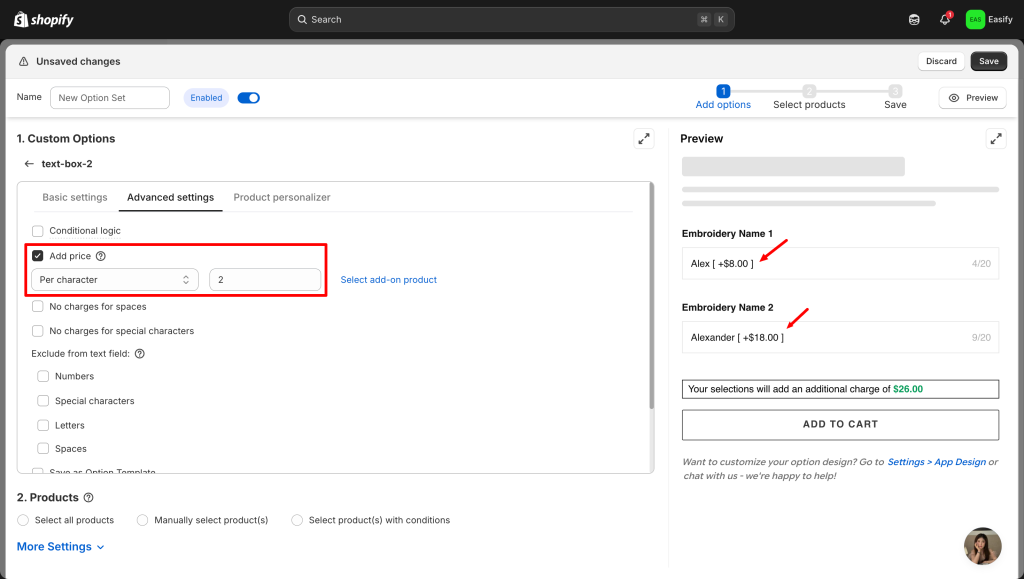
2. Per character: Charge based on the number of characters. #
Perfect for Custom Embroidery. If you charge $2 per letter to stitch a name onto a jacket, a customer typing “Alex” would be charged $8, while “Alexander” would be charged $18.
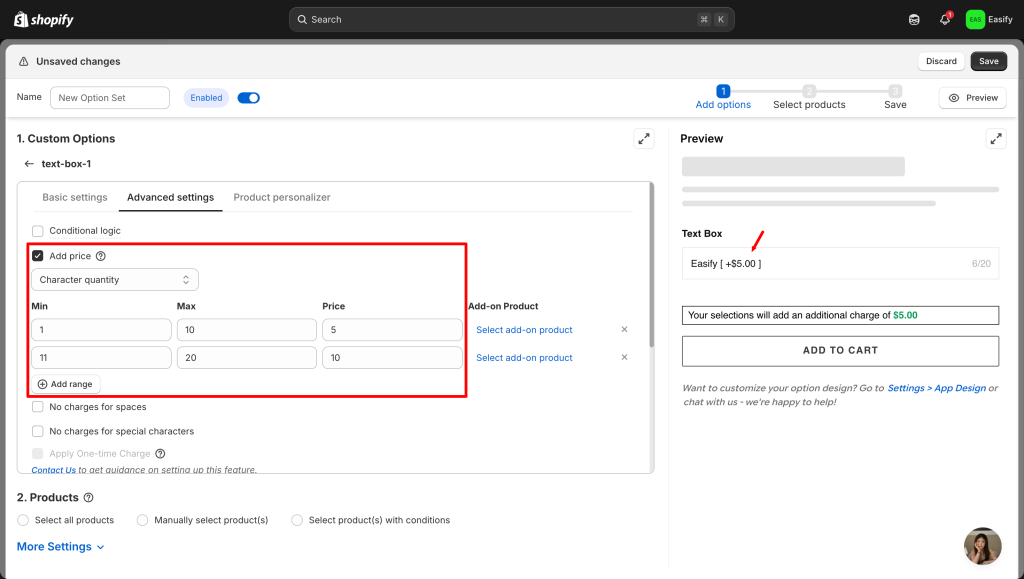
3. Character Quantity: Charge different prices for specific length ranges. #
You can set price ranges where 1-10 characters cost $5, while 11-20 characters cost $10, giving customers a clear price expectation based on the length of their message.
One-time Charge #
By default, Add-on Prices are multiplied by the quantity of the main product. For example, if a “Gift Wrap” fee is $5 and a customer buys 3 shirts, they will be charged $15.
However, if you want to charge a fee only once regardless of the quantity, you can use the One-time Charge feature.
💡 Use Case:
- Flat Gift Wrapping Fee: Charge a single $5 fee to wrap the entire order together, whether the customer buys 1 item or 10.
- Design Setup Fee: Charge a one-time $20 fee for a custom logo setup, even if the customer orders 50 identical t-shirts.
If you need to use One-time Charges, please contact our support team via in-app live chat! Since this feature requires a specific configuration from our side, our team will guide you through the setup and ensure it works perfectly for your store.
Need Assistance? #
If you run into any challenges while hiding your products, feel free to reach out to us for assistance through our convenient in-app live chat. We’re here to help!
