Managing products with numerous customization choices can often lead to a cluttered and overwhelming product page. When customers are faced with too many options at once, it becomes difficult for them to navigate and make a quick decision.
Easify Product Options solves this by providing the Option Group feature. It allows you to bundle related choices together into organized, expandable sections, ensuring your product page stays clean and professional while still offering all the necessary customizations.
What is an Option Group? #
An Option Group acts as a container for your selections, allowing you to collect different option types under one unified heading.
- Better Visibility: You can use the expand and collapse feature to save vertical space on your page, which significantly improves the overall layout and keeps the focus on what matters.
- Organized Categorization: This feature helps you group options into logical sections. For example, you can separate “Personalization Details” from “Add-on Services” so customers aren’t confused by a single long list.
- Flexible Combinations: Since you can mix and match multiple option types within a single group, you have the freedom to build the exact configuration your product requires without technical limitations.
Demo #
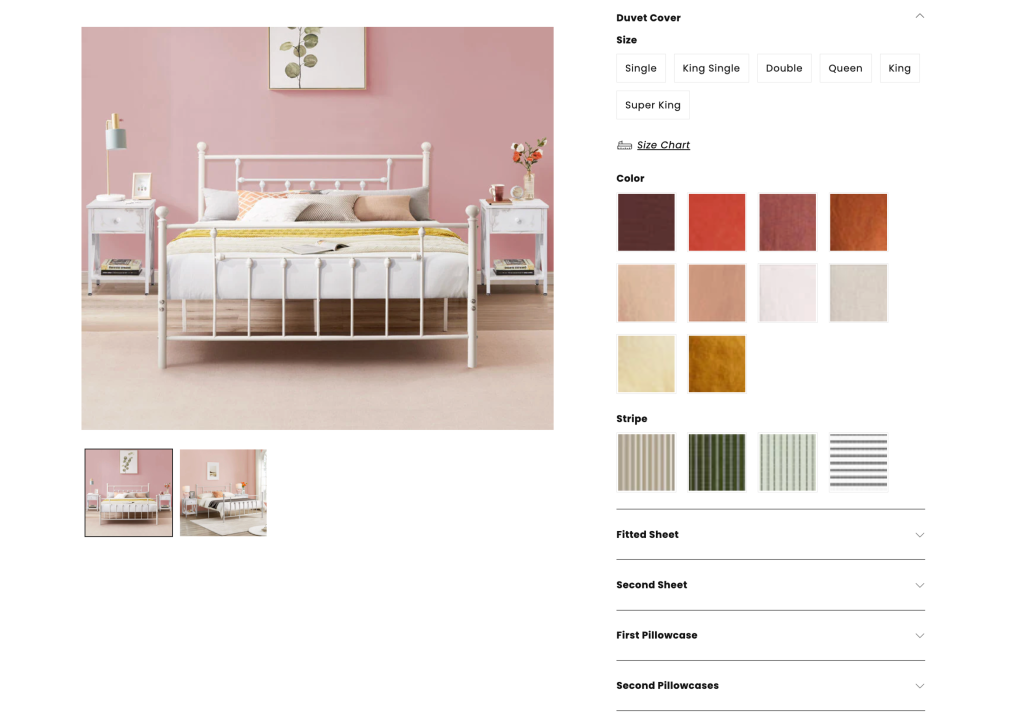
How to Set Up an Option Group #
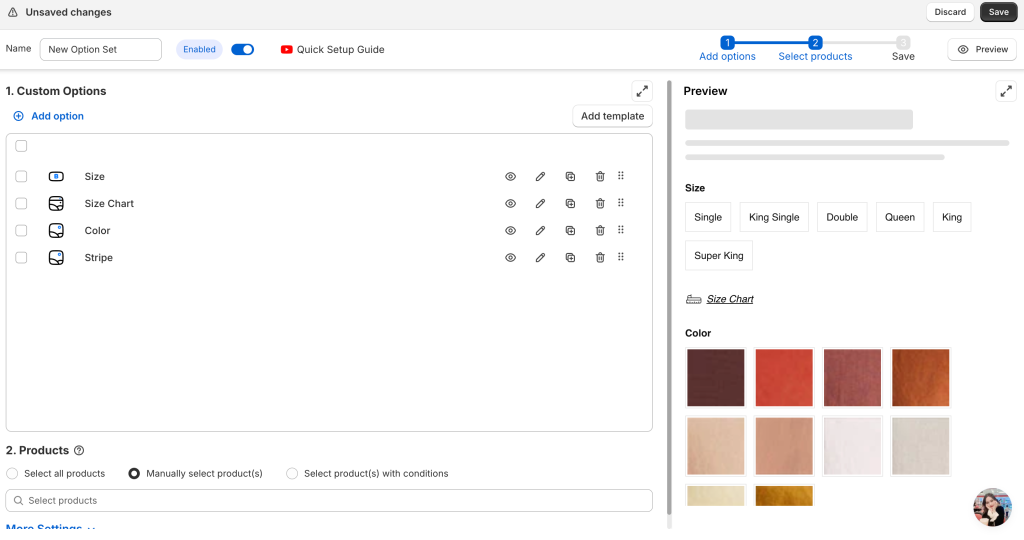
Step 1: Create your options #
Start by creating all the individual options you need for your product.
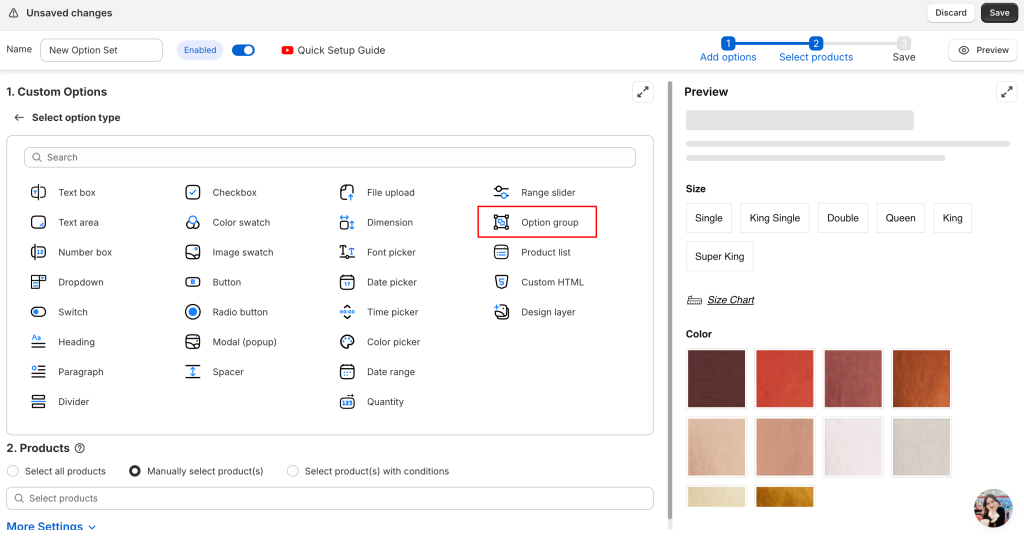
Step 2: Create a group #
Add an Option Group to your set:
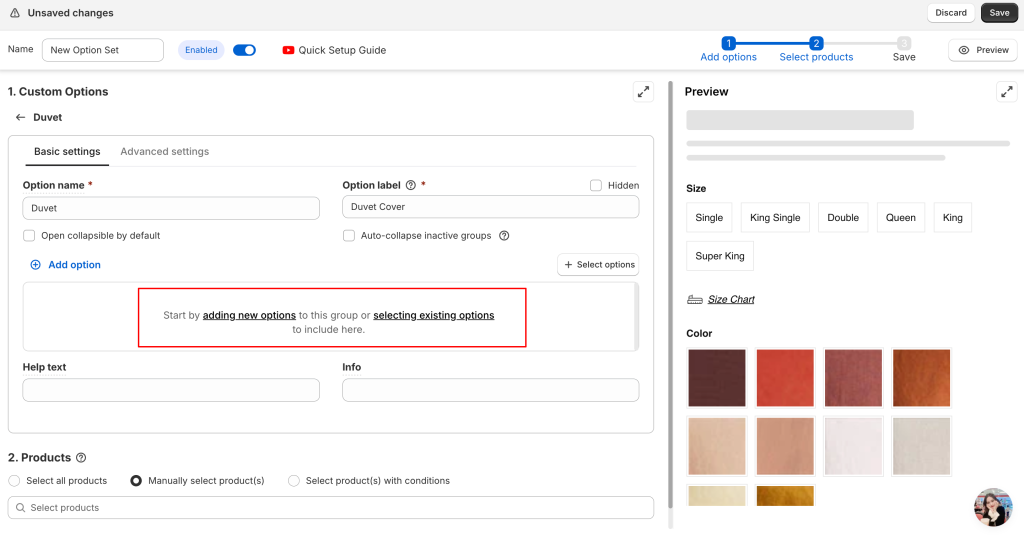
You have two ways to fill your group:
- Add new options: Create brand-new options directly inside the group.
- Select existing options: Choose from the options you have already created and move them into the group.
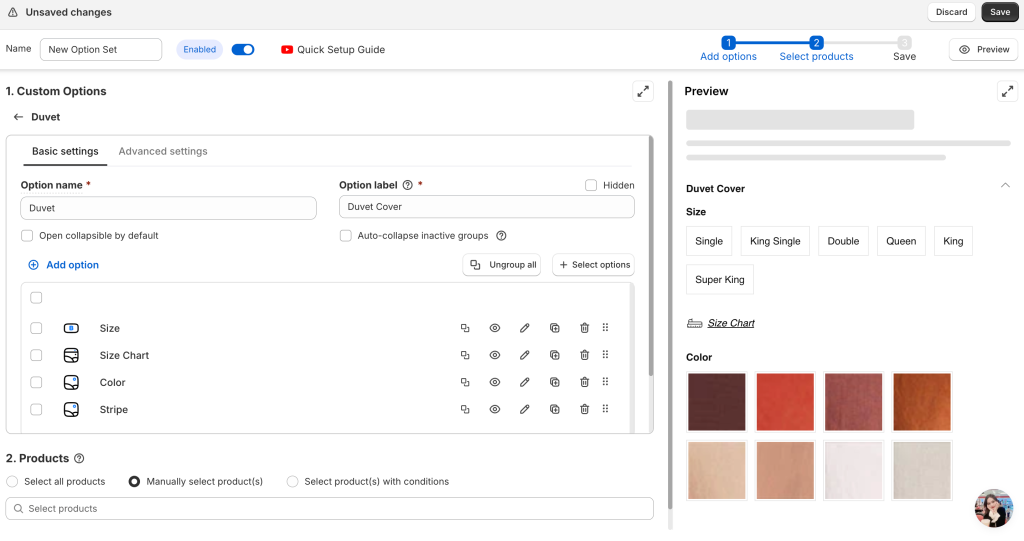
Step 3: Finalize and Save #
Complete any remaining settings for your Option Set, assign it to your products, and click Save to make the changes live on your store.
How to ungroup options #
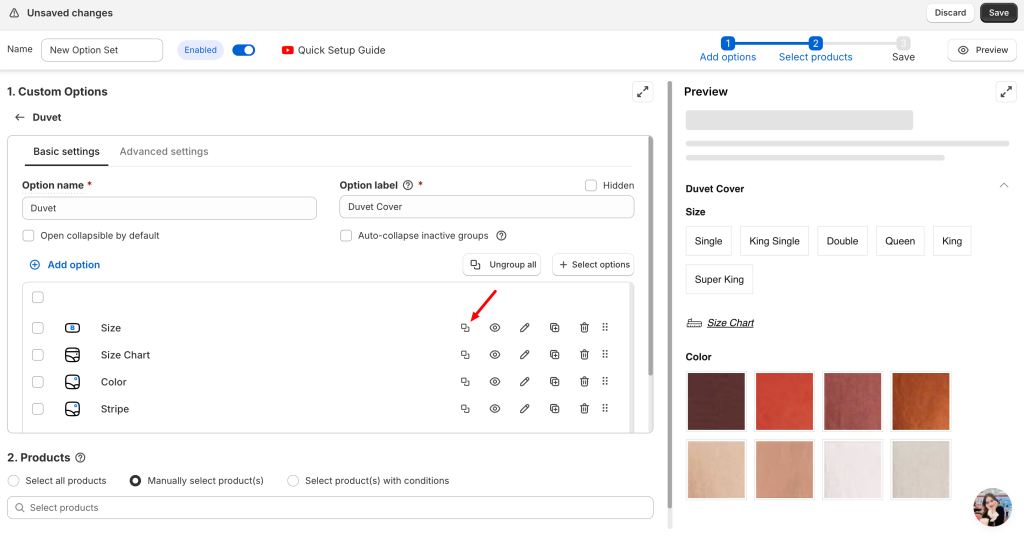
If you want to move a specific option out of a group, click the Ungroup icon next to that option.
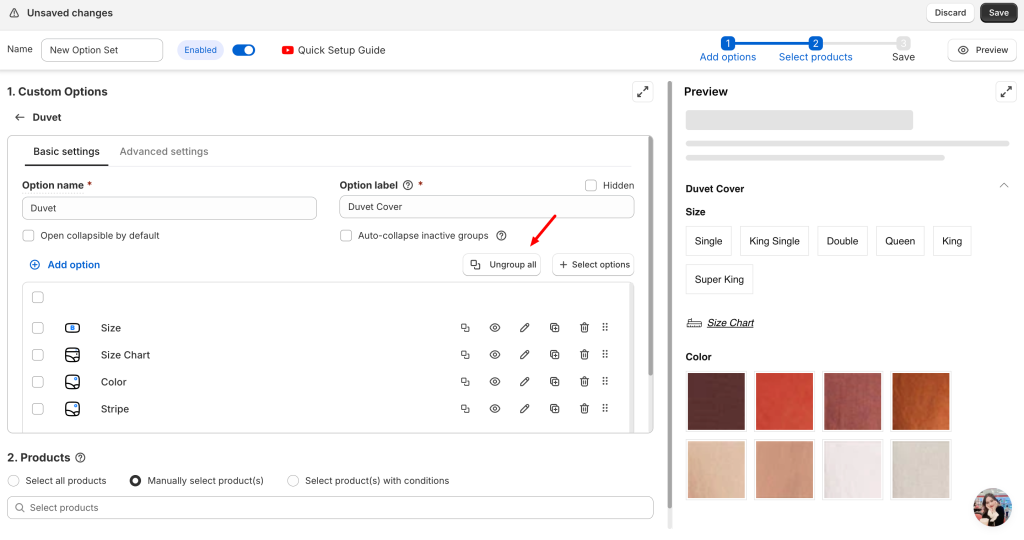
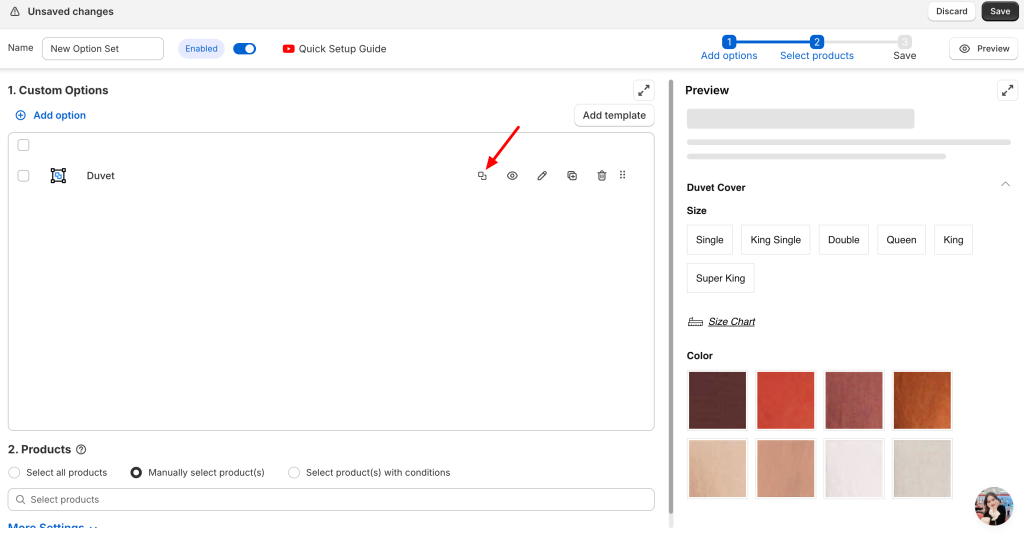
If you want to remove all options at once, use the Ungroup button in the option or Ungroup icon in the list of your group to move everything back to the main list.
How to set expand or collapse #
You can control how your groups behave on the product page within the Option Group settings:
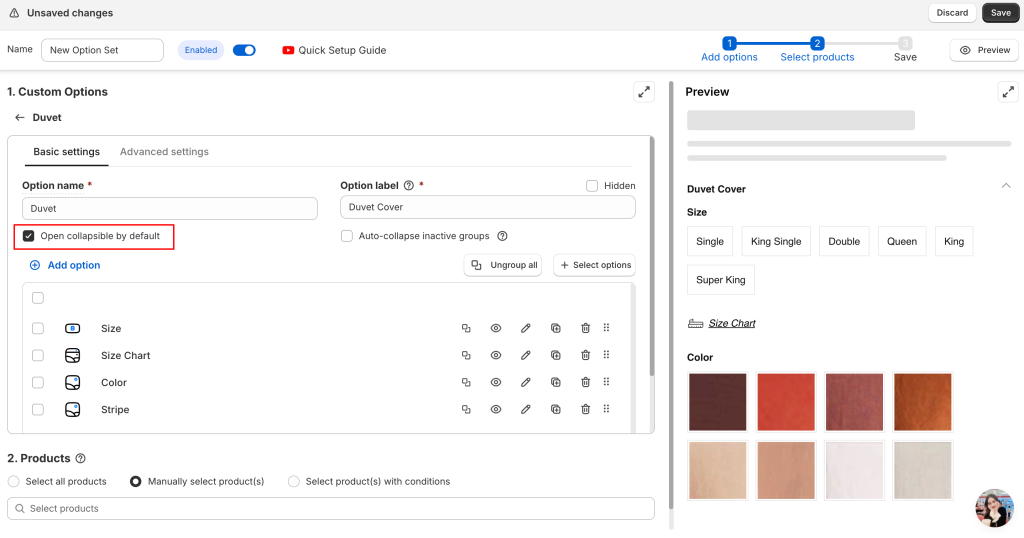
- Open by default: Tick the Open collapsible by default checkbox if you want the group to be expanded when the page loads.
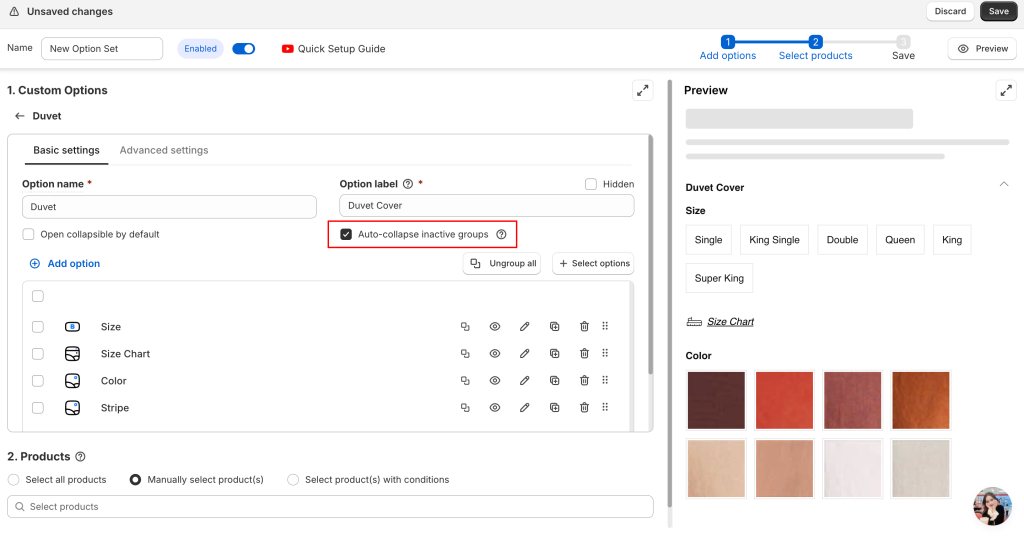
- Auto-collapse: If you have multiple groups and want to keep the page tidy, enable Auto-collapse inactive groups. This will automatically close the current group whenever a customer opens a different one.
Need assistance? #
If you have any questions or encounter issues while following this guide to set up option value images, don’t hesitate to reach out through our in-app live chat. We’re always here to help!
