Table of Contents
What Is This Feature? #
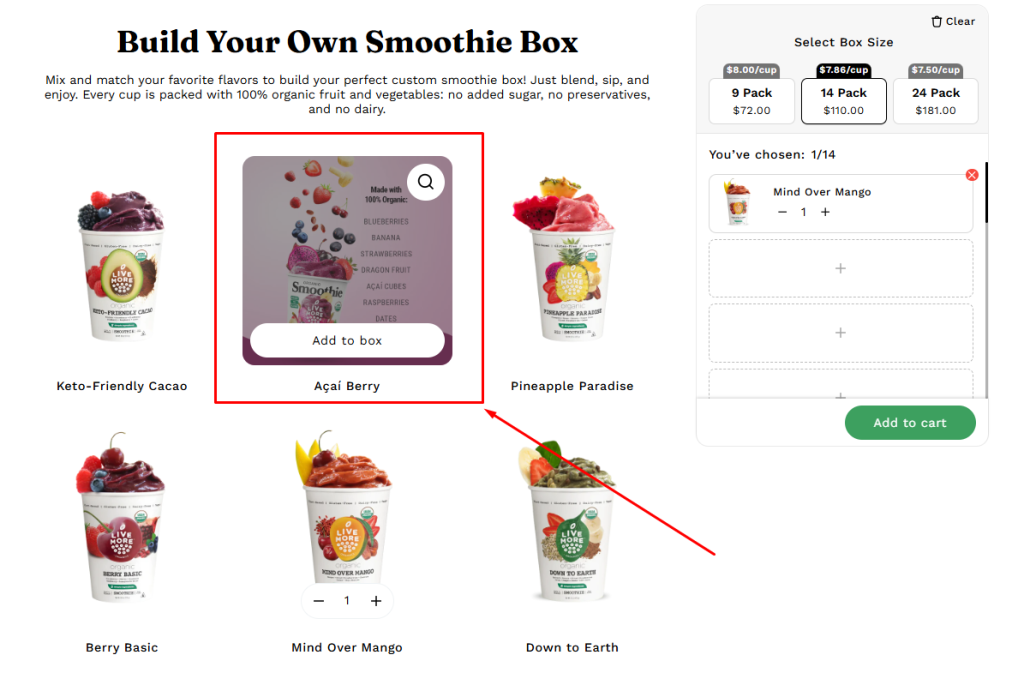
The Hover Second Image feature allows you to display a second product image when customers hover over an item in the product list in the box.
👉 This creates a more dynamic shopping experience by showing different angles, lifestyle shots, or close‑ups without requiring customers to click into the product page.
Demo Example:
- Build Your Own Smoothie Box
- When customers hover over the product image (on desktop) or tap the image (on mobile), the second image is displayed.
How to Enable Hover to Show Second Image #
Step 1. Prepare Your Images #
- Upload at least two images per product in your Shopify product admin.
- The first image will be the default (shown in the product list).
- The second image will be displayed on hover.
Step 2. Configure in Theme Settings #
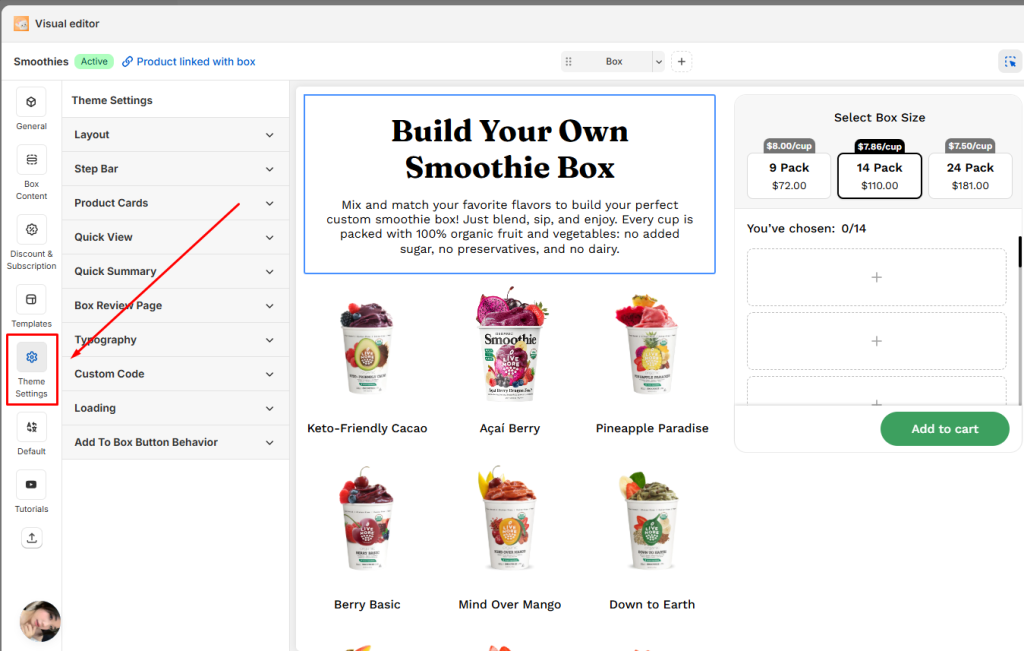
- Go to your Visual Editor and open the Theme Settings tab.
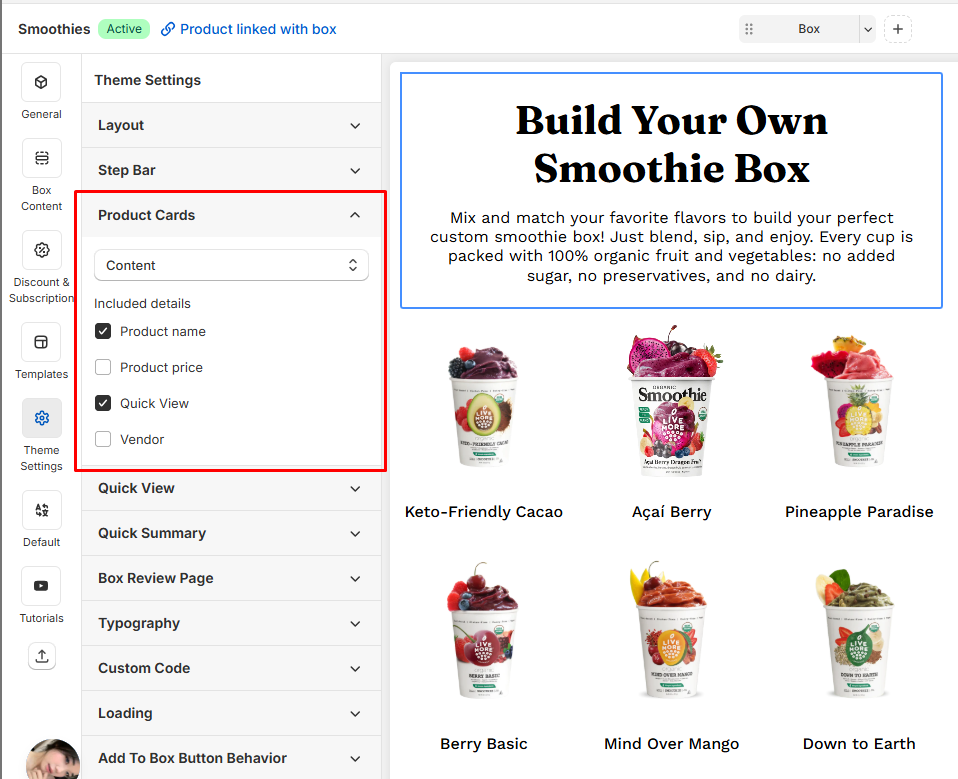
- Navigate to the Product Card tab.
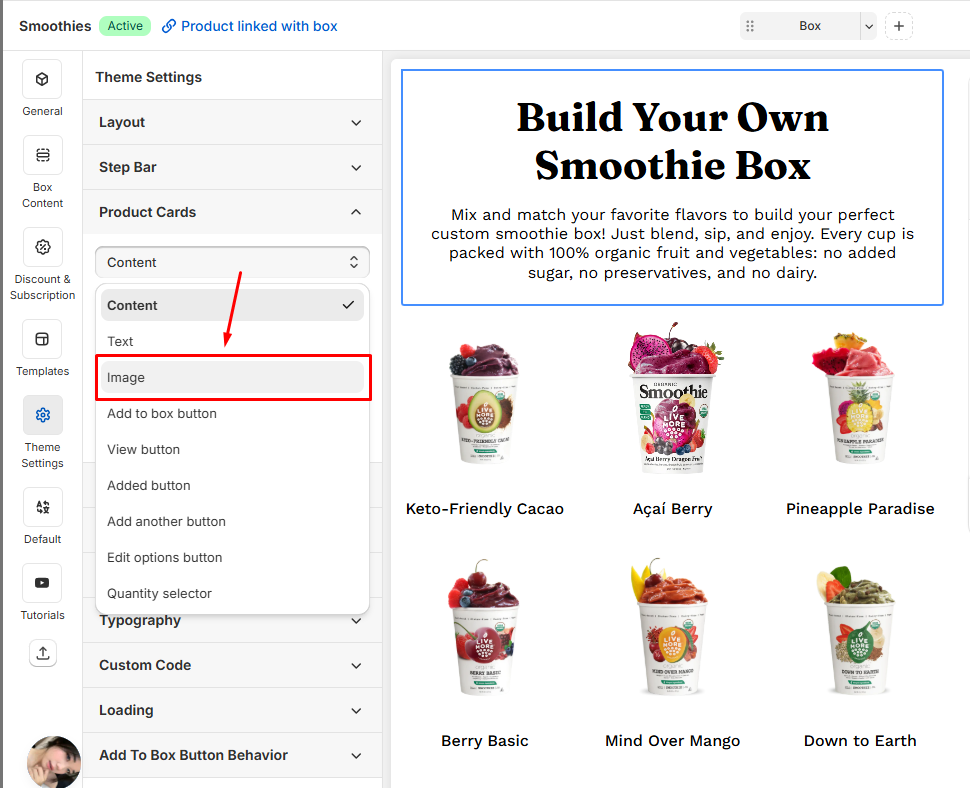
- Change the setting from Content to Image.
- Enable the switch: Show second image on hover.
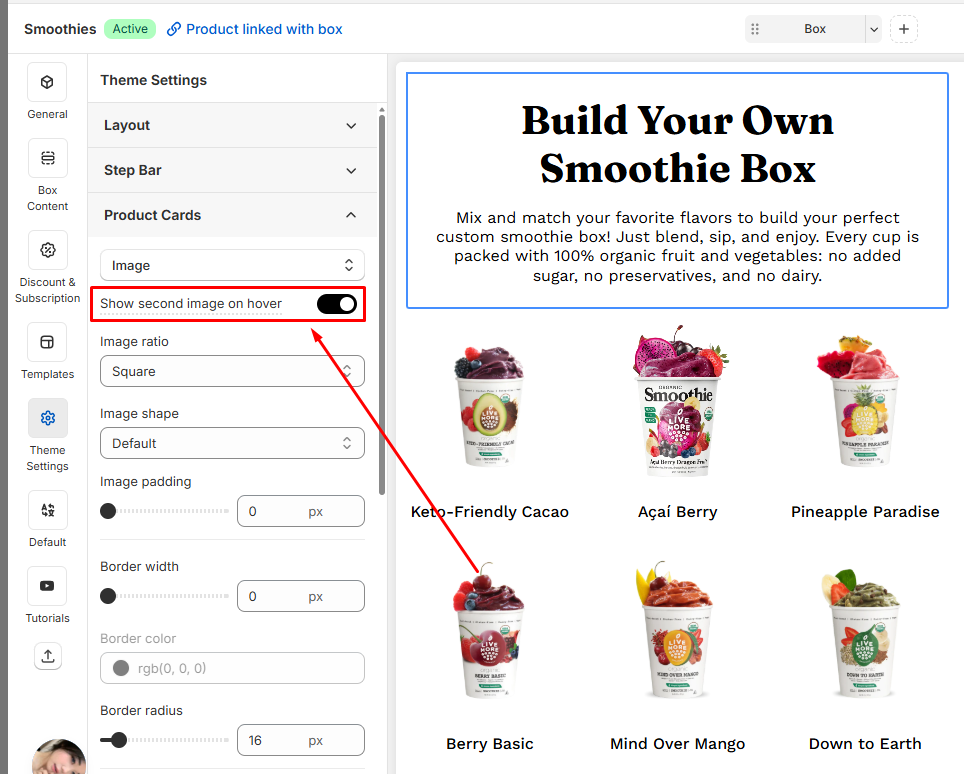
- Save the box to preview or view it in your store.
📝Note: This feature is unavailable when ‘Display variants as individual products’ is enabled for your product list
💬 Need Help? #
If you run into any issues or have questions, feel free to reach out via our in-app 24/7 live chat. We’re always here to help!
