The Add Discount feature lets you offer a discounted price on add-on price or add-on products of custom field options in your box builder. When a discount is applied, customers will see the original price with a strikethrough alongside the discounted price — making the savings immediately visible.
⭐️ Note: Discounts are currently available for Custom fields only.
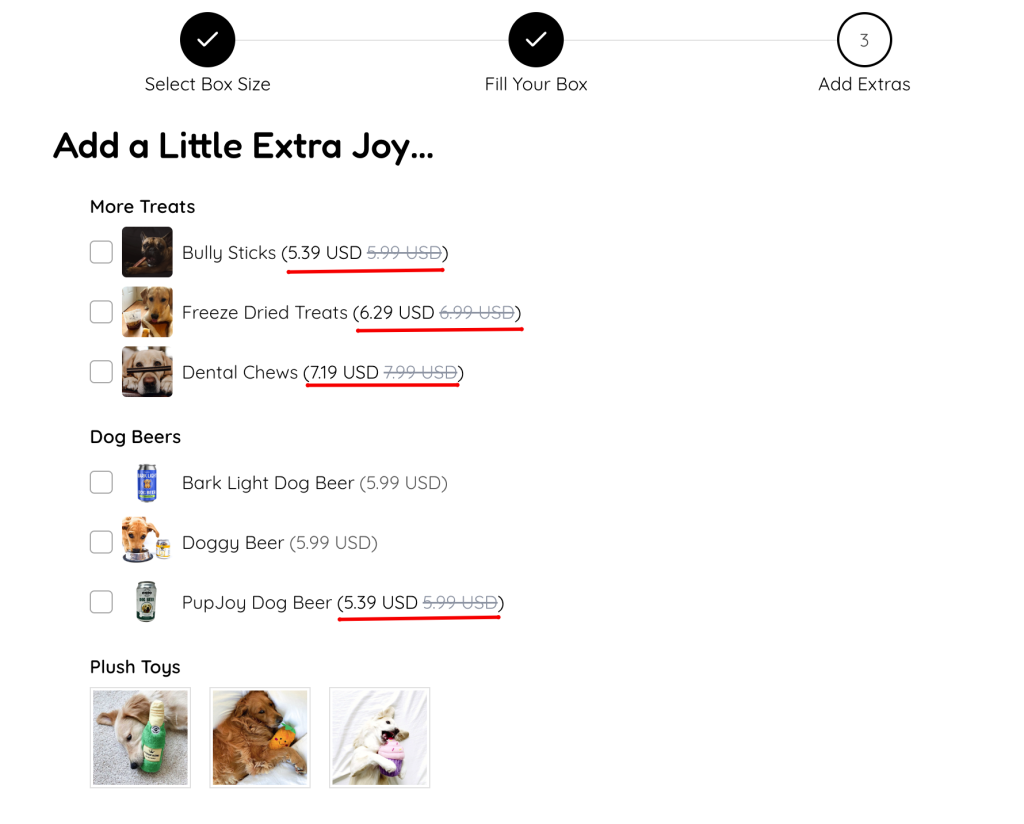
Why Use This Feature? #
The “Add Discount” feature is designed to help store owners create more compelling offers directly within their box builder custom fields:
- Drive More Add-Ons: Displaying a discounted price alongside the original strikethrough price creates a sense of value and encourages customers to add more options to their box.
- Flexible Discounting: You can apply unique discounts to individual option values (e.g., discount “Bully Sticks” differently from “Dental Chews”), giving you full control over your pricing strategy.
- Seamless Customer Experience: Customers see the savings instantly: the discounted price is shown prominently with the original price crossed out, making the deal obvious without any extra steps.
How to Add Discount #
The discount settings appear in slightly different places depending on the type of custom field you’re working with.
For Fields with Option Values #
📌 Applies to: Dropdown, Radio Button, Image Swatch, Checkbox, Button
These field types have an Option Values table where each option can be discounted individually.
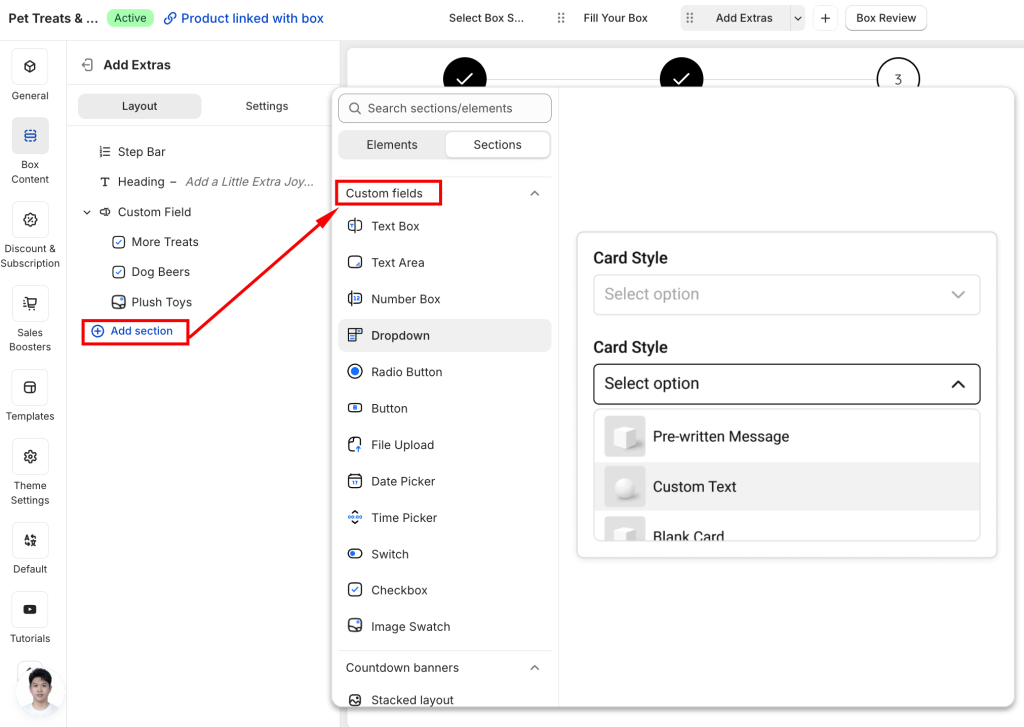
- Add a custom field: In the Visual Editor, add a custom field
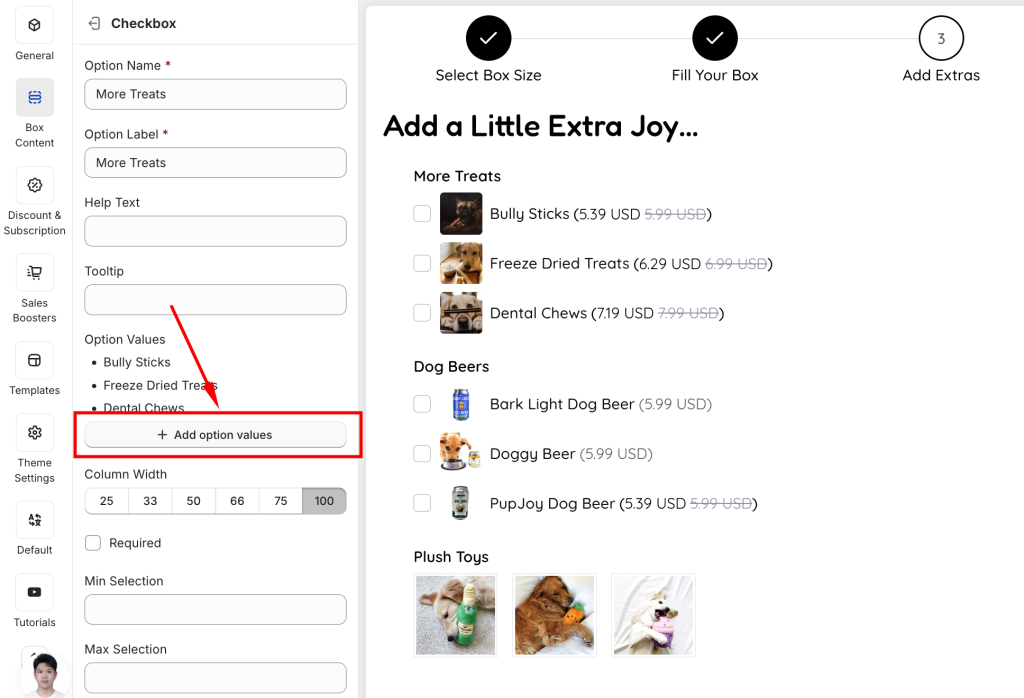
2. Scroll to Add option values button. You will then see a popup containing all option values.
3. Set the discount for each option:
- In the option row you want to discount, locate the Discount type column.
- Choose Percentage or Fixed amount from the dropdown.
- Enter the discount amount in the Discount value field.
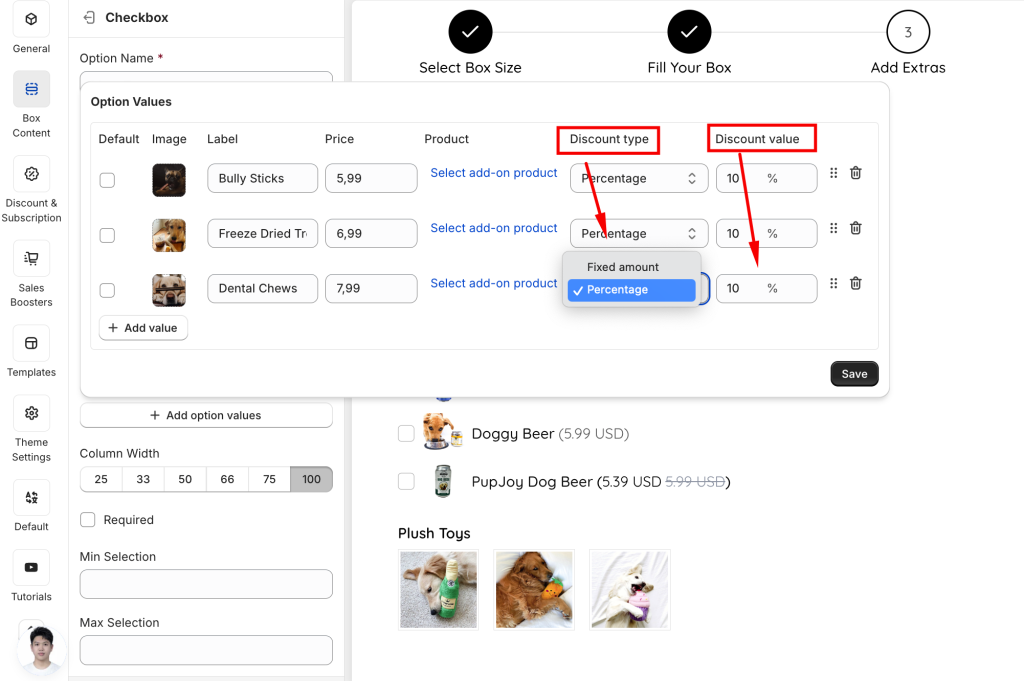
4. Click Save once you’ve configured discounts for all desired options.
5. Don’t forget to Save your Box as well!
Repeat step 2 for each option value you want to discount. You can set different discount amounts for different options within the same field.
For Fields without Option Values #
📌 Applies to: Text Box, Text Area, Number Box, Date Picker, Time Picker, Switch, File Upload
These field types include the discount setting alongside the price field.
- Enable discounting:
- In your custom field settings, find the Add price section.
- First, you need to add the option’s original price
- Then check the Add discount checkbox next to it.
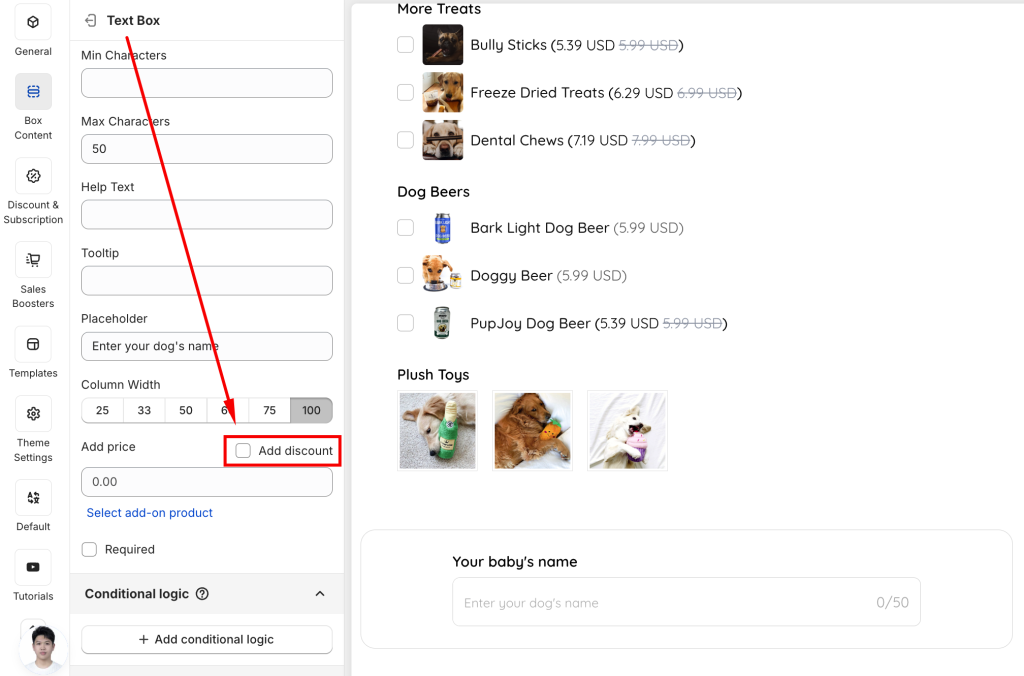
2. Configure the discount:
- Select Percentage or Fixed amount discount type
- Enter the discount value.
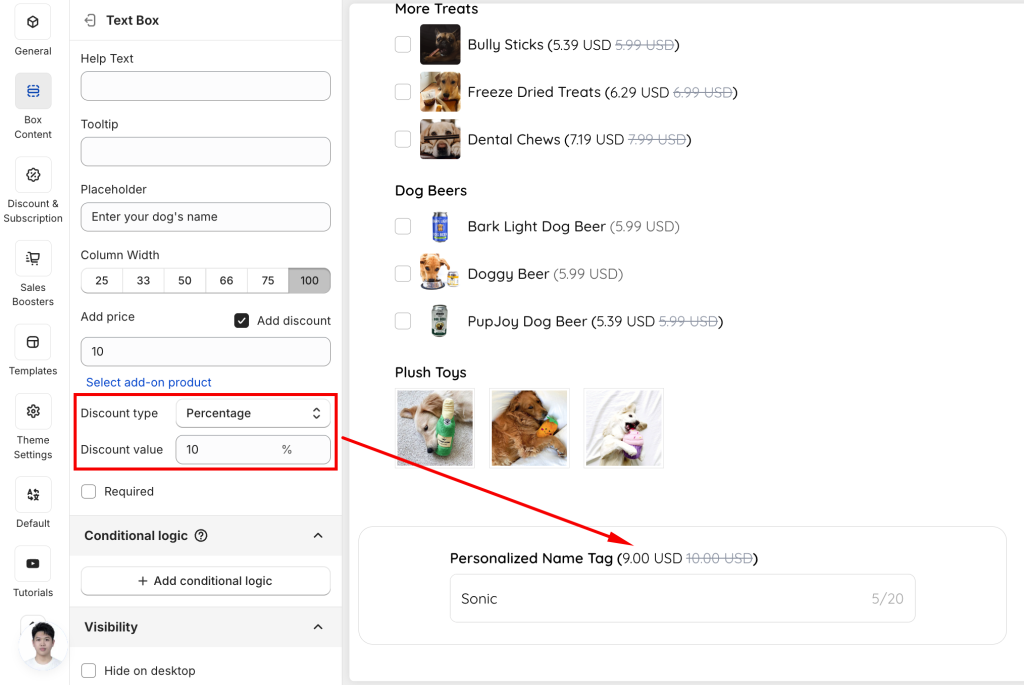
2. Don’t forget to Save your Box as well!
What Customers See #
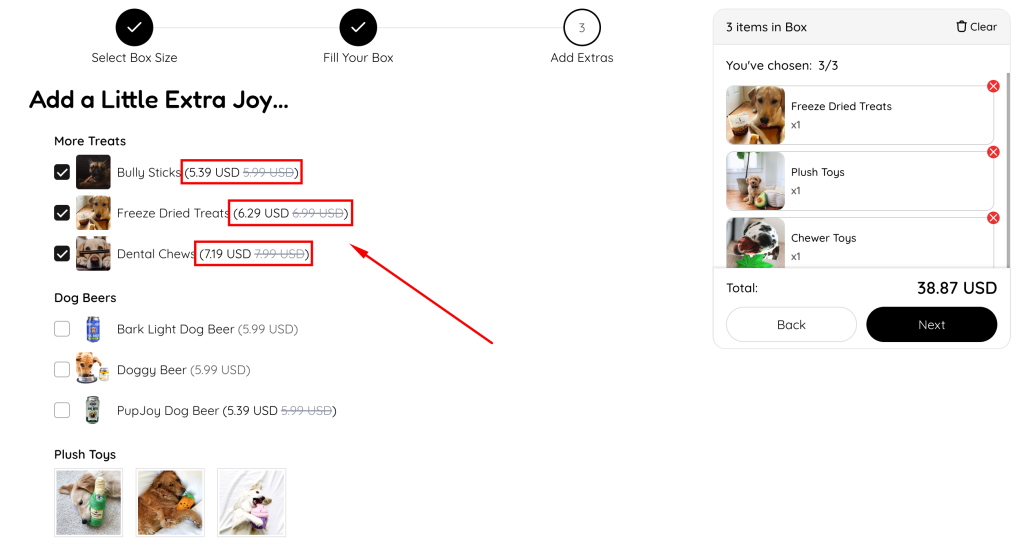
Once a discount is set up, customers building their box will see:
- The discounted price displayed as the active price for that option.
- The original price shown with a strikethrough beside it (e.g., 5.39 USD
5.99 USD), making the saving immediately clear.
💬 Need Assistance? #
If you’re unsure how to configure discounts for your setup, we’re here for you 24/7. Reach out via the in-app live chat and we’ll make sure everything works exactly how you want it.
