Your inventory sync won’t work on your storefront until the app is activated. Follow our detailed guide below for the full walkthrough.
Activate the App Embed from Shopify Admin #
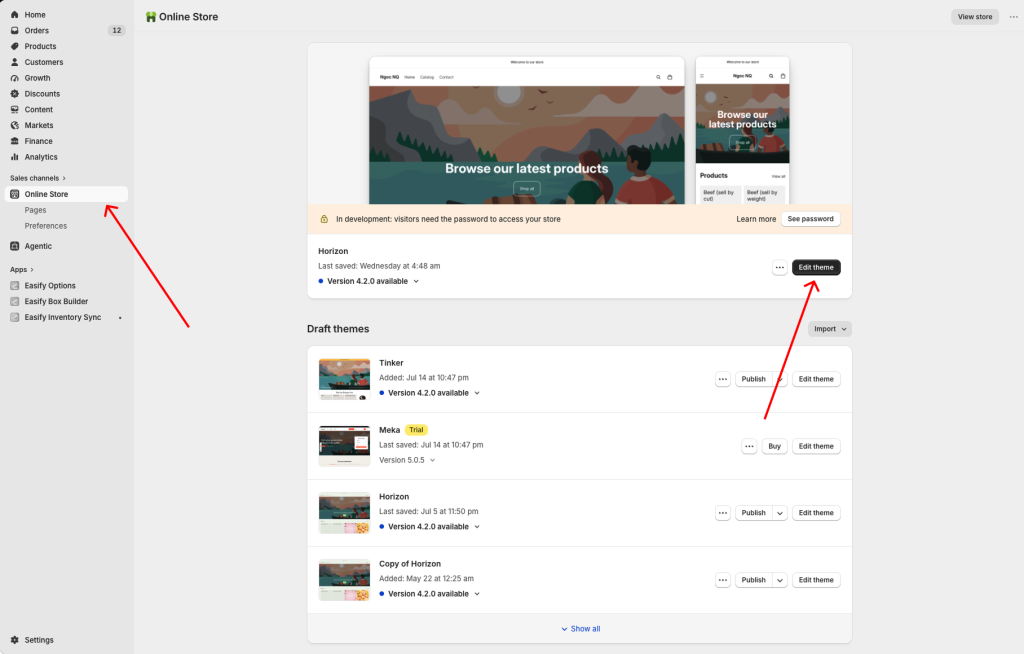
- Go to the Shopify Admin and select Sales Channels > Online Store
- Click on the Edit theme button to access your published theme.
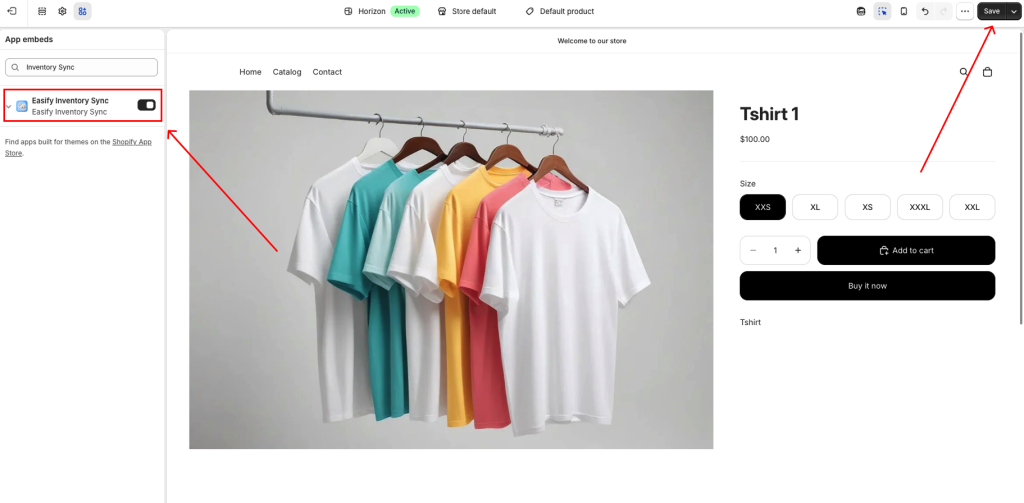
- Navigate to the App embeds tab in the left navigation menu.
- Ensure the Easify Inventory Sync app is enabled and click the Save button to finalize the activation process.
Notes:
In case you switch to a new theme in the future, remember to reactivate the app on the new theme using the same activation steps outlined above.
Failure to do so will result in the app being disabled on the new theme, and any created sync programs will not be visible.
Deactivate the App Embed #
If you need to temporarily disable the syncing from the storefront, you can turn the app embed off.
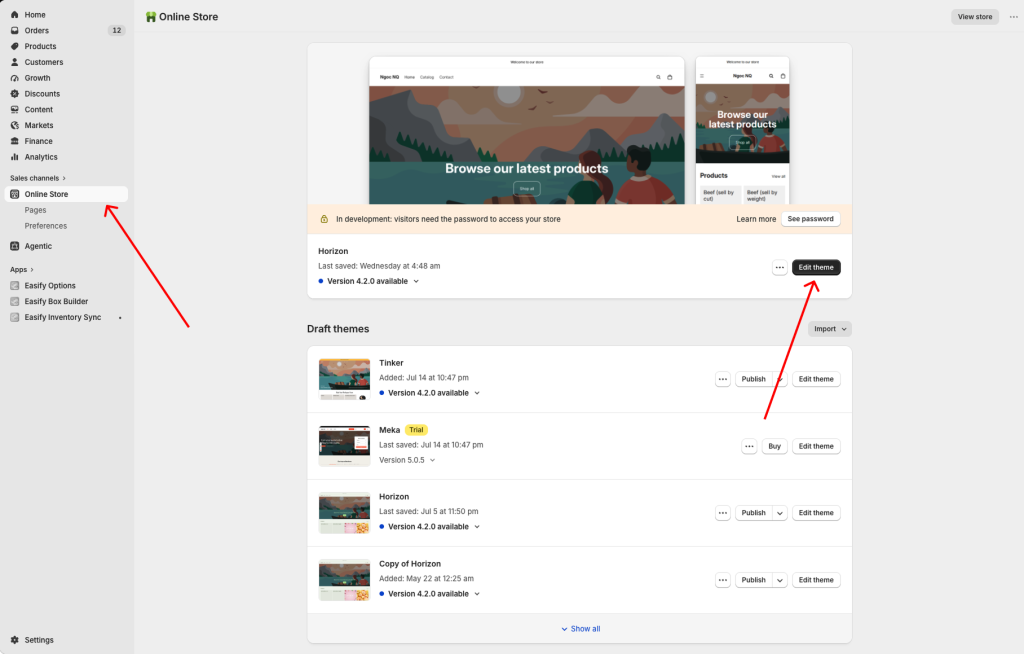
- First, open the Theme editor in your Shopify Admin
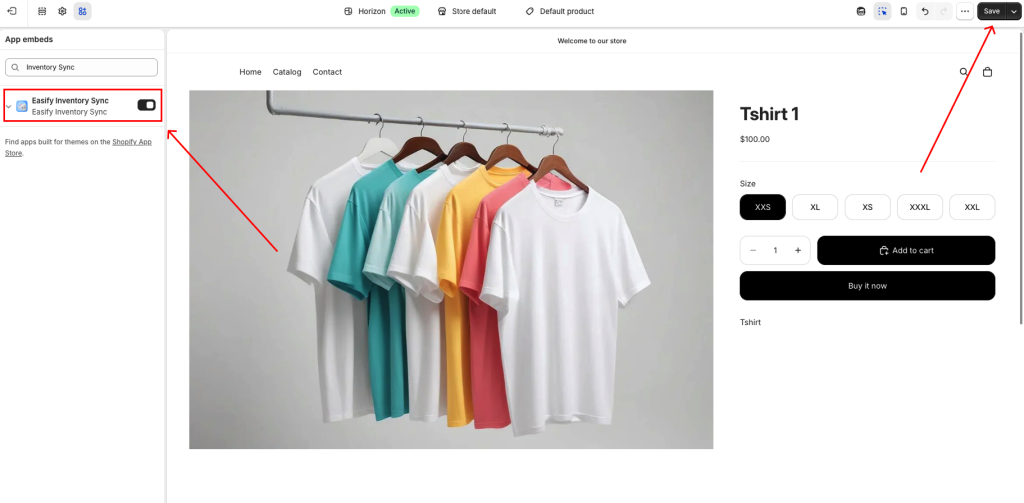
- Go to the App Embeds tab
- Find the Easify Inventory Sync app embed, and switch it off.
- Click Save
Your sync will stop working on the storefront right away. None of your other settings or configurations will be affected, so turning it back on later brings everything back exactly as it was.
Need Assistance #
If you encounter any difficulties during the app activation process, don’t hesitate to contact us for assistance. You can reach out via our in-app live chat, submit your request through our contact form, or simply email us at support@tigren.com. We’re here to help!
