Conditional Logic lets you create smart, personalized product flows in Easify Box Builder. Instead of showing the same options to every shopper, you can set rules: if the customer chooses X, then show Y. This makes the shopping experience smoother, more relevant, and more engaging.
👉 In this guide, we’ll deep dive into the step‑by‑step configuration of Conditional Logic, showing you exactly how to set it up in your store.
If you’d prefer a broader overview and want to explore real‑world use cases, check out our Overview Guide to Conditional Logic.
What Can Be Configured #
With Conditional Logic, you can decide what your customers see (or don’t see) as they build their box.
| What you can show/hide | What that means |
| Steps | You can show or hide a whole step in the builder, including everything inside. |
| Sections | You can show or hide a section group within a step, such as a heading paired with a product list. |
| Individual Elements | You can show or hide specific elements, such as: – Content: Headings, text, images, product lists – Custom fields: Dropdowns, radio buttons, checkboxes, text fields, file uploads… |
Scope of Conditional Logic #
- Conditional Logic can work within a step: You can set rules based on elements inside the same step.
- Conditional Logic can also work across steps. You can set rules based on elements in the previous or current steps.
💡Note: Conditional Logic can only depend on choices customers have already made (previous steps or elements above). It cannot depend on future choices that haven’t been selected yet.
How To Set Up Conditional Logic #
Step 1: Access Conditional Logic #
You can add Conditional Logic at different levels — steps, section groups or elements. Here’s how:
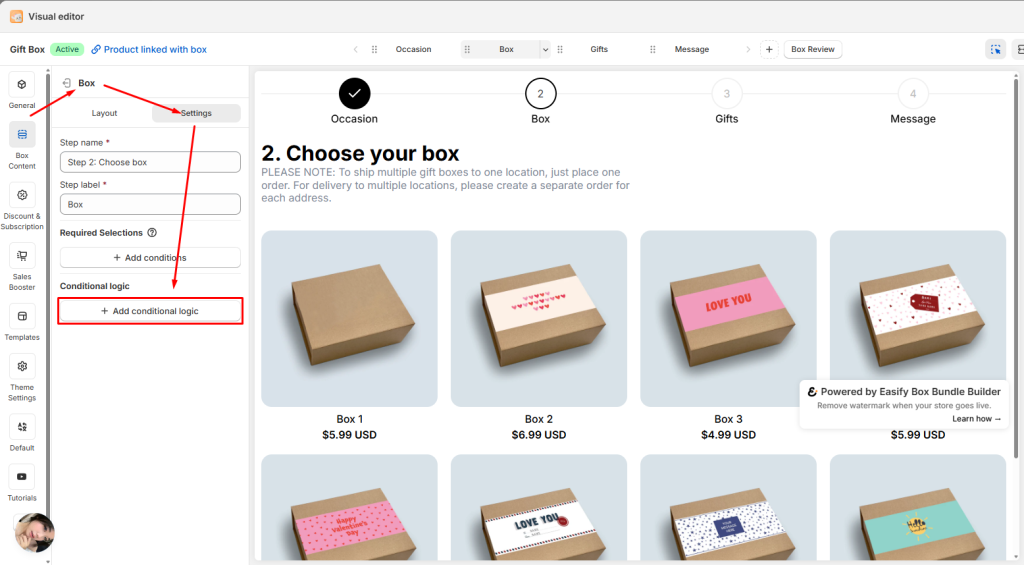
1. For a Step: Go to Box Content → Open the step you want to edit → In Settings, click Add Conditional Logic.
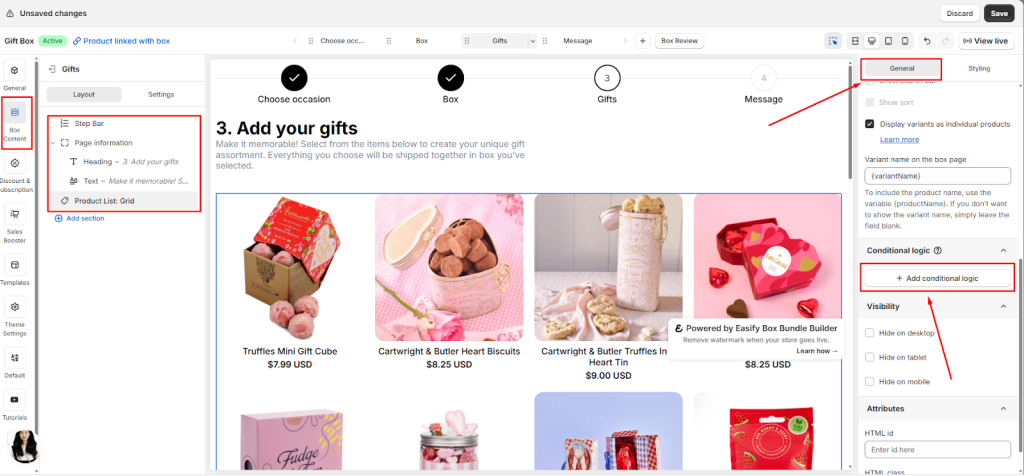
2. For an Element: Go to Box Content → Open the element you want to edit → In the General tab, scroll down and click Add Conditional Logic.
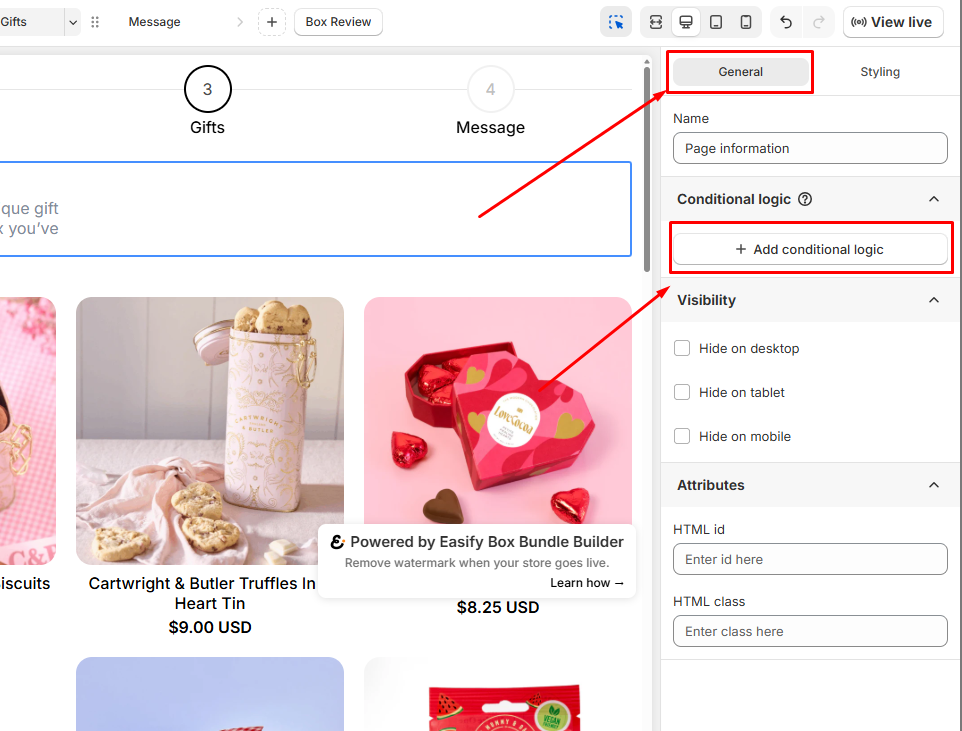
3. For a Section Group: Go to Box Content → Open the section group you want to edit → In the General tab, scroll down and click Add Conditional Logic.
Step 2: Set Show/Hide Rules #
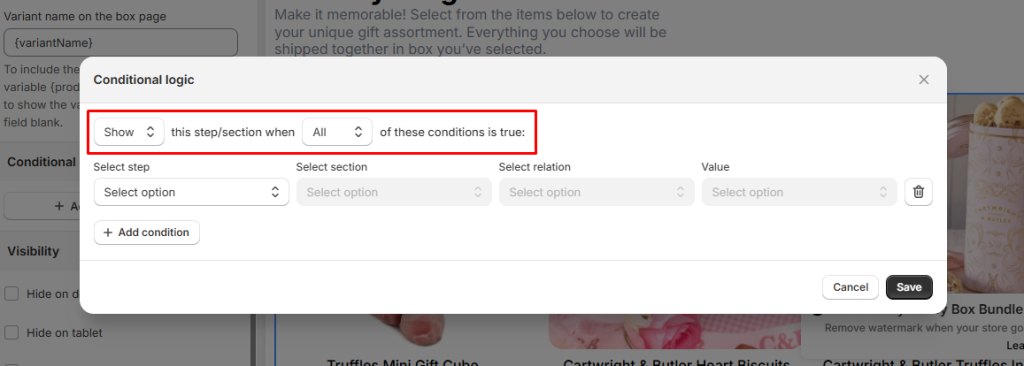
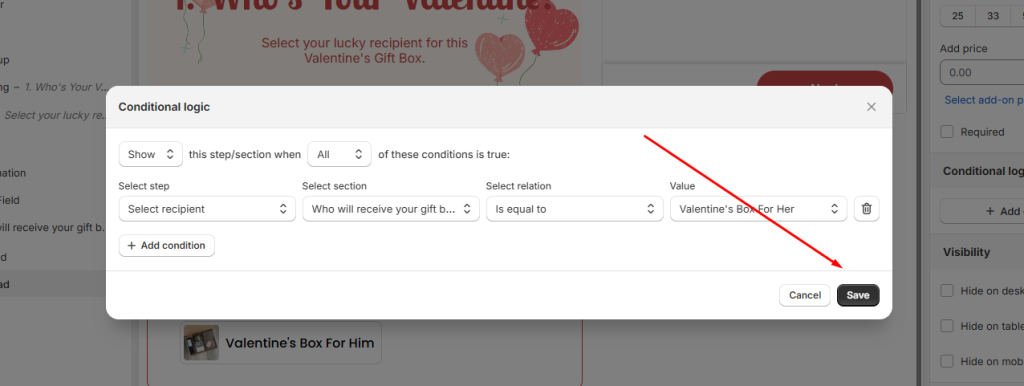
After clicking at Add conditional logic button, a popup will appear.
At the top of the popup, you’ll see this line:
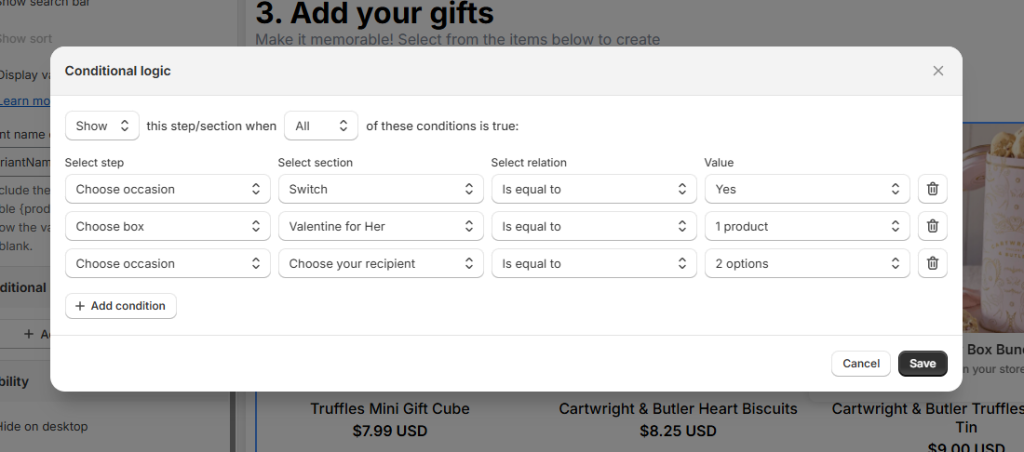
[Show/Hide] this step/section when [All/Any] of these conditions is true.
Here’s what it means:
- Show → The step/section starts off hidden. It will only appear once the condition is met.
- Hide → The step/section starts off visible. It will disappear once the condition is met.
You can add multiple conditions and decide how they work together:
- All (AND) → Every condition must be true for the rule to apply.
- Example: Show Step 2 only if the customer selects both “Large Box” and “Premium Sleeve.”
- Any (OR) → Only one condition needs to be true.
- Example: Show Step 3 if the customer selects either “Birthday” or “Holiday.”
Step 3: Define Your Conditions #
Next, use the condition table to define exactly what triggers the logic. Here’s how to do it step by step:
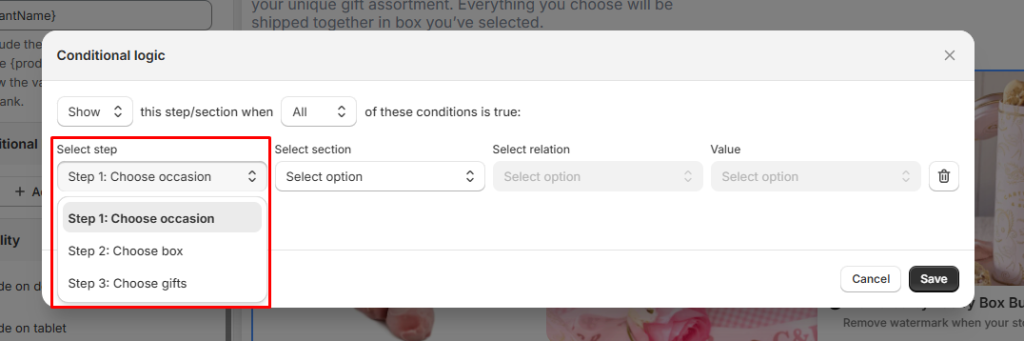
Select step #
- Choose the step that contains the element you want to use as a condition.
- You can select from any previous step or the current one.
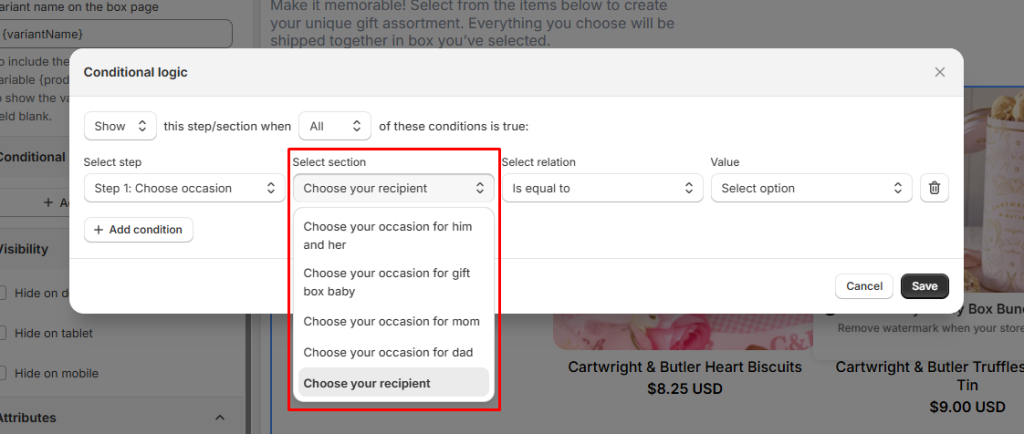
Select section #
- The list of available sections will depend on what was added in the step you selected earlier.
- Choose the section that contains the element you want to use as a condition.
- Available section types include:
- Product List
- Dropdown
- Radio Button
- Button
- Switch
- Checkbox
Select relation & Select value #
Define how the selected element should be evaluated.
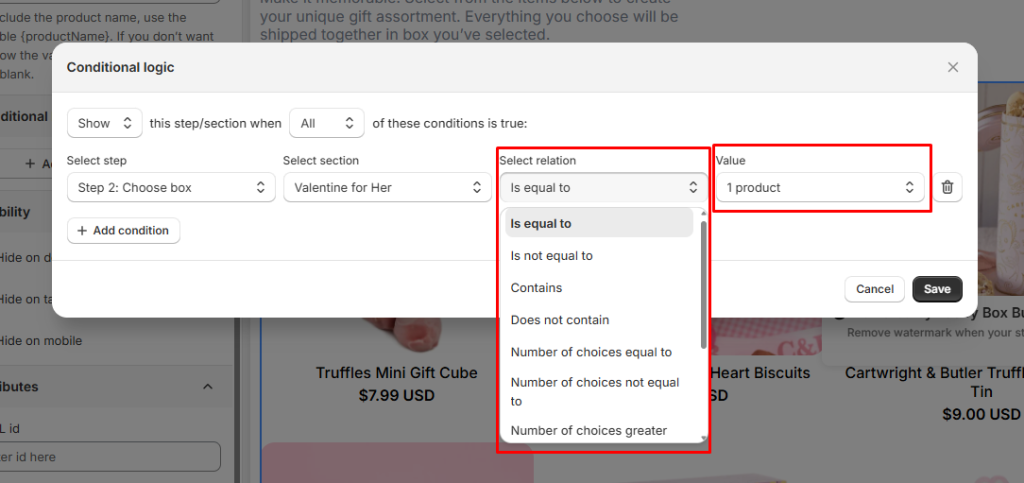
The available options depend on the section you’ve selected. Each section type comes with its own set of relations and value formats. Below is a clearer breakdown with examples.
| Section Type | Relation Options | Value Examples | What It Means for Customers |
| Product List | Is equal to / Is not equal to | “Red Roses Bouquet”, “Chocolate Box” | This condition is valid if the customer choice is an exact match (or not) to specific products. Example: Show this step only if they add Red Roses Bouquet. |
| Contain / Does not contain | “Red Roses Bouquet”, “Chocolate Box” | This condition is valid if customer’s selection includes or excludes certain products. Example: Show this step if the box contains Red Roses Bouquet and Chocolate Box. You can also choose whether it should match any or all selected products. | |
| Number of choices =, ≠, >, <, ≥, ≤ | 2, 3, 5 | This condition is valid if the customer picked exactly, more than, or fewer than X products. Example: Show Step 2 only if they selected 3 or more items in step 1. | |
| Dropdown | Is equal to / Is not equal to | “Birthday”, “Anniversary” | This condition is valid if the customer selected (or didn’t select) a specific dropdown option. Example: Show Birthday Gift Cards only if they choose Birthday as the occasion. |
| Radio Button | Is equal to / Is not equal to | “Add Greeting Card” | This condition is valid if the customer selected (or didn’t select) a specific radio option. Example: Show Add a card message step if they selected Add Greeting Card. |
| Button (Single Select) | Is equal to / Is not equal to | “Add Greeting Card” | This condition is valid if the customer selected (or didn’t select) a specific button. |
| Button (Multi Select) | Is equal to / Is not equal to | “Birthday Box for Him”, “Birthday Box for Her” | This condition is valid if the customer selected (or didn’t select) specific buttons. |
| Contain / Does not contain | “Red Roses Bouquet”, “Chocolate Box” | This condition is valid if customer’s selection includes or excludes certain button options. You can also choose whether it should match any or all selected button options. | |
| Number of choices =, ≠, >, <, ≥, ≤ | 2, 3, 5 | This condition is valid if the customer picked exactly, more than, or fewer than X buttons. | |
| Switch | Is equal to / Is not equal to | Yes / No | This condition is valid if the customer turned the switch on or off. Example: Show this step only if the “Express Delivery” switch is Yes. |
| Checkbox | Is equal to / Is not equal to | “Birthday Box for Him”, “Birthday Box for Her” | This condition is valid if the customer selected (or didn’t select) specific checkboxes. |
| Contain / Does not contain | “Red Roses Bouquet”, “Chocolate Box” | This condition is valid if the customer select (or didn’t select) specific checkboxes. You can also choose whether it should match any or all selected products. | |
| Number of choices =, ≠, >, <, ≥, ≤ | 2, 3, 5 | This condition is valid if the customer picked exactly, more than, or fewer than X checkboxes. |
Once you have done setting up your conditions, click at Save!
Behavior of Conditional Logic on Storefront #
Dynamic Display #
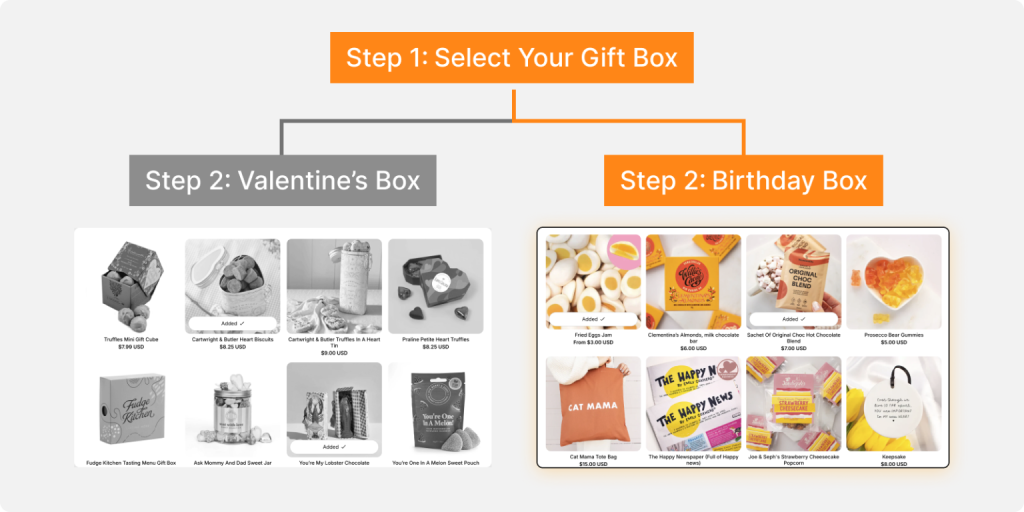
- Customers only see options that are relevant to their previous choices.
- Irrelevant steps, sections, or products stay hidden, which keeps the box builder clean and uncluttered.
- This makes the process feel tailored — for example, if a shopper selects “Birthday Gift Box,” only products with Birthday theme will appear in the next steps. Product with Valentine theme will not display.
Validation Popup #
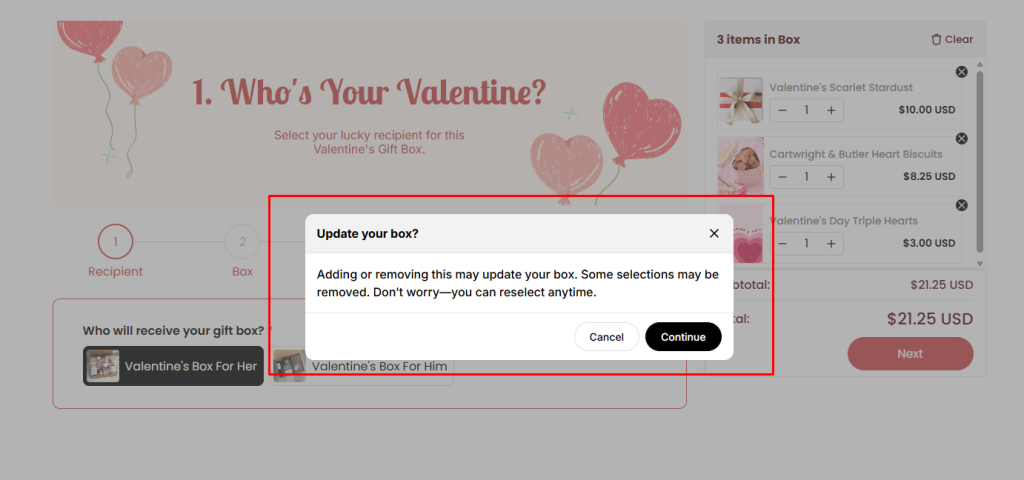
If a customer deletes or modifies a product or option that affects a conditional logic rule related to items or pricing in the Box cart, the system will automatically display a popup validation message asking them to confirm their action.
✅ When customers click Continue, any related products or options may be removed, and they may be redirected back to the step where the logic originates.
❌ If the customer clicks Cancel, no changes will be applied. Nothing will change and customers will stay in their current flow.
- For example:
- A customer selects “Valentine’s Box for Her” and adds several gifts designed for her (e.g., Perfume, Chocolate, Hand Cream)
- Later, they to back to step 1 and change the option to “Valentine’s Box for Him.”
- Because the products available for “Box for Him” are different, the items they previously added no longer match the logic rules. In this case, the system will display a popup validation message to alert them.
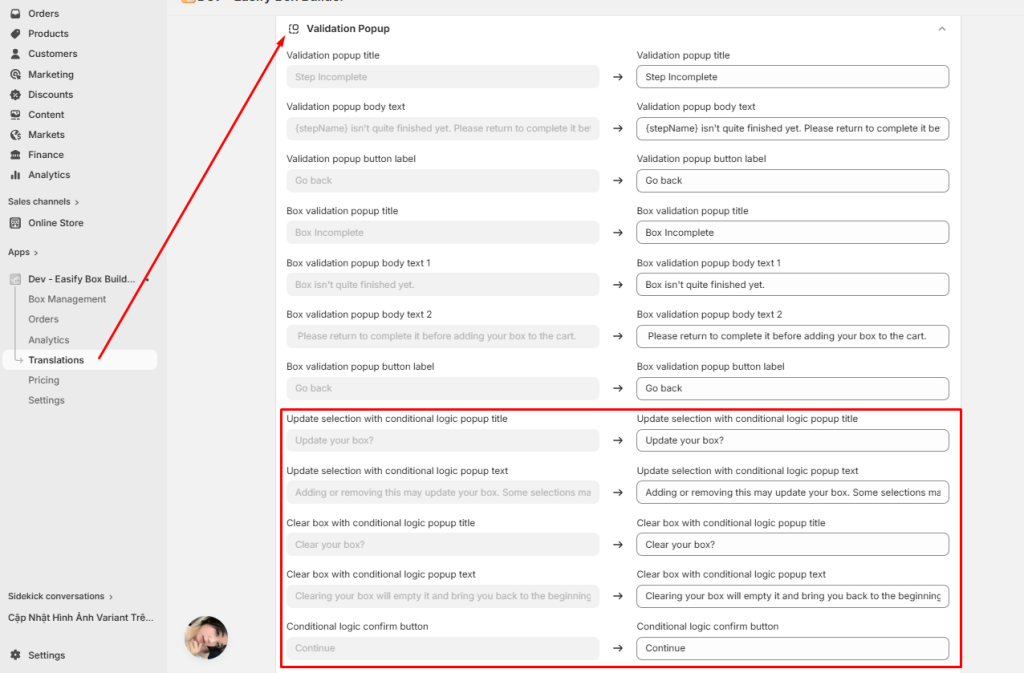
- You can also update the validation message in Translation → Validation Popup
What’s Next? #
👉 Explore the best practices to optimize your Conditional Logic setup in the box.
💬 Need Help? #
If you run into any issues or have questions, feel free to reach out via our in-app 24/7 live chat. We’re always here to help!
