Adding extra charges helps you increase revenue by offering physical add-ons that require inventory tracking, such as extra socks, jewelry charms, or side dishes.
This guide walks you through how to set up Add-on Products for your custom product options using Easify Product Options.
🔔 This feature is available on paid plans only. You’ll need to upgrade to Pro plan to access it. Every paid plan comes with a 14-day free trial, so you can try it out first.
What is Add-on Product? #
Add-on Product allows you to link an option directly to an existing physical product in your Shopify inventory. Unlike Add-on Price (a virtual surcharge), this is specifically for physical items that you need to pack and track.
When a customer selects an Add-on Product:
- Inventory is synced: Stock levels decrease automatically in your Shopify admin.
- Fulfillment is easy: The item appears as a line item in your order, so you know exactly what to put in the box.
Demo #
Here are some of our daily-life demos using Add-on Product:
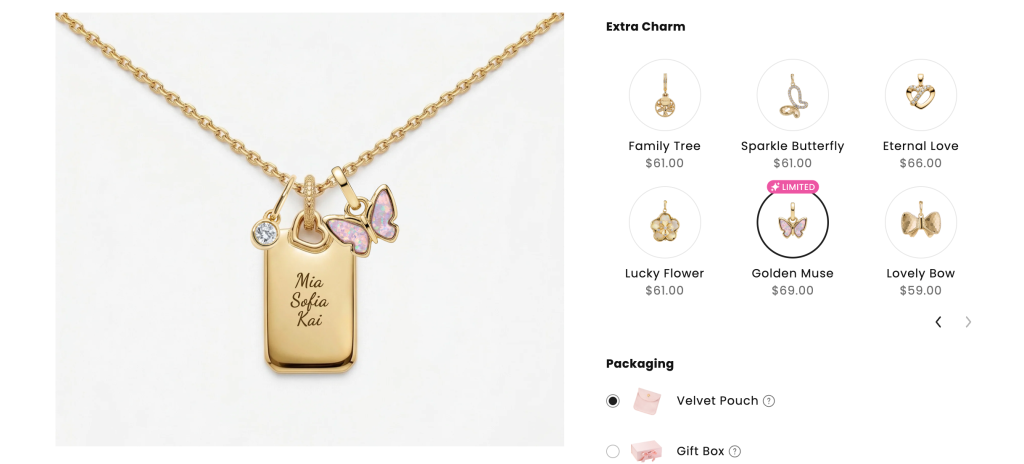
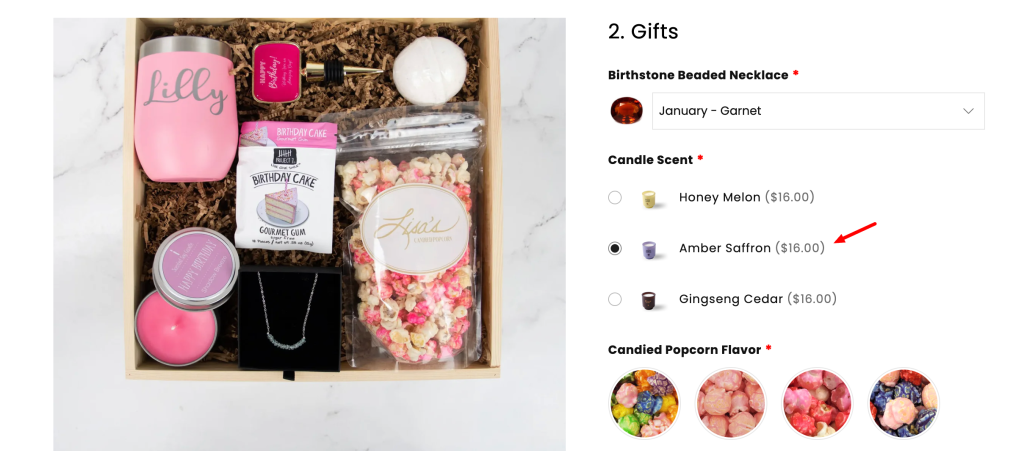
How to set up Add-on Product #
1. For Options Without Option Values #
Applies to: Text Box, Text Area, Number Box, Switch, File Upload, Font Picker, Date Picker, Time Picker, Color Picker, Date Range, Quantity.
Steps:
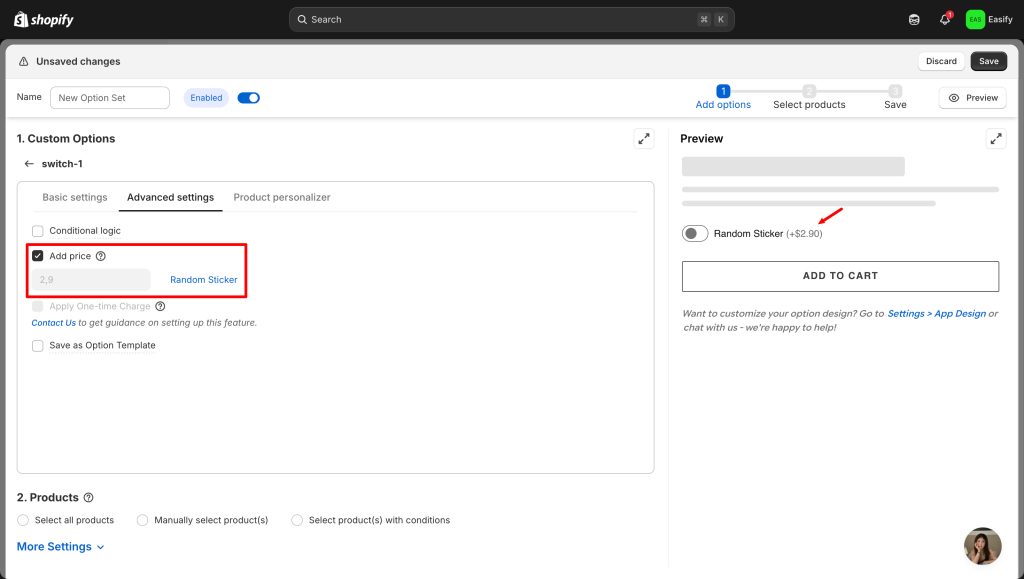
- Open the Advanced settings tab of the option.
- Check the “Add price” box.
- Select “Add-on product”: Click “Select add-on product” to link a physical item.
💡 Use Case:
- Greeting Card: When a customer types a message in a Text Area, you can link it to a physical “Blank Greeting Card” product ($2). You’ll see the card in the order and know to print their message on it.
- Mystery Sticker: Use a Switch to let customers add a “Random Sticker Pack” to their fashion order for an extra $3.
2. For Options With Option Values #
Applies to: Dropdown, Checkbox, Color Swatch, Image Swatch, Button, Radio Button, Product List.
Steps:
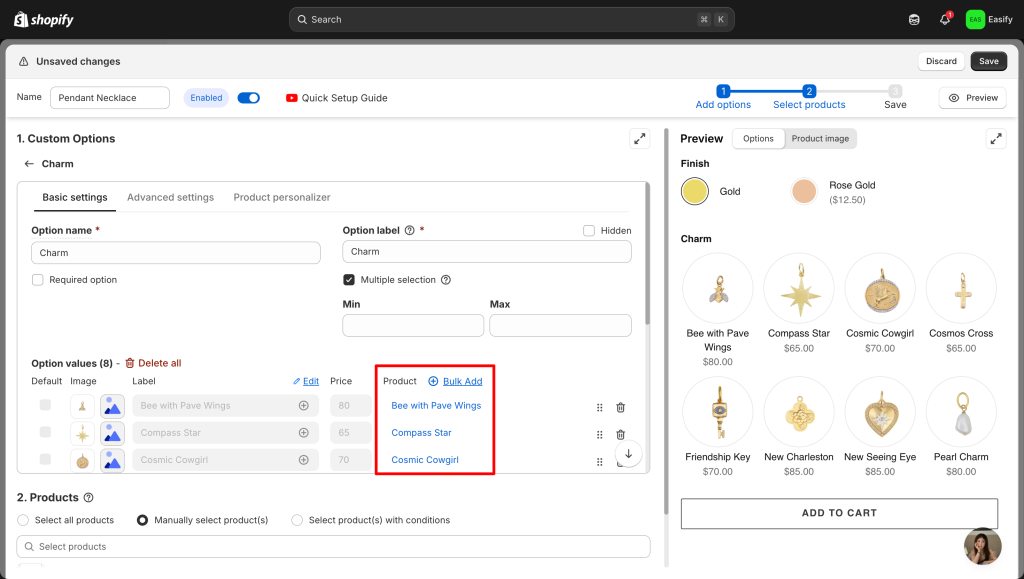
- Open the Basic settings tab of the option.
- Next to each value, click “Select add-on product” to link a specific item to that choice.
💡 Use Case:
- Jewelry Charms: Use an Image Swatch to let customers pick “Heart Charm” or “Star Charm.” Each charm is linked to its own physical stock so you never oversell.
- Fashion Upsell: In a Checkbox list for “Extra Socks,” link physical products like “White Socks, Black Socks. When checked, these items are added to the cart with their own SKUs.
Features Related to Add-on Product #
1. Bulk Add Add-on Products #
If you have a collection of 20 different Charms or Toppings, use this feature:
- Click Bulk Add > “Add-on products”.
- Select the products from your Shopify inventory.
- The app automatically creates values with the linked product’s name and image.
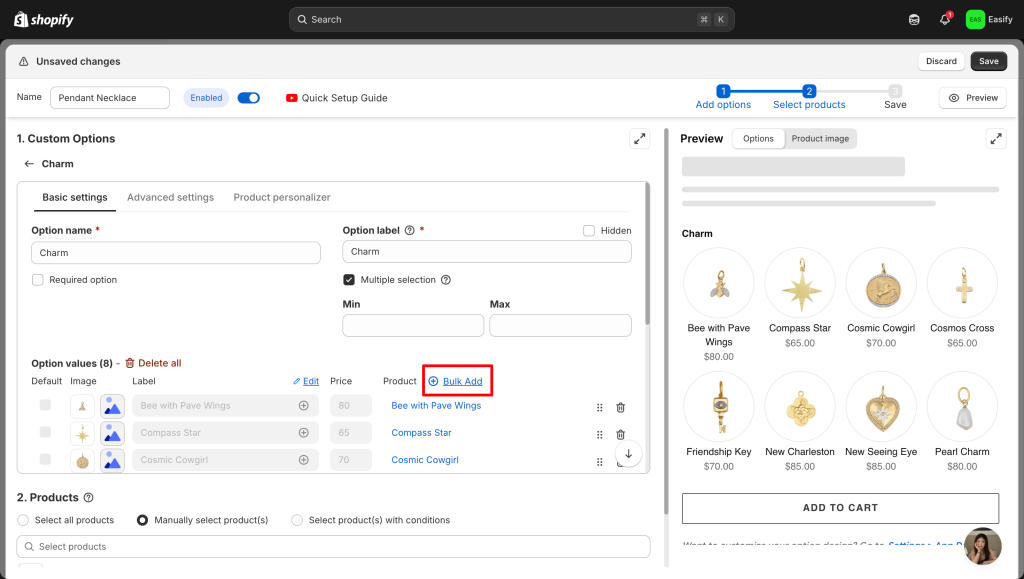
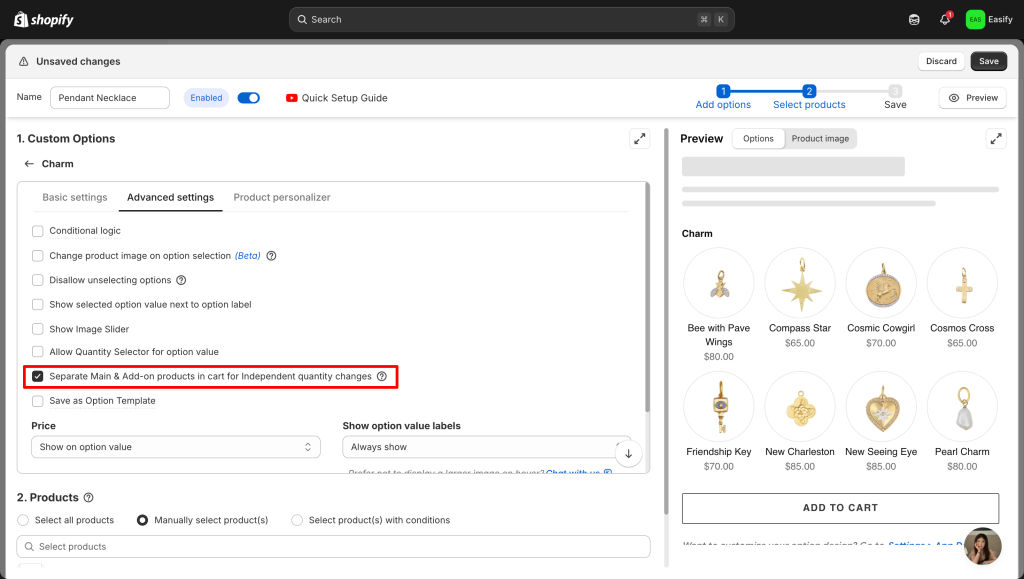
2. Separate Main & Add-on Products in Cart #
For physical items, you may want them to appear separately so customers can:
- See the Charms as a separate line item.
- Adjust the quantity of Charms independently.
Option Setting:
Cart page:
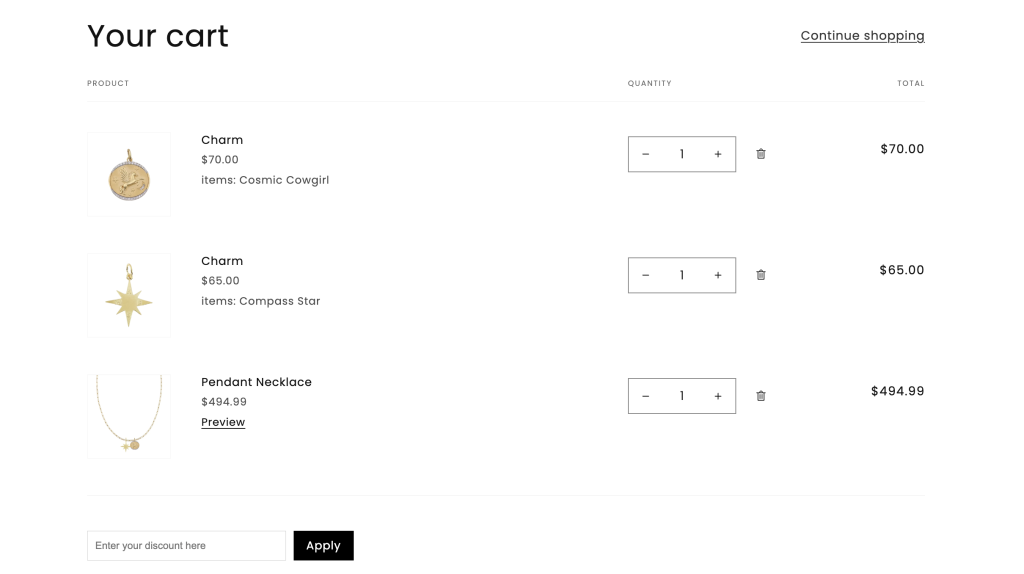
Note: This makes fulfillment much clearer for your warehouse team.
3. One-time Charge #
By default, the add-on quantity matches the main product. If a customer buys 3 Pizzas, they get 3 “Extra Dips.”
If you want to charge for a physical item only once per order (e.g., one “Gift Box” for 3 Shirts):
Please contact our support team via in-app live chat! Since this requires a specific configuration, we will guide you through the setup and ensure it works perfectly for your store.
Need Assistance? #
If you need help managing your daily inventory or have questions about fulfillment, reach out to us through our 24/7 in-app live chat. We’re here to help!
