Once you have successfully connected two stores, you can start syncing Pages, Blogs, and Blog posts from the Source store to the Destination store.
If you haven’t connected your stores yet, please follow the previous guide on creating a Multi-store connection.
How it works #
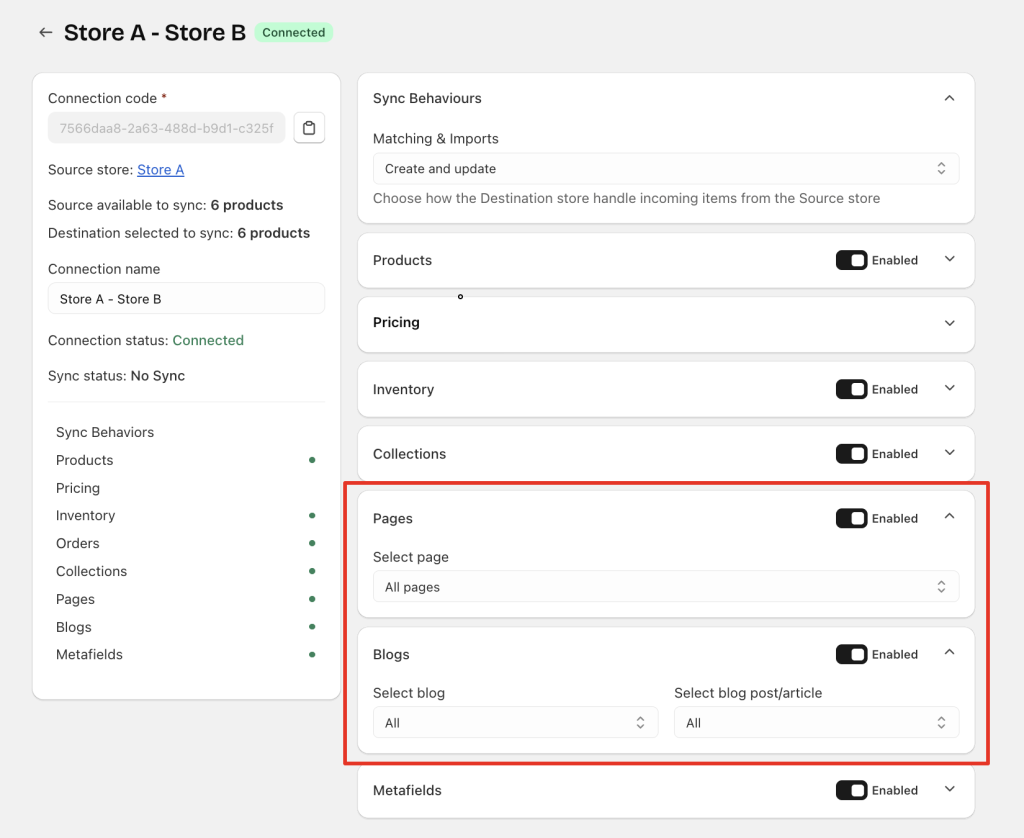
1. Select what to sync (Pages / Blogs / Blog posts) #
Inside each connection, you can choose to enable or disable syncing for:
- Pages
- Blogs
At the moment, enabling a section means All items under that section will be synced automatically.
Coming soon:
You will be able to sync all items or select specific Pages / Blogs / Blog posts instead of syncing everything.
2. Set Matching and Import Behavior #
When the app syncs Pages, Blogs, or Blog posts, it checks whether the same item already exists in the Destination store – Based on the Page Handles.
You can choose how the app should behave in each situation:
a. Create and update
Best for most merchants
- If the item already exists → the app updates it with the latest content from the Source store.
- If the item does not exist yet → the app creates a new one.
In short:
Always keep existing items updated, and create new ones when needed.
b. Create only
Use this if you only want to add new items without touching existing ones
- If the item does not exist → the app creates it.
- If the item already exists → the app does nothing, and will not change or overwrite it.
In short:
Only add new items. Never update existing ones.
c. Update only
Use this if you only want to update items that already exist
- If the item already exists → the app updates it.
- If the item does not exist yet → the app will not create a new one.
In short:
Only update existing items. Never create new ones.
Notes:
This behavior applies to your entire connection setup, not just Pages and Blogs. It affects all sync types (products, collections, etc.).
Important Notes #
1. Real-time Sync is not supported for Pages & Blogs #
Pages, Blogs, and Blog posts do not sync in real time.
This means:
- If you edit content in the Source store, the update will not appear automatically in the Destination store.
- To get the latest content, you must manually trigger a resync.
How to manually resync:
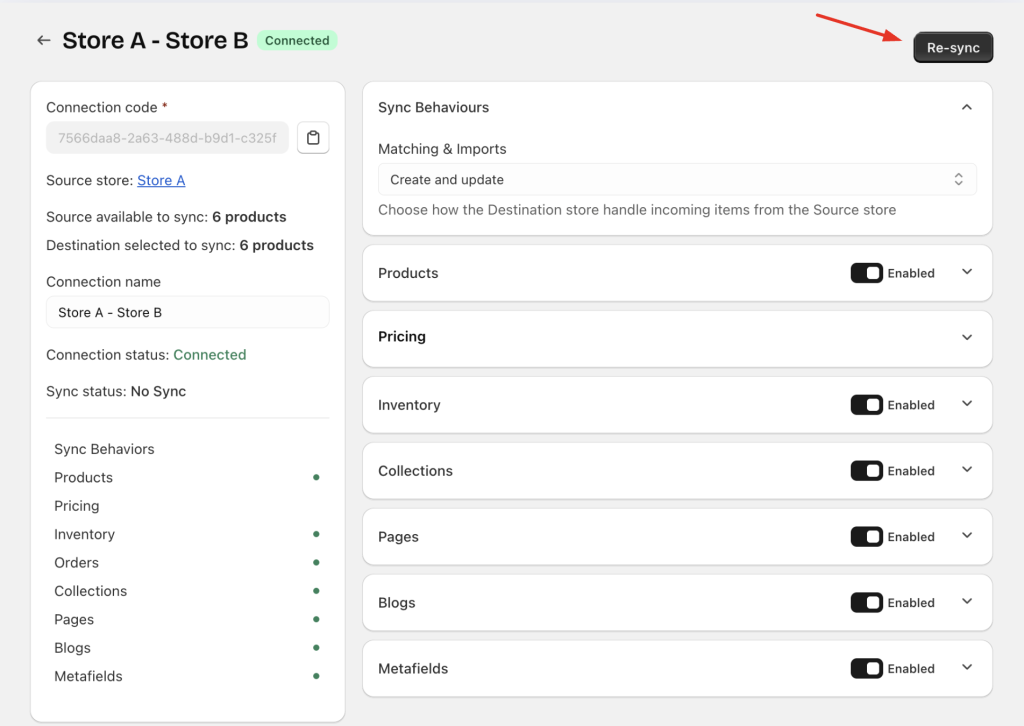
- Open the Connection details page.
- Click Re-sync.
- Select the content types you want to update.
- Confirm to begin the resync.
Coming soon:
You will be able to schedule automatic resyncs so you don’t have to trigger them manually.
2. Only content is synced — page layout or styling is not #
When syncing Pages or Blog posts:
- Content (text and images) is synced.
- Templates, layout, and styling are not synced.
This means the synced content will follow the template and design of the Destination store.
If the Source and Destination stores use different templates, review the synced content to ensure it fits the layout and displays properly.
If both stores use the same template, the synced page will usually look correct.
Need Assistance? #
If you need help setting up Page or Blog sync, or if something doesn’t look right after syncing, Easify team is here to support you 24/7. Just reach out via in-app chat, and we’ll be happy to assist.
