What is a Low Stock Counter? #
It is a real-time inventory indicator integrated directly into your box-building interface. Unlike a simple “Out of Stock” message that stops a sale, this counter acts as a strategic early-warning system. It appears on your Product Cards or within the Quick View Popups to signal that availability is shrinking.
- The Status Label: A subtle badge that says “Low Stock” or “Selling Fast”.
- The Quantity Alert: A precise count that says “Only 3 left in stock”.
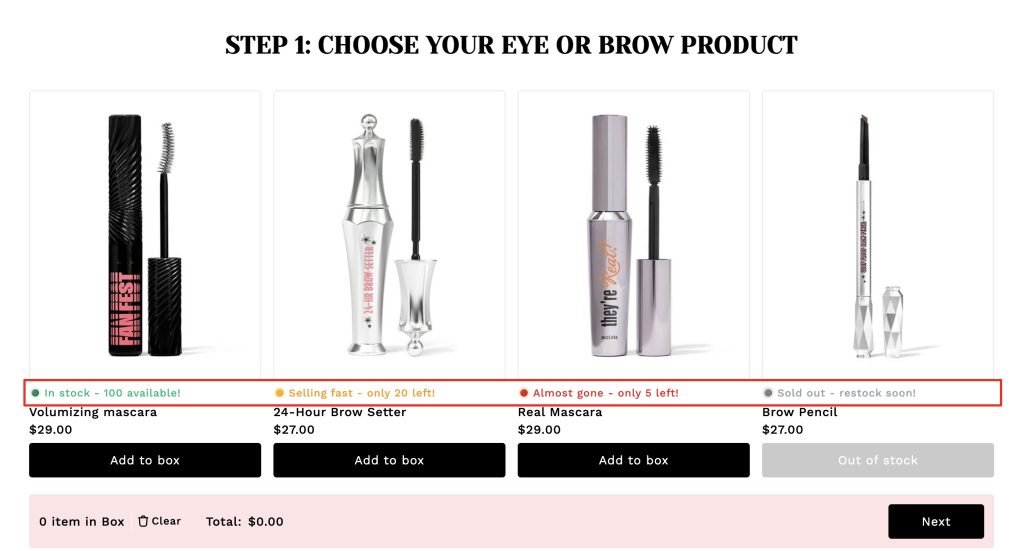
It’s not about creating false pressure. It’s about giving your customer the full picture, so they can make a confident choice before their perfect item is gone for good.
Why This Tiny Badge is a Conversion Powerhouse #
Low Stock Counters do more than just manage inventory; they manage customer psychology.
1. Stop Analysis Paralysis (The Choice Paradox) #
When a customer is faced with 50+ items in a box builder, they often freeze. Data shows that scarcity narrows focus. A Low Stock Counter acts as a “visual magnet”, helping the customer choose the high-demand items first. It simplifies the decision-making process by identifying which choices are time-sensitive.
2. Leverage Loss Aversion #
Psychological studies show that the pain of losing something is twice as powerful as the joy of gaining it. When a shopper sees “Only X left”, they don’t just see a product; they see a potential loss. They are motivated to complete the box to “save” the item they’ve already mentally claimed.
3. Boost Real-Time Conversion Rates #
E-commerce benchmarks consistently show that clear scarcity indicators can increase Add-to-Cart rates by 20% to 30%. By removing the “safety” of coming back later, you significantly reduce the chance of the customer being distracted by a notification or another tab.
How to Set It Up in Easify Box Builder #
Step 1: Activate the Booster #
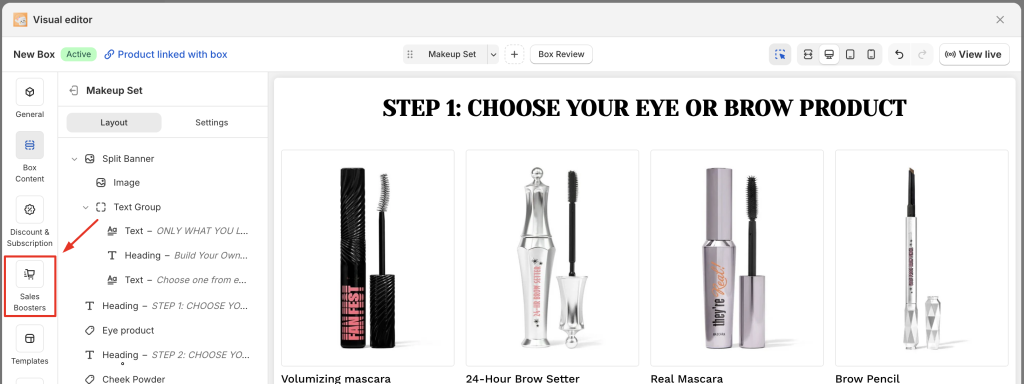
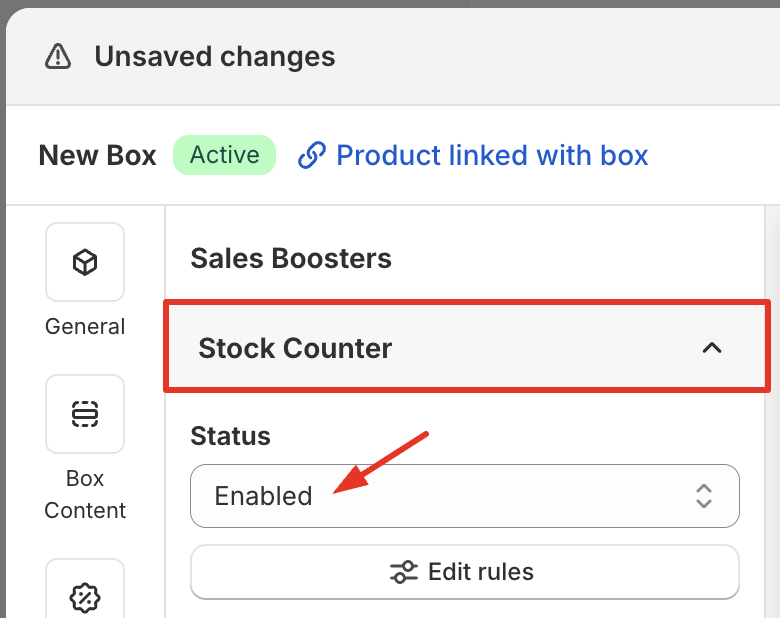
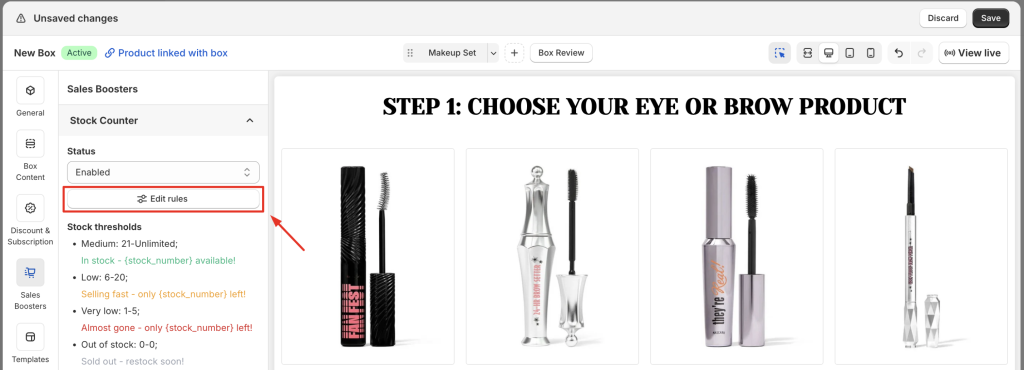
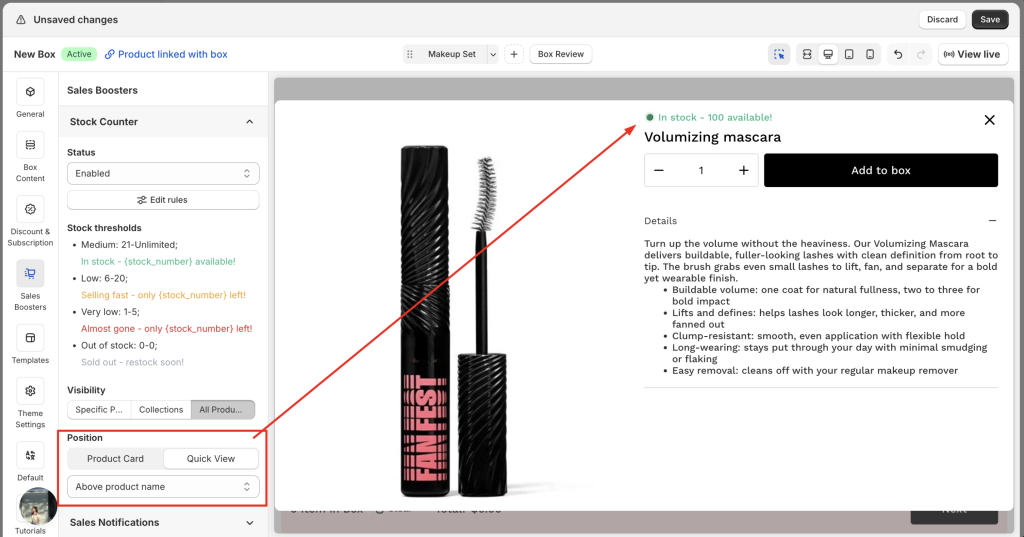
Navigate to the Sales Boosters tab in your left-hand menu, expand the Stock Counter section, and change the status to “Enabled”.
Step 2: Customize Your Logic #
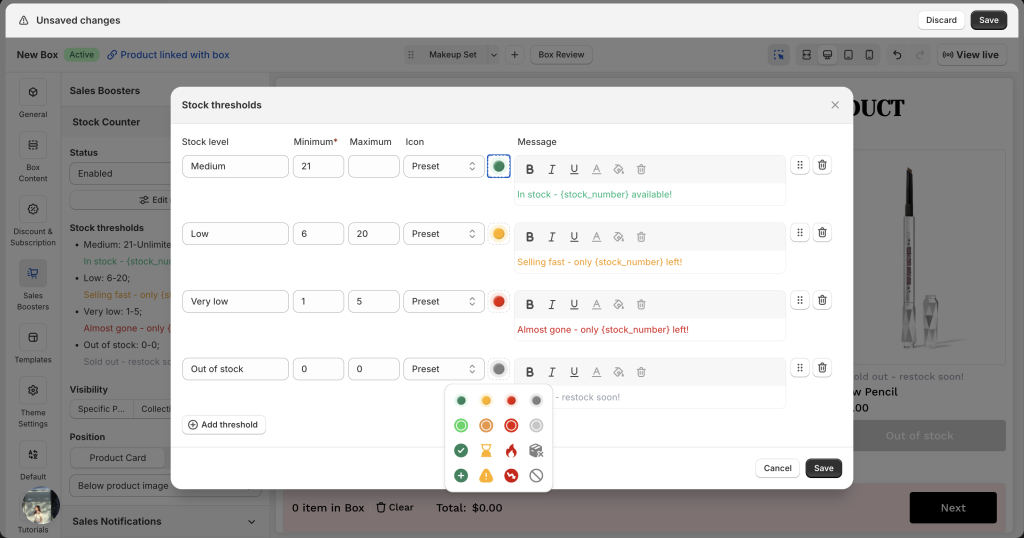
We provide four default stock statuses, but we recommend clicking “Edit rules” to truly align the tool with your business logic.
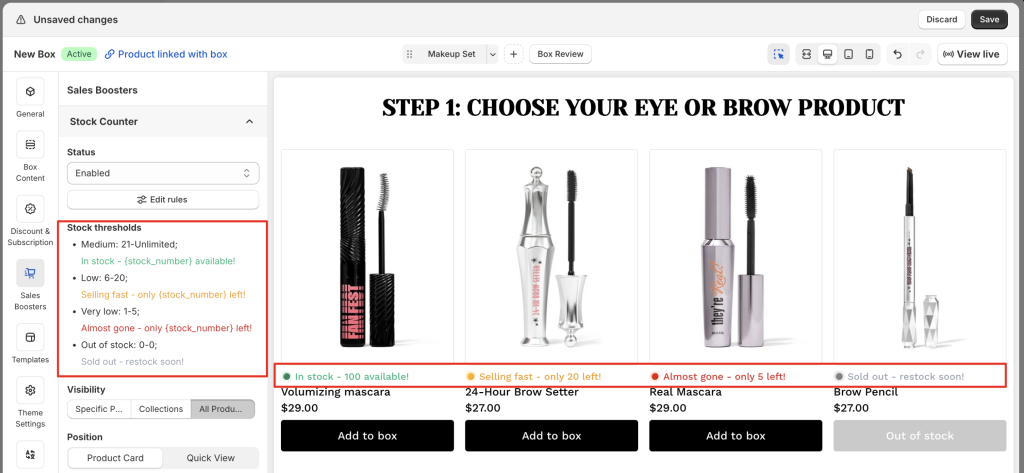
- Define Thresholds: Set exactly when the “Low Stock” alert triggers (e.g., only when inventory is below 10 units).
- Elevate Brand Voice: Update the default text to match your brand’s personality, whether that’s “Last 5 for the Season” or “Our Boutique Favorite – Moving Fast!”.
- Visual Alignment: Customize the badge colors, icons, and styles to ensure the alerts look like a native, premium part of your box page design.
Step 3: Target Your Impact #
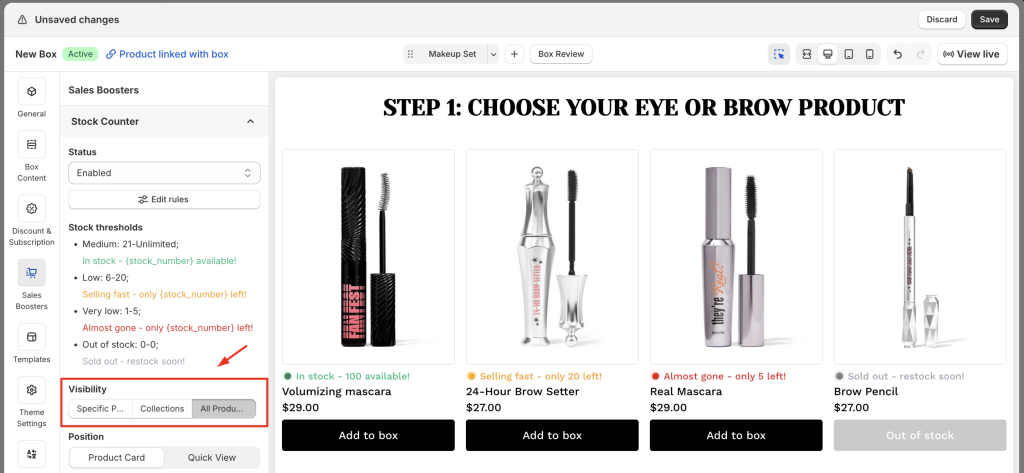
You have full control over where the urgency appears:
- Selection Logic: Choose to display stock levels for all products, specific collections, or only your most exclusive items.
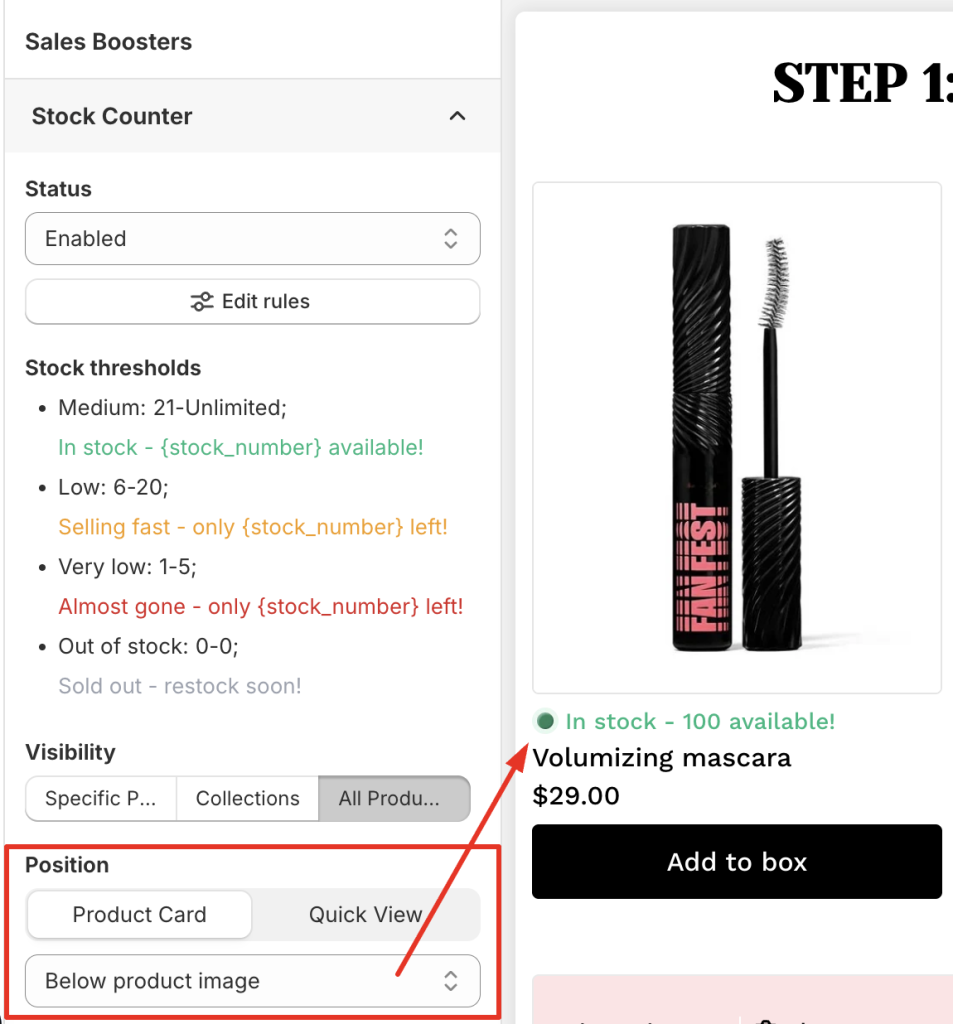
- Placement Strategy: Select the exact position of the badge on your Product Cards and within the Quick View Popups to ensure it is visible but never intrusive.
Step 4: Go Live #
Click Save. Your box page is now transformed from a static catalog into a high-performance sales engine.
Pro-Tips: How to Make Scarcity Work for You #
To ensure your scarcity strategy remains a conversion driver and not a distraction, apply these advanced tactics:
- The “Anchor” Strategy: Focus your inventory alerts on your “Anchor Products” – the bestsellers that people usually build their boxes around. If the anchor is low, the whole box gets sold faster.
- Don’t Over-Saturate: If 90% of your products show “Low Stock”, the nudge loses its power and begins to look like a technical error. Keep your threshold low enough that only a few items trigger the badge at once.
- Test Messaging: Constantly test your copy. Try different phrases like “Only X left”, “Hurry! Only {x} left”, or “Low Stock” to see which resonates more with your specific audience. Clear and factual always beats sensational.
- Keep It Honest: Never use fake scarcity. Modern Shopify shoppers are savvy; they can sense an artificial counter. Use the booster only for items that actually move quickly or have finite stock. This builds long-term trust and ensures that when you say “Low Stock”, your customers take it seriously.
Ready to let your inventory drive your revenue? Turn on your Low Stock Counter today and turn “browsing” into “buying”.
What’s Next? Once you’ve mastered Item-level urgency, learn how to build Store-level trust. Explore our guide on Sales Notifications →
