The Default Selected Products feature lets you pre‑select items that automatically appear in a customer’s box when they first land on your builder. It’s a great way to give shoppers a head start, especially for curated bundles or must-have items, while still letting them customize freely.
Think of it as setting the “starter” for your box. Customers can keep the defaults, swap them out, or build on top of them. It’s flexible, fast, and helps guide the shopping experience.
Common Use Cases #
Here are the real‑world examples of how merchants use them:
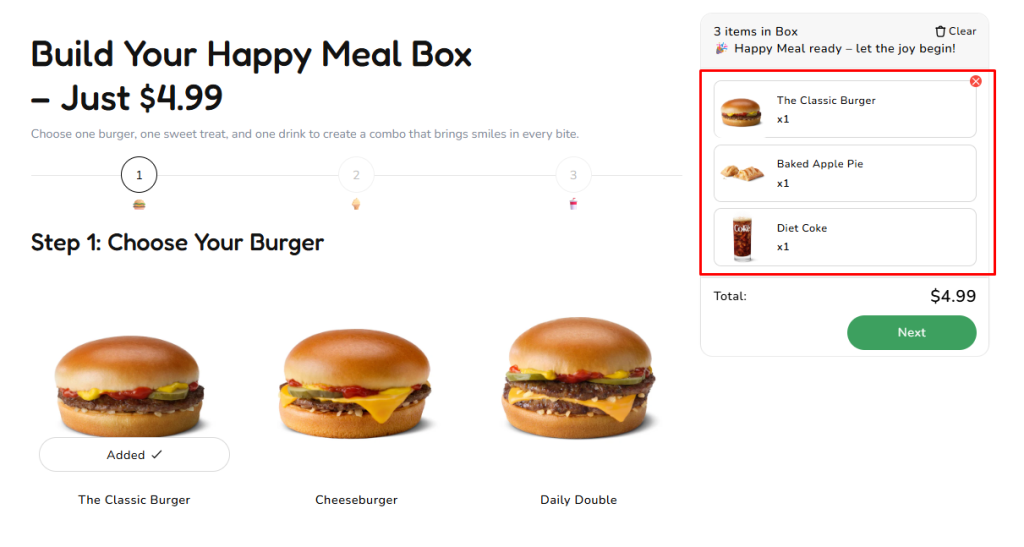
- Pre-select popular combos: You can pre‑select popular items in a bundle to make shopping faster. For example, in a Happy Meal Box, you might pre‑select: Classic Burger, Baked Apple Pie, Diet Coke. Customers see the combo ready to go and can Add to Cart immediately, while still having the option to swap or remove items if they prefer.
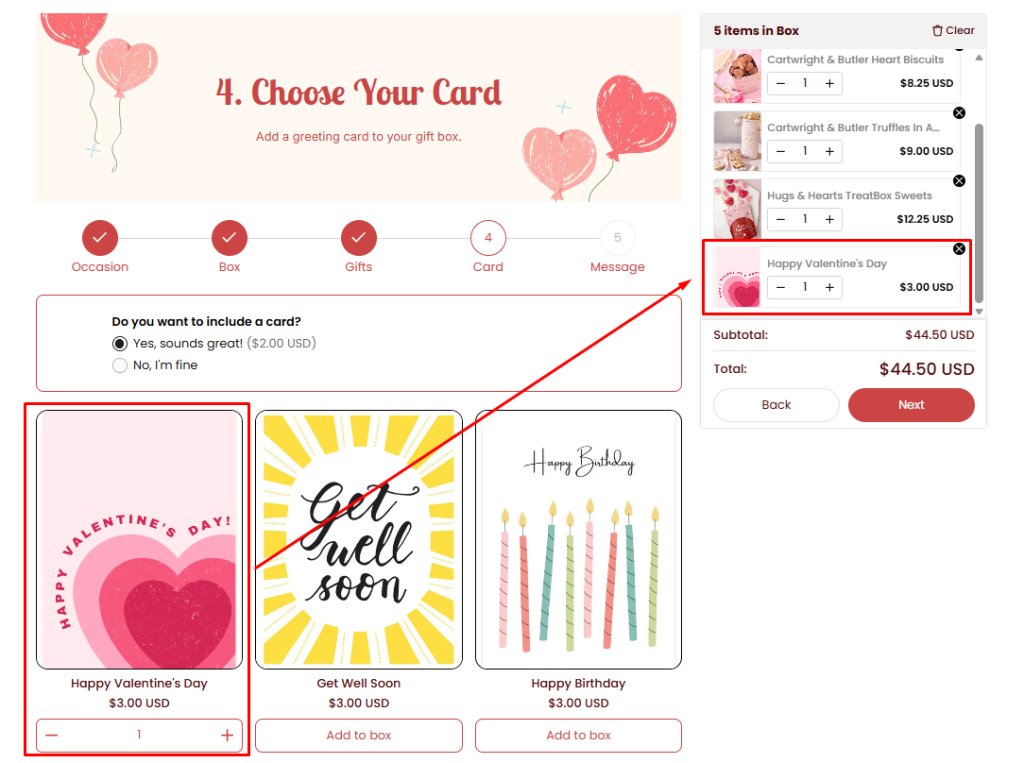
- Promotions & Campaigns: For example, during Valentine’s Day, store selling gift boxes might default to a themed Valentine’s gift card or a limited‑edition gift box sleeve.
Setting Default Products #
To configure default products for a product list:
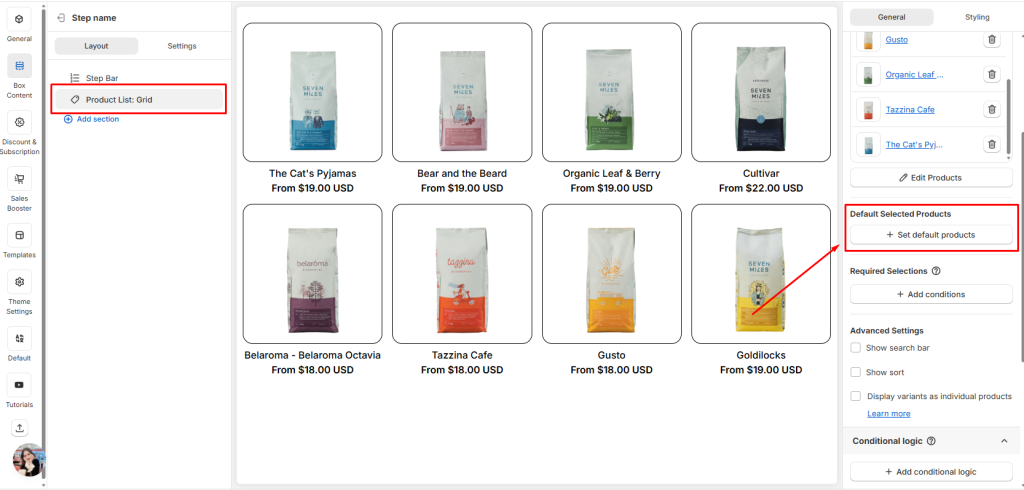
- Go to your Product List in the Box Content
- Scroll down to Default Selected Products section and click the Set default products button.
A list of products you’ve already added to the product list will appear in a popup.
3. Select the items you want to set as defaults.
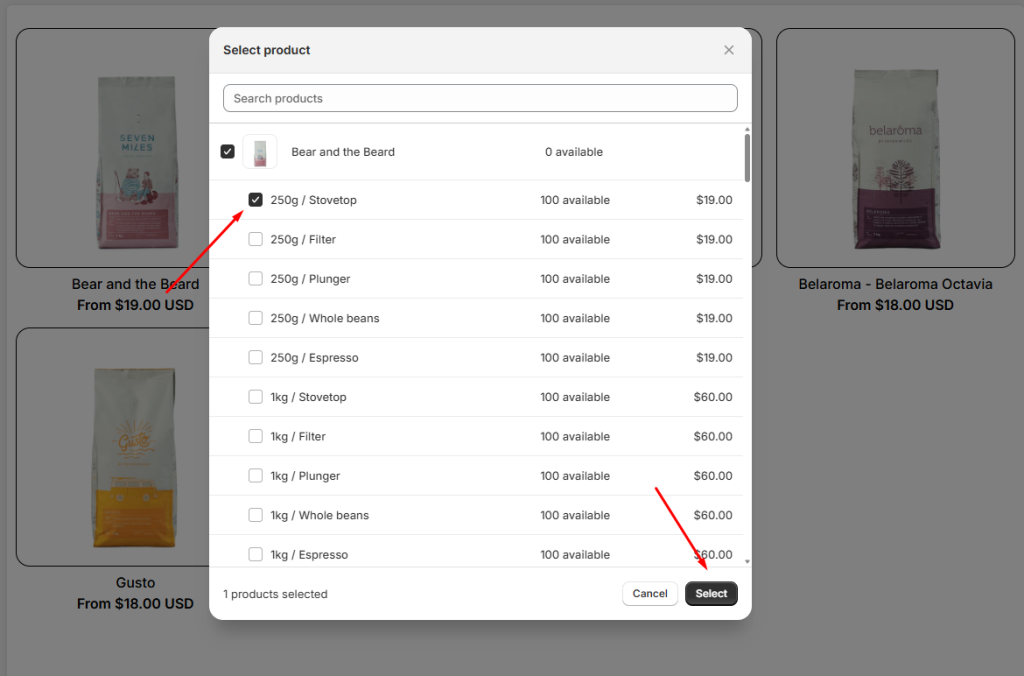
💡 Only products that are already part of the product list can be marked as default.
Behavior on the Storefront #
Once default products are set, here’s how they behave for customers:
- Automatic Addition: When the page reloads, the default products are automatically added to the customer’s box.
- Customer Control: Shoppers can still add, remove, replace, or change these products at any time.
- Guided Experience: Defaults act as a helpful starting point, encouraging customers to build their box faster without limiting their choices.
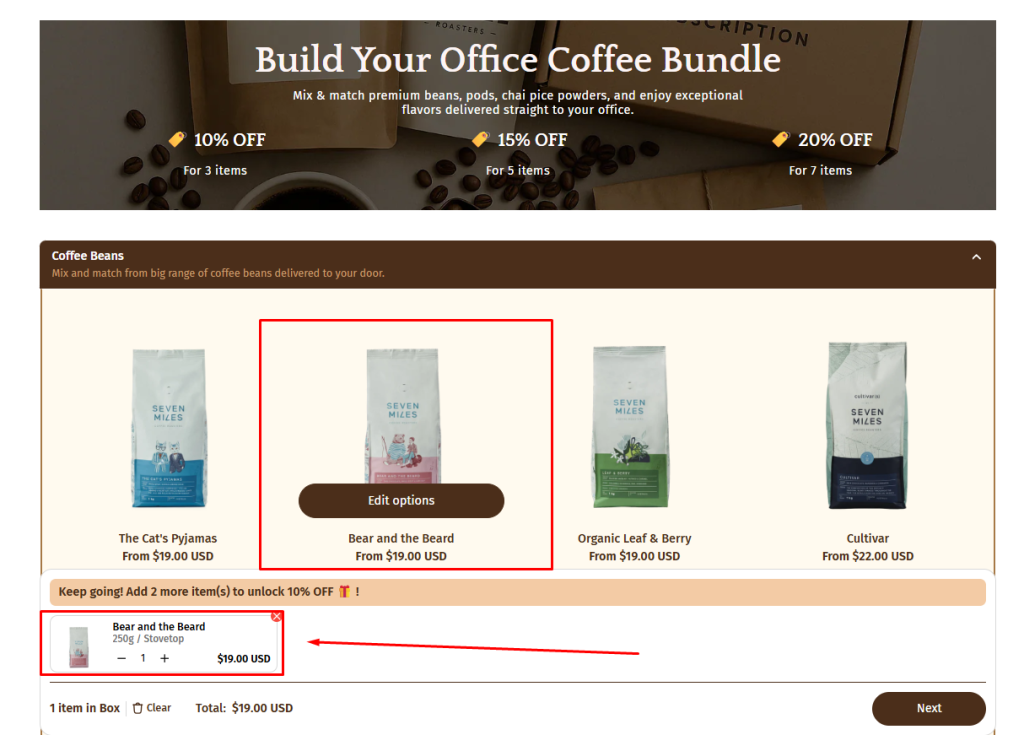
For Example: If you pre‑select the 250g / Stovetop Bear of the Bear & the Beard Coffee Beans, it will appear in the box by default, visible in the quick summary, but customers can edit it however they like.
Works with Conditional Logic #
What is Conditional Logic? #
In Easify Box Builder, Conditional Logic is the feature that makes your builder dynamic. Instead of showing every option at once, it shows or hides steps, sections, or elements based on what customers already selected.
👉 For a full deep dive, check out the guide to Conditional Logic.
How Default Selected Products Works with Conditional Logic #
Default Selected Products is a perfect partner for Conditional Logic. By pre‑selecting certain items, you can trigger rules right away without waiting for customers to add them manually.
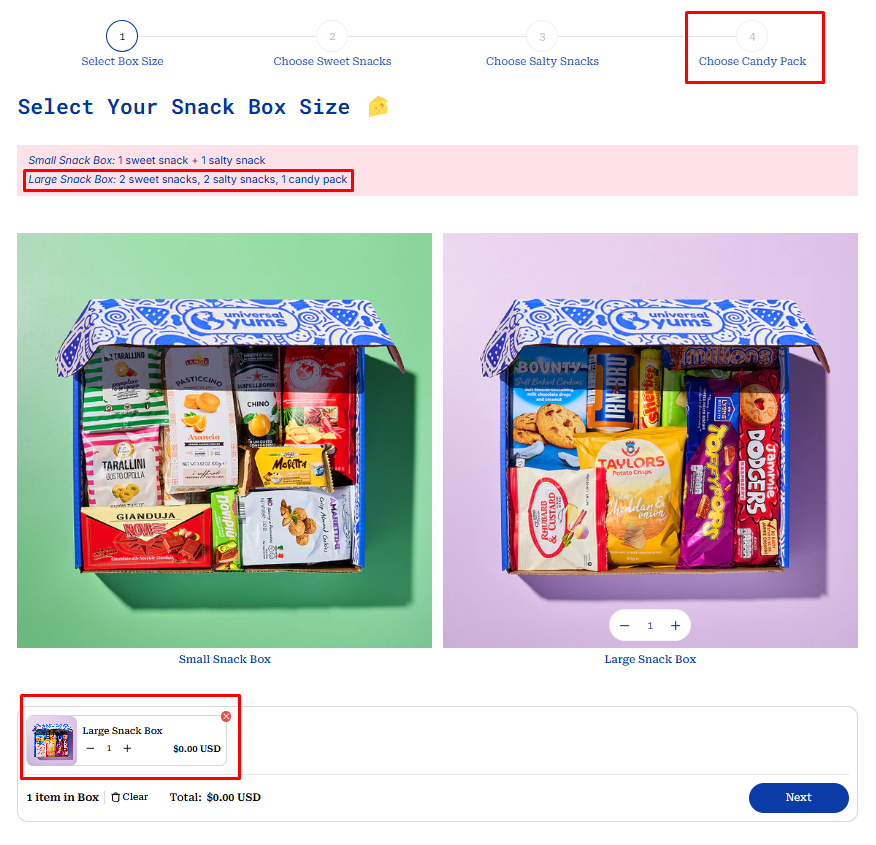
For example: Imagine you’re offering different box sizes: Small Snack Box and Large Snack Box.
- You set the Large Snack Box as a Default Selected Product, so it’s automatically added to the customer’s box when they first load the builder.
- Then, with Conditional Logic, you can set a rule:
- If Large Snack Box is selected → Show the “Candy Pack” step.
This way, the Large Snack Box is already in the cart by default, and the Candy Pack step appears instantly without the customer needing to add anything manually. And if customer change from Large Snack Box to Small Snack Box, the Candy Pack will also disappear.
💬 Need Help? #
Questions? Stuck somewhere?
We’re always here to help! Just reach out via our in-app live chat for 24/7 support.
