When managing Multi-store Sync, you may need to disconnect or delete a connection.
Although they sound similar, they behave very differently.
Use this guide to understand when to use each action and what happens afterward.
Disconnect Connection #
Why disconnect? #
Use Disconnect when you want to pause syncing temporarily, but still keep the connection and all its settings.
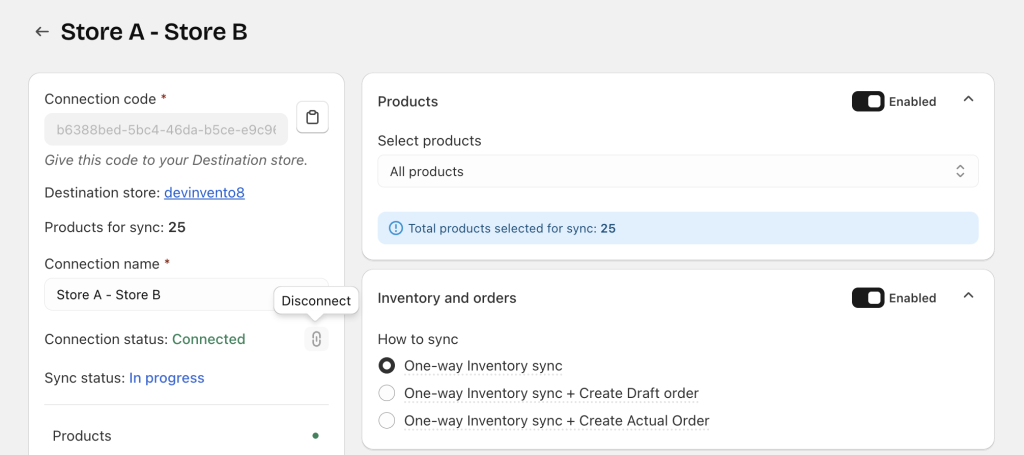
Common reasons:
- Pausing sync while updating products or collections
- Troubleshooting or testing
- Avoiding sync conflicts during major catalog changes
- Planning to reconnect later without recreating the connection
Disconnect is a temporary stop, not a removal.
What happens when a store disconnects? #
When either the Source store or Destination store clicks Disconnect:
1. Syncing stops for this connection
All data types stop syncing immediately.
The sync status is changed to “Paused”.
2. Both stores update to a “Disconnected” state
Because the connection is shared, both stores see the same status.
3. The other store receives a notification
The store that did not perform the action gets a clear message explaining that the partner store disconnected the connection.
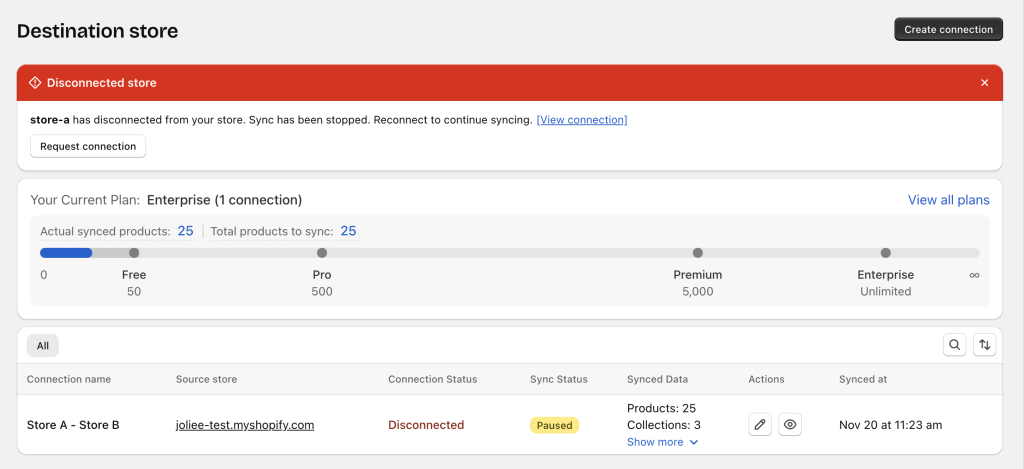
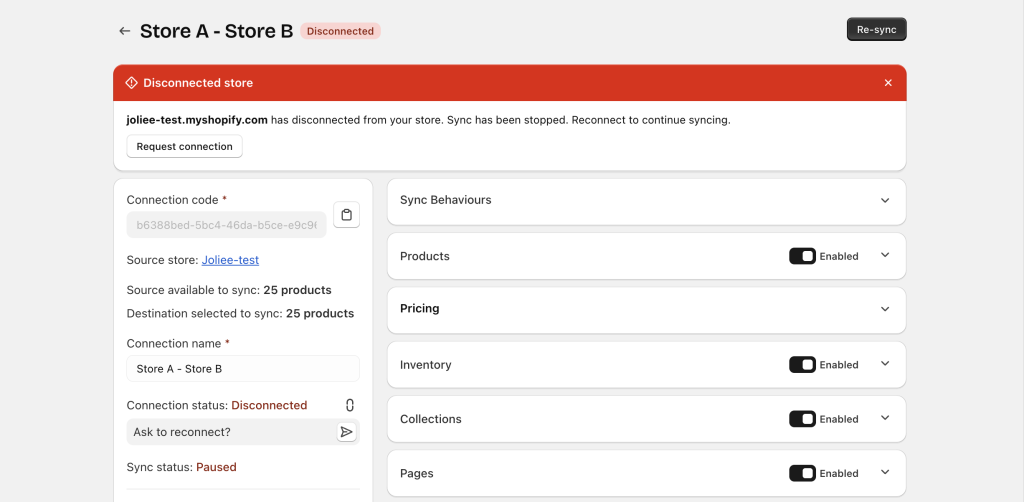
4. The connection is still listed in both stores
It is not removed from the app.
5. Product limits stay the same
“Total products to sync” does not change because the connection still exists.
6. Previously synced data remains
No changes are rolled back in the Destination store.
How to Re-connect #
There are 2 ways to reconnect a disconnected connection:
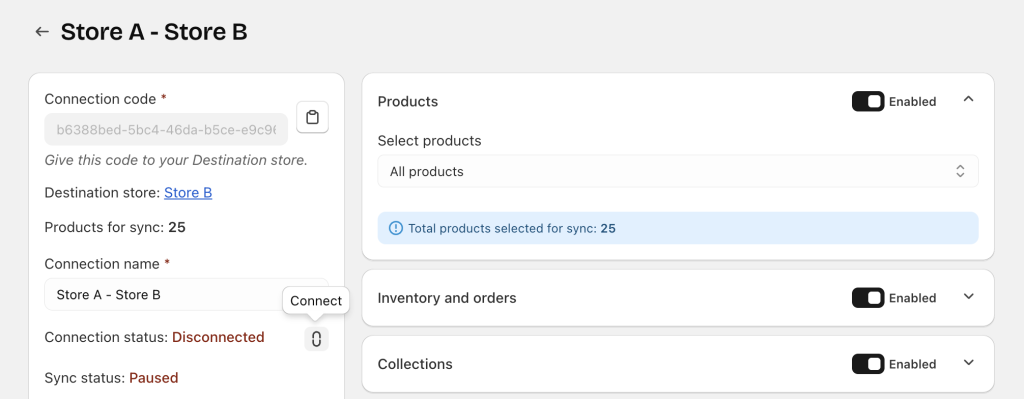
1. The store that disconnected can reconnect directly
- Open the connection
- Click Connect
- Confirm permissions
- Syncing resumes immediately with the existing settings
2. The passive store (the one that didn’t disconnect) can request reconnection
- Open the connection
- Click Ask to reconnect
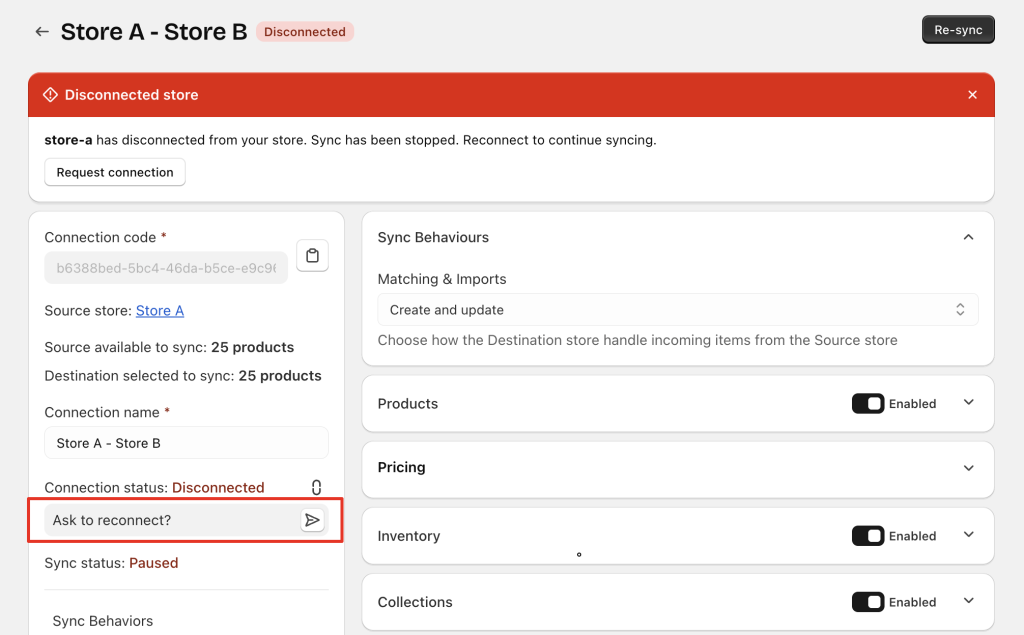
- The store that disconnected receives the request
- Once approved, syncing resumes
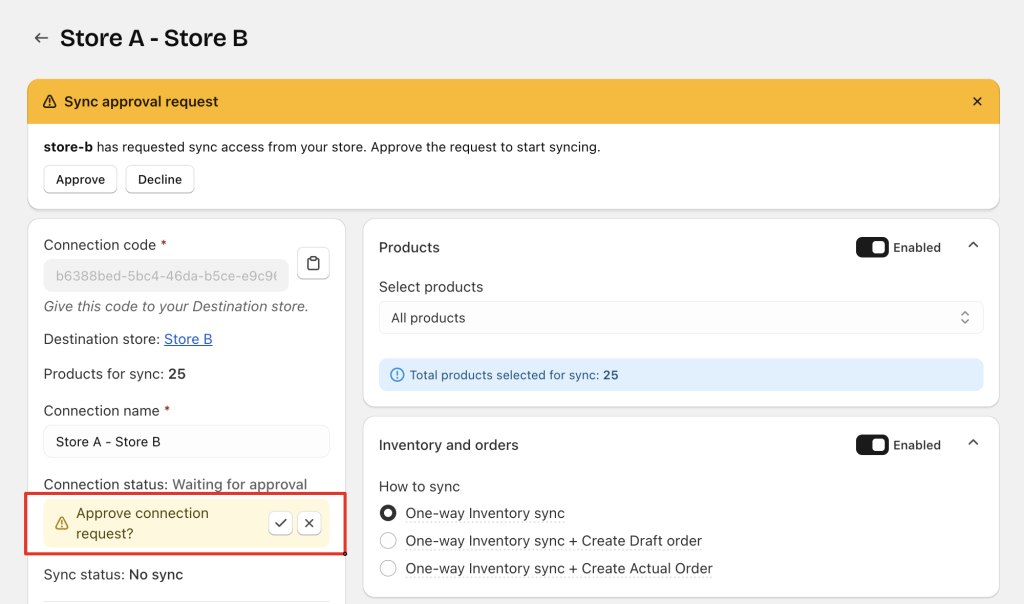
No new connection needs to be created — the original setup is preserved.
Delete Connection #
Why delete a connection? #
Use Delete when you want to permanently remove this sync relationship, such as:
- You no longer want the 2 stores synced
- You want to clean up unused or old connections
- You want to reduce the Destination’s “Total products to sync”
- You want to rebuild a new connection from scratch
- You want to prevent future syncing by accident
Deleting is a permanent action.
What happens when deleting a connection? #
Deleting works differently depending on which store performs the action.
1. If the Destination store deletes the connection
- The connection is removed from the Destination store
- The Source store receives a notification
- The connection status is changed to Disconnected (Deleted) on the Source store
- Syncing stops forever for that connection
- The Destination store’s “Total products to sync” decreases
- Previously synced data stays as-is in the Destination store
2. If the Source store deletes the connection
- The connection status on the Destination store becomes Disconnected (Deleted)
- The Destination store receives a notification
- Syncing stops immediately
- The connection still remains in the Destination store for review
- The Destination store must delete the connection from its side to fully remove it
- The “Total products to sync” does NOT decrease until the Destination store completes the deletion
Need Assistance? #
If you’re unsure whether to disconnect or delete a connection, or if something doesn’t look right after taking action, our Easify Team is available 24/7 through in-app chat to help you.
