EasifyApps
  • About
  • Apps
    Easify Product Options
    Easify Product Attachments
  • Resources
    Help Center
    Easify Product Options
    Easify Box Builder
    Easify Inventory Sync
    Easify Product Attachments
    Video Tutorials
    Easify Product Options
    Easify Product Attachments
  • Partners
  • Blog
  • Contact
All Easify Apps
EasifyApps
  • About
  • Apps
    Easify Product Options
    Easify Product Attachments
  • Resources
    Help Center
    Easify Product Options
    Easify Box Builder
    Easify Inventory Sync
    Easify Product Attachments
    Video Tutorials
    Easify Product Options
    Easify Product Attachments
  • Partners
  • Blog
  • Contact

Easify Product Options App

Getting Started
    Key Terminology Simplified
    • Custom options & variants
    • Option set
    • Option set templates
    • Option type (Option input)
    • Your option sets
    • Option label
    • Option name
    • Option value
    • Option group
    • Conditional logic
    • Live preview
    • Help text
    • Placeholder
    • Information (Tooltip)
    • Option widget
    Option Input Types
    • Design Layer
    • Text Box
    • Text Area
    • Number Text Box
    • Color Swatches
    • Image Swatches
    • Radio Buttons
    • Dropdown
    • Checkbox
    • Button(s)
    • Switch/ Toggle
    • Modal (Popup)
    • File Upload
    • Option Group
    • Product List
    • Date Range
    • Date Picker
    • Time Picker
    • Font Picker
    • Color Picker
    • Dimension
    • Quantity
    • Custom HTML
    • Heading
    • Paragraph
    • Spacer
    • Divider
    App Activation
    • Activate the app on your theme
User Guide (PO)
    Set Up Option Sets
    • Create A New Option Set From Scratch
    • Use Ready-made Templates To Create Your Option Set
    Conditional Logic
    • What is Conditional Logic (CL)?
    • Standard Conditional Logic – Among Easify Options
    • Advanced Conditional Logic – Show Easify Options Based On Shopify Variants
    Extra Pricing (Add Charges)
    • Set Up Extra Fees (Version 3 – From July 24, 2025)
    • Set Up Extra Fees (Version 2 – July 18, 2024 – July 23, 2025)
    • Add-on Prices vs. Add-on Products (Version 1 – Before July 18, 2024)
    • Set Up Add-on Prices (Version 1 – Before July 18, 2024)
    • Set Up Add-on Products (Version 1 – Before July 18, 2024)
    • Convert Add-on Prices To Add-on Products (Version 1 – Before July 18, 2024)
    • Hide Specific Products from Shopify Storefront while Keeping Them Buyable
    Option URL
    • What is Option URL?
    • Establish Cross-Product Links
    • Include Option Detail Links For Add-on Products/Custom Options
    Option Design
    • Customize Option Styles
    • Distinct Option Styles for Light & Dark Themes
    • Modern and Classic Option Styles
    App Settings
    • General Settings
    • App Translation
    Tiered Wholesale Pricing
    • What is Tiered Wholesale Pricing?
    • Set Up Tiered Wholesale Pricing
    • Customize Tiered Wholesale Pricing Table
    Option Import/Export
      Option Export
      • Export All Option Sets
      • Export Specific Option Sets
    • Option Import
  • Track Real-time Analytics
  • Set Up One-time Charge
  • Set Up Badges for Option Values
  • Set Up Quantity Selector Per Option Value
  • Add Option Value Descriptions & Tooltips
  • Enable Image Editor for File Upload
  • Show Image/ Color Swatch Slider
  • View & Export Orders With Easify Options
  • Hide Main Product Price & Shopify Quantity Selector
  • Display Option Set In Popup Triggered By Button Click
  • Switch Product Images Upon Option Selection
  • Set Up Option/ Option Set Templates
  • Translate Option Set Into Multiple Languages
  • Separate or Combine Add-ons with Main Product in Cart
  • Reposition Option Set On Product Page
  • Set Up Product Bundles
  • Show Custom Options On Order Confirmation Emails (To Customers)
  • Show Custom Options On New Order Notification Emails (To Staff)
  • Show Custom Options On Packing Slips
Product Personalizer (Live Preview)
  • What Is Product Personalizer – Live Preview?
  • How It Works
  • Ready-to-use Templates with Product Personalizer
  • Upcoming Features
Subscription & Billing
  • Pricing Plans
  • How to upgrade
  • How to cancel subscription
Customization & Support
  • App Maintenance Notification
  • Get support
  • Request a new feature
Frequently Asked Questions
  • Why does the app remain “Inactive” even after activation?
  • What to do if custom options aren’t visible on product pages?
  • Why weren’t custom option prices included in my customer orders?
  • How many custom options can I create per product?
  • Does the app work with Shopify Online Store 2.0?
  • Will the app slow down my website?
  • How can I stay informed about updates for the app?
  • What happens if I uninstall the app, and how does it affect my store?
Integrations
  • Easify Product Options x GemPages Landing Page Builder

Easify Box Builder App

Getting Started
  • Pricing Plans, Trial, and Billing
  • Activate the App
  • Key Terms
Visual Editor
  • Create a New Box with the Visual Editor (Overview)
  • Create a New Box with a Template
  • Create a Box from Scratch (Without a Template)
  • Create Custom Fields/ Options
Box Types
  • Predefined Box Sizes
  • Regular Box
  • Tiered Quantity Discounts
  • Fixed Box Price
Product List
  • Product List (Overview)
  • Product List: Grid
  • Product List: Tabs
  • Product List: Accordion
  • Product List: Carousel
  • Default Selected Products
  • Hover to Show Second Image in Product List
Conditional Logic
  • Conditional Logic: Overview and Use Cases
  • Setting Up Conditional Logic
  • Conditional Logic Best Practices
Sales Boosters
  • Sales Boosters: The End of β€œI’ll Buy It Later”
  • Low Stock Counter
  • Sales Notifications
  • Countdown Timer
Advanced Features
  • Connect Subscription Plans to Boxes
  • Display Variants as Individual Products
  • Create Products Linked with Boxes
  • Set Up Add-on Price or Add-on Product for Custom Fields
  • Translate App Default Texts
  • Translate Box-Specific Content
Help & Support
  • Get Support
  • Frequently Asked Questions – Most Common Questions
  • FAQs – Theme Settings: Product Cards
  • FAQs – Theme Settings: Step bar, Quick Summary, Quick View
  • FAQs – Theme Settings: Quantity selector, Box Review Page
More Features
  • Use Cart Transform or List Items Separately at Checkout
  • Show Custom Options On Order Confirmation Emails (To Customers)
  • Show Custom Options On New Order Notification Emails (To Staff)

Easify Inventory Sync App

  • Welcome to Easify Inventory Sync
Multi-store Sync
    Getting Started
    • Overview and Key Terminology
    Sync Setup & Management
    • How to Connect Source and Destination Stores
    • Understand Connection & Sync Statuses
    • How to Track Sync Activity
    • Disconnect or Delete Connection
    Data Sync Types
    • Product Sync
    • Inventory and Order Sync
    • Page, Blog and Blog postΒ Sync
    Subscription & Billing
    • Pricing Plans
Single-store Sync
    Getting Started
    • Quick Start Guide
    • Frequently Asked Questions
    • Roadmap Spotlight – A Sneak Peek Into The Future
    • Get Support
    Inventory Groups
    • Create Inventory Groups Automatically by SKUs
    • Create Inventory Groups Manually
    • Events Triggering Syncs among Products in Inventory Groups
    • When do Inventory groups Fail to sync?
    • How to Set Up Common Cases
    Bundle Groups
    • Create A New Bundle Group
    • How Master product inventory is Calculated from Component product inventory (Modified Quantity)
    • Events Triggering Syncs among Products in Bundle Groups
    • When do Bundle groups Fail to sync?
    • How to Set Up Common Cases
    Inventory Thresholds
    • What is Inventory Threshold?
    • Set Up Universal Inventory Threshold
    • Create A New Inventory Threshold
    Advanced Features
    • Bulk Edit Inventory Groups
    • Import/ Export Inventory Groups
    • Import/ Export Bundle Groups
    • Export Product Variant & Location IDs
    • Bulk Duplicate Products
    Subscription & Billing
    • Pricing Plans (& FAQs)
    • How to Change Plans
    Common Scenarios & Setup Guides
    • Roast Coffee
    • Loose Leaf Tea
    • Stationery Set
    • Retail & Wholesale Items
    • Blank & Personalized Tees
    • Unisex Tees
    • Baby Gift Hamper
    • Flowers
    • Chocolate Cookies
    • 3-Pack T-Shirts (mixed sizes & colors)
    • Batteries
    • Beverage (Inventory by Cans)
    • Beverage (Inventory by Packs)
    • Multivitamins (from Single Pack)
    • Multivitamins (from Double Pack)
    • Incense Sticks (Inventory by Packs)
    • Incense Sticks (Inventory by Sticks)
    • Candle Trio Set
    • Perfume Set
    • Pick n Mix Sweets
    • Top & Skirt Set (Same Size)
    • Top & Skirt Set (Mixed Sizes)
    • 2-Pack Tops (1 Color)
    • 2-Pack Tops (1 Color) – Only in Packs
    • 2-Pack Tops (Multicolor – Fixed)
    • 2-Pack Tops (Multicolor – Optional)
    • Custom Print Shirts
    • Shoes & Free Socks

Easify Product Attachments App

App Activation
  • Activate the app on your theme
User Guide
  • Upload Product Attachments
  • Upload Attachment Icons
  • Add Attachments To Templates
  • Import Bulk Product Attachments
  • Export Product Attachments
  • Add Attachments To Collapsible Rows On Product Pages
Customization & Support
  • Get support
  • Roadmap Spotlight – A Sneak Peek Into The Future
  • Frequently Asked Questions
  • Feature Requests

Recommended Shopify Apps

  • Page builder
  • Marketing
  • Affiliate programs
  • Image gallery
  • Pricing quotes
  • Invoices and receipts
  • Others

Announcements

  • 🎊 Easify Lucky Draw 2026: Winners Announcement!
  • πŸŽ‰ Easify Lucky Draw 2026: Terms and Conditions
  • Become a VIP Founder of Easify Box Builder – Limited to the First 100 Users Only!
  • Limited Support During Lunar New Year (Jan 25th- Feb 3rd, 2025) – Your Patience Is Our Greatest Gift!
  • Go Beyond Options: Easify Product Options Premium Is Here!
  • Limited Support During Our Summer Holiday (September 27th-29th, 2025) – Your Patience Is Our Greatest Gift!
  • Easify Box Builder: New Plans, Your Box Sales Get a Power-Up

Regular Box

Table of Contents
  • Common Use Cases
  • How to Create a Regular Box
    • Step 1. Create a New Regular Box
    • Step 2. Customize content in the Visual Editor
    • Step 3. Configure Discounts
      • How to Set up Discounts
    • Step 4. Refine the design
    • Step 5. Finalize and publish
  • Advanced Tips to Maximize Profits with Regular Box
    • Bundle Complementary Products
    • Use Tiered Discounts Strategically
    • Optimize for Mobile Shoppers
  • πŸ’¬ Need Help?

Give your shoppers the freedom to build their own bundle exactly the way they want. With a Regular Box, customers can mix and match any products from your store, and the total price is simply the sum of the individual product prices.

πŸ‘‰ To drive bigger Average Order Value, you can also set up optional discounts that reward customers for adding more items.

Example: Pick 3 items at $4, $5, and $6 β†’ total = $15

Common Use Cases #

There are two main styles of Regular Box:

One-page box: Customers build their box on a single page β€” quick and straightforward.

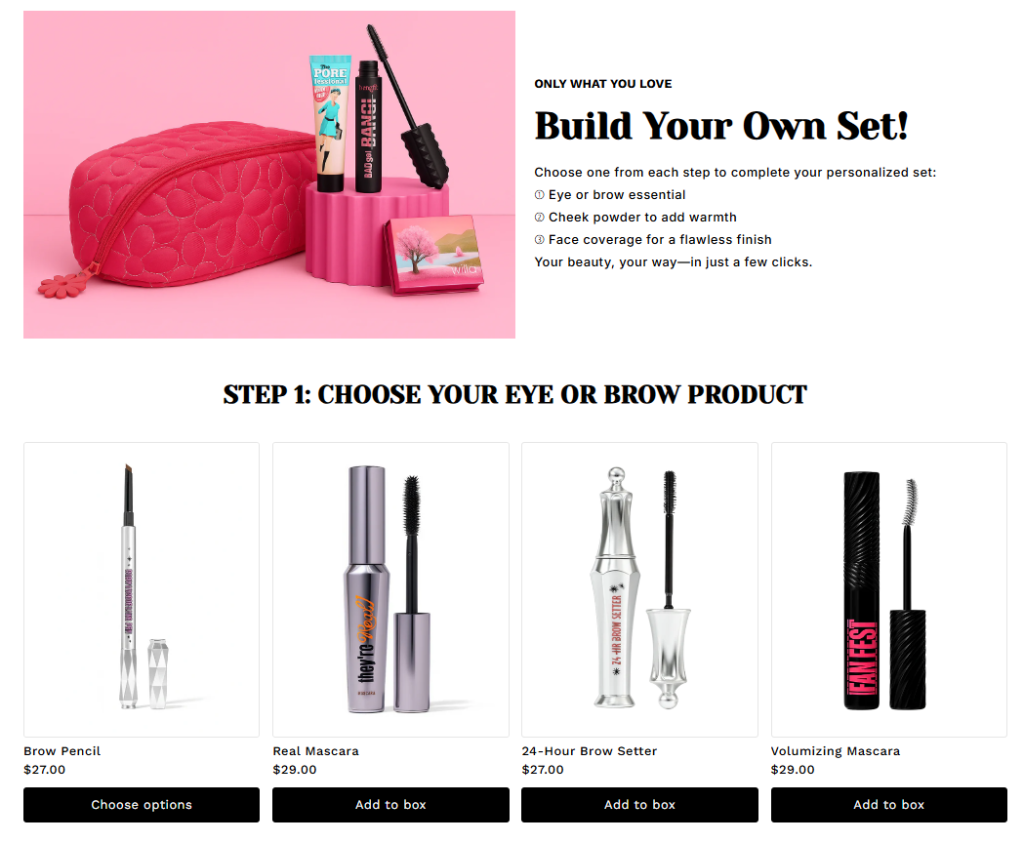
Example: Makeup Set
Choose one from each step to complete your personalized set:
βž€ Eye or brow essential
➁ Cheek powder to add warmth
βž‚ Face coverage for a flawless finish

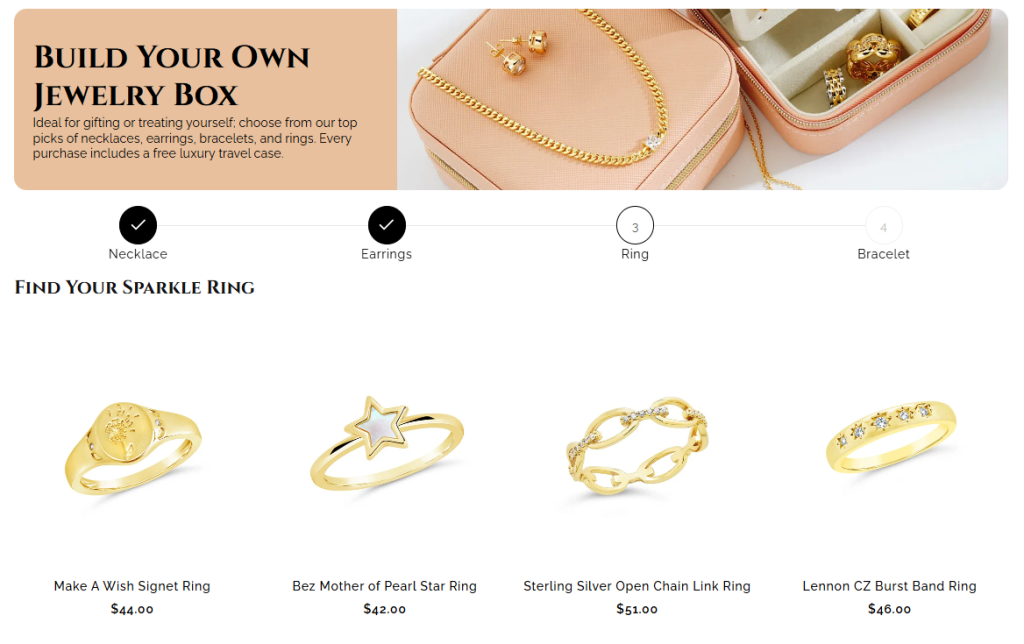
Multi‑page box: Customers move through multiple steps β€” perfect for larger or more complex bundles.

Example: Jewelry Set

  • Ideal for gifting or treating yourself; choose from our top picks of necklaces, earrings, bracelets, and rings.
Here are some other demo templates you can explore for inspiration:

One-page Templates

  • Plant Combo
  • Mug & Coaster Set

Multi-page Templates

  • Gift Box
  • Plant Combo
  • Makeup Set

How to Create a Regular Box #

Step 1. Create a New Regular Box #

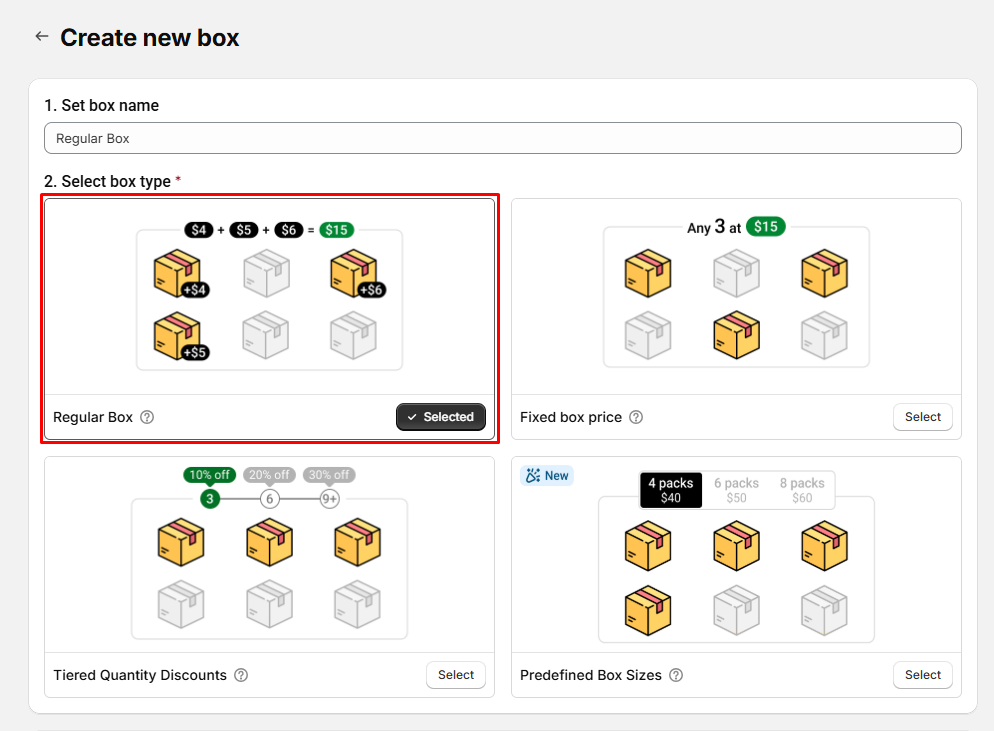
From the Easify Box Builder app admin, go to Box Management β†’ Click the Create box button. Then:

  • Enter your box name.
  • Select box type: Regular Box

Step 2. Customize content in the Visual Editor #

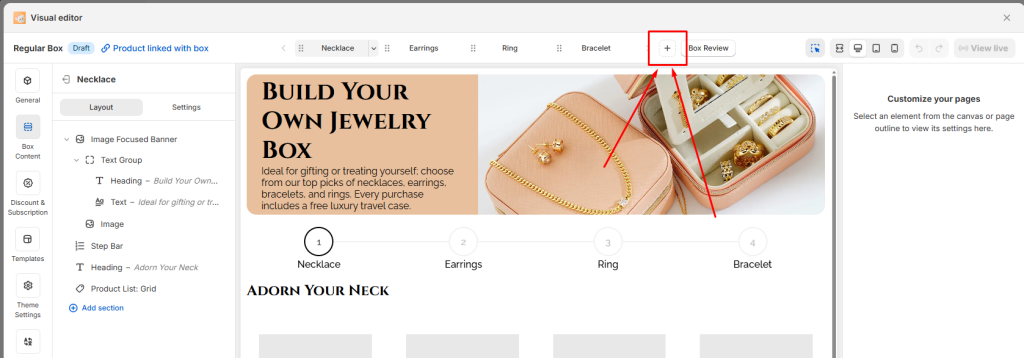
From the left menu, go to Box Content to edit your page.

  • Click Add Sections to insert sections and elements (e.g., banners) and assign products to the box.

πŸ“ Note: Customization in the Visual Editor is similar across all 4 box types. The difference lies in how discounts are applied.

  • Regular Box
  • Fixed Box Price
  • Tiered Quantity Discounts
  • Predefined Box Size

Below are the types of elements and section you can add in the Box Content.

GroupElement/Section types
BasicHeading
Text
Image
LayoutGroup
Divider
Tabs
Accordion
Carousel
BannersHero Banner
Split Banner
Image Focused Banner
Dual Image Banner
ProductsProduct List: Grid
Product List: Tabs
Product List: Accordion
Product List: Carousel
Custom fieldsText Box
Text Area
Number Box
Dropdown
Radio Button
Button
File Upload
Date Picker
Time Picker
Switch
Checkbox
Image Swatch

πŸ‘‰ You can switch between Desktop, Tablet, and Mobile views and customize what appears in each. (This is not just a responsive preview β€” you decide the actual layout for each device)

You can also add new steps or multiple steps and configure the content for each step by clicking the Plus (+) button.
Step 3. Configure Discounts #

Even though a Regular Box calculates the total price purely as the sum of individual product prices, you still have the flexibility to add discounts. This is a powerful way to encourage customers to buy more items and increase your average order value.

πŸ‘‰ For example, you can set up tiered discounts such as:

  • Buy 2 items β†’ Get 10% off
  • Buy 3 items β†’ Get 15% off
  • Buy 5 items β†’ Get 20% off
How to Set up Discounts #

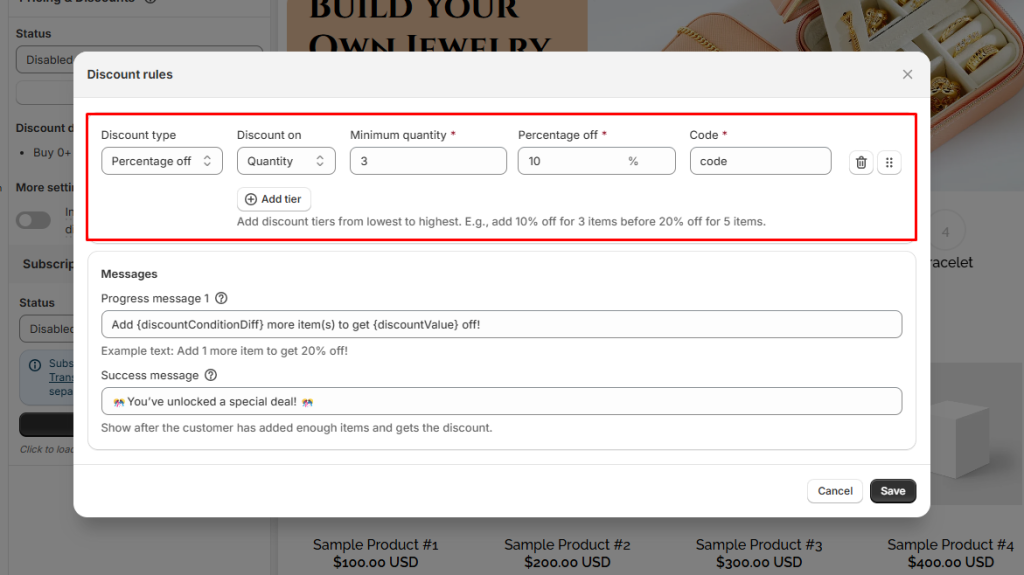
Step 1: In the Visual Editor, open the Discounts tab.

Step 2: Click at the Edit rules button
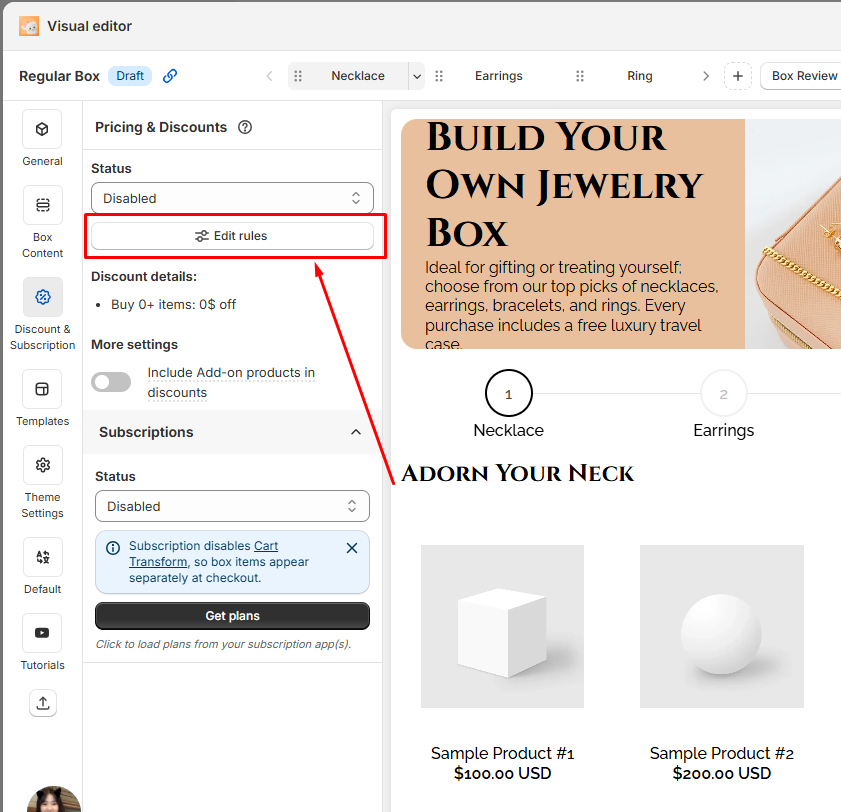
Step 3: Choose the discount type (percentage off or amount off).

Step 4: Define the rules β€” for example, β€œBuy X items β†’ Get Y% off.”

Step 5: Save your changes

πŸ‘‰ For a deeper dive into strategies and setup, check out our guide on Tiered Quantity Discounts.

Step 4. Refine the design #

From the left menu, go to Theme Settings to adjust page style.

Customize layout width, typography, product cards, step bar, colors, and more to match your store branding.

Step 5. Finalize and publish #

In the General tab, enable the box page.

  • Save and publish to your storefront.
  • Define the box page URL.
  • Add a box image (displayed on the box review page, cart, and checkout).

Advanced Tips to Maximize Profits with Regular Box #

Bundle Complementary Products #

Why: Pairing complementary products and structuring the box experience thoughtfully creates a sense of completeness. Customers are more likely to add extra items when they see natural combinations or when the flow of the box feels easy to navigate.

Example:

  • Coffee + Mug
  • Skincare + Tote Bag
  • Pet Food + Chew Toy

Use Tiered Discounts Strategically #

Why: Tiered discounts motivate customers to add more items to their box by rewarding larger purchases. Shoppers often aim for the next discount threshold because it feels like they’re getting more value for their money.

Example: A beauty store sets up tiered discounts:

  • Buy 2 items β†’ 10% off
  • Buy 3 items β†’ 15% off
  • Buy 5 items β†’ 20% off

πŸ‘‰ Most customers will add that extra item to reach the 3‑item tier, because it feels like the best balance of savings and product variety.

Optimize for Mobile Shoppers #

Why: A large portion of ecommerce traffic comes from mobile devices. If the box builder isn’t optimized for smaller screens, customers may abandon their purchase due to frustration.

Example: A snack subscription store configures its Regular Box with:

  • Carousel layout for product lists (easy swiping on mobile)
  • Simplified step navigation with clear buttons
  • Mobile‑specific banners that fit smaller screens

πŸ‘‰ Customers browsing on their phones can quickly swipe through products and complete their box without endless scrolling, leading to higher conversion rates.

πŸ’¬ Need Help? #

Questions? Stuck somewhere?

We’re always here to help! Just reach out via our in-app live chat for 24/7 support.

Table of Contents
  • Common Use Cases
  • How to Create a Regular Box
    • Step 1. Create a New Regular Box
    • Step 2. Customize content in the Visual Editor
    • Step 3. Configure Discounts
      • How to Set up Discounts
    • Step 4. Refine the design
    • Step 5. Finalize and publish
  • Advanced Tips to Maximize Profits with Regular Box
    • Bundle Complementary Products
    • Use Tiered Discounts Strategically
    • Optimize for Mobile Shoppers
  • πŸ’¬ Need Help?
Essentials Logo

Make the Complex Simple for Shopify Stores

Our AppsHelp CenterPartner ProgramPrivacy PolicyTerms of ServiceBlogContact Us

Copyright Β© 2025 Easify. All rights reserved.

Close
Search

Hit enter to search or ESC to close

cookie By using this website, you agree to our cookie policy. Close