EasifyApps
  • About
  • Apps
    Easify Product Options
    Easify Product Attachments
  • Resources
    Help Center
    Easify Product Options
    Easify Product Attachments
    Video Tutorials
    Easify Product Options
    Easify Product Attachments
  • Partners
  • Blog
  • Contact
All Easify Apps
EasifyApps
  • About
  • Apps
    Easify Product Options
    Easify Product Attachments
  • Resources
    Help Center
    Easify Product Options
    Easify Product Attachments
    Video Tutorials
    Easify Product Options
    Easify Product Attachments
  • Partners
  • Blog
  • Contact

Easify Product Options App

Getting Started
    Key Terminology Simplified
    • Custom options & variants
    • Option set
    • Option set templates
    • Option type (Option input)
    • Your option sets
    • Option label
    • Option name
    • Option value
    • Option group
    • Conditional logic
    • Live preview
    • Help text
    • Placeholder
    • Information (Tooltip)
    • Option widget
    Option Input Types
    • Design Layer
    • Text Box
    • Text Area
    • Number Text Box
    • Color Swatches
    • Image Swatches
    • Radio Buttons
    • Dropdown
    • Checkbox
    • Button(s)
    • Switch/ Toggle
    • Modal (Popup)
    • File Upload
    • Option Group
    • Product List
    • Date Range
    • Date Picker
    • Time Picker
    • Font Picker
    • Color Picker
    • Dimension
    • Quantity
    • Custom HTML
    • Heading
    • Paragraph
    • Spacer
    • Divider
    App Activation
    • Activate the app on your theme
User Guide (PO)
    Set Up Option Sets
    • Create A New Option Set From Scratch
    • Use Ready-made Templates To Create Your Option Set
    Conditional Logic
    • What is Conditional Logic (CL)?
    • Standard Conditional Logic – Among Easify Options
    • Advanced Conditional Logic – Show Easify Options Based On Shopify Variants
    Extra Pricing (Add Charges)
    • Set Up Extra Fees (Version 3 – From July 24, 2025)
    • Set Up Extra Fees (Version 2 – July 18, 2024 – July 23, 2025)
    • Add-on Prices vs. Add-on Products (Version 1 – Before July 18, 2024)
    • Set Up Add-on Prices (Version 1 – Before July 18, 2024)
    • Set Up Add-on Products (Version 1 – Before July 18, 2024)
    • Convert Add-on Prices To Add-on Products (Version 1 – Before July 18, 2024)
    • Hide Specific Products from Shopify Storefront while Keeping Them Buyable
    Option URL
    • What is Option URL?
    • Establish Cross-Product Links
    • Include Option Detail Links For Add-on Products/Custom Options
    Option Design
    • Customize Option Styles
    • Distinct Option Styles for Light & Dark Themes
    • Modern and Classic Option Styles
    App Settings
    • General Settings
    • App Translation
    Tiered Wholesale Pricing
    • What is Tiered Wholesale Pricing?
    • Set Up Tiered Wholesale Pricing
    • Customize Tiered Wholesale Pricing Table
    Option Import/Export
      Option Export
      • Export All Option Sets
      • Export Specific Option Sets
    • Option Import
  • Track Real-time Analytics
  • Set Up One-time Charge
  • Set Up Badges for Option Values
  • Set Up Quantity Selector Per Option Value
  • Add Option Value Descriptions & Tooltips
  • Enable Image Editor for File Upload
  • Show Image/ Color Swatch Slider
  • View & Export Orders With Easify Options
  • Hide Main Product Price & Shopify Quantity Selector
  • Display Option Set In Popup Triggered By Button Click
  • Switch Product Images Upon Option Selection
  • Set Up Option/ Option Set Templates
  • Translate Option Set Into Multiple Languages
  • Separate or Combine Add-ons with Main Product in Cart
  • Reposition Option Set On Product Page
  • Set Up Product Bundles
  • Show Custom Options On Order Confirmation Emails (To Customers)
  • Show Custom Options On New Order Notification Emails (To Staff)
  • Show Custom Options On Packing Slips
Product Personalizer (Live Preview)
  • What Is Product Personalizer – Live Preview?
  • How It Works
  • Ready-to-use Templates with Product Personalizer
  • Upcoming Features
Subscription & Billing
  • Pricing Plans
  • How to upgrade
  • How to cancel subscription
Customization & Support
  • App Maintenance Notification
  • Get support
  • Request a new feature
Frequently Asked Questions
  • Why does the app remain “Inactive” even after activation?
  • What to do if custom options aren’t visible on product pages?
  • Why weren’t custom option prices included in my customer orders?
  • How many custom options can I create per product?
  • Does the app work with Shopify Online Store 2.0?
  • Will the app slow down my website?
  • How can I stay informed about updates for the app?
  • What happens if I uninstall the app, and how does it affect my store?
Integrations
  • Easify Product Options x GemPages Landing Page Builder

Easify Box Builder App

Getting Started
  • Pricing Plans, Trial, and Billing
  • Activate the App
  • Key Terms
Visual Editor
  • Create a New Box with the Visual Editor (Overview)
  • Create a New Box with a Template
  • Create a Box from Scratch (Without a Template)
  • Create Custom Fields/ Options
Box Types
  • Predefined Box Sizes
  • Fixed Box Price
  • Tiered Quantity Discounts
Product List
  • Product List (Overview)
  • Product List: Grid
  • Product List: Tabs
  • Product List: Accordion
  • Product List: Carousel
  • Default Selected Products
  • Hover to Show Second Image in Product List
Sales Boosters
  • Sales Boosters: The End of “I’ll Buy It Later”
  • Low Stock Counter
  • Sales Notifications
  • Countdown Timer
Advanced Features
  • Connect Subscription Plans to Boxes
  • Display Variants as Individual Products
  • Create Products Linked with Boxes
  • Set Up Add-on Price or Add-on Product for Custom Fields
  • Translate App Default Texts
  • Translate Box-Specific Content
More Features
  • Use Cart Transform or List Items Separately at Checkout
  • Show Custom Options On Order Confirmation Emails (To Customers)
  • Show Custom Options On New Order Notification Emails (To Staff)
Help & Support
  • Get Support
  • Frequently Asked Questions – Most Common Questions
  • FAQs – Theme Settings: Product Cards
  • FAQs – Theme Settings: Step bar, Quick Summary, Quick View
  • FAQs – Theme Settings: Quantity selector, Box Review Page

Easify Inventory Sync App

  • Welcome to Easify Inventory Sync
Multi-store Sync
    Getting Started
    • Overview and Key Terminology
    Sync Setup & Management
    • How to Connect Source and Destination Stores
    • Understand Connection & Sync Statuses
    • How to Track Sync Activity
    • Disconnect or Delete Connection
    Data Sync Types
    • Product Sync
    • Inventory and Order Sync
    • Page, Blog and Blog post Sync
    Subscription & Billing
    • Pricing Plans
Single-store Sync
    Getting Started
    • Quick Start Guide
    • Frequently Asked Questions
    • Roadmap Spotlight – A Sneak Peek Into The Future
    • Get Support
    Inventory Groups
    • Create Inventory Groups Automatically by SKUs
    • Create Inventory Groups Manually
    • Events Triggering Syncs among Products in Inventory Groups
    • When do Inventory groups Fail to sync?
    • How to Set Up Common Cases
    Bundle Groups
    • Create A New Bundle Group
    • How Master product inventory is Calculated from Component product inventory (Modified Quantity)
    • Events Triggering Syncs among Products in Bundle Groups
    • When do Bundle groups Fail to sync?
    • How to Set Up Common Cases
    Inventory Thresholds
    • What is Inventory Threshold?
    • Set Up Universal Inventory Threshold
    • Create A New Inventory Threshold
    Advanced Features
    • Bulk Edit Inventory Groups
    • Import/ Export Inventory Groups
    • Import/ Export Bundle Groups
    • Export Product Variant & Location IDs
    • Bulk Duplicate Products
    Subscription & Billing
    • Pricing Plans (& FAQs)
    • How to Change Plans
    Common Scenarios & Setup Guides
    • Roast Coffee
    • Loose Leaf Tea
    • Stationery Set
    • Retail & Wholesale Items
    • Blank & Personalized Tees
    • Unisex Tees
    • Baby Gift Hamper
    • Flowers
    • Chocolate Cookies
    • 3-Pack T-Shirts (mixed sizes & colors)
    • Batteries
    • Beverage (Inventory by Cans)
    • Beverage (Inventory by Packs)
    • Multivitamins (from Single Pack)
    • Multivitamins (from Double Pack)
    • Incense Sticks (Inventory by Packs)
    • Incense Sticks (Inventory by Sticks)
    • Candle Trio Set
    • Perfume Set
    • Pick n Mix Sweets
    • Top & Skirt Set (Same Size)
    • Top & Skirt Set (Mixed Sizes)
    • 2-Pack Tops (1 Color)
    • 2-Pack Tops (1 Color) – Only in Packs
    • 2-Pack Tops (Multicolor – Fixed)
    • 2-Pack Tops (Multicolor – Optional)
    • Custom Print Shirts
    • Shoes & Free Socks

Easify Product Attachments App

App Activation
  • Activate the app on your theme
User Guide
  • Upload Product Attachments
  • Upload Attachment Icons
  • Add Attachments To Templates
  • Import Bulk Product Attachments
  • Export Product Attachments
  • Add Attachments To Collapsible Rows On Product Pages
Customization & Support
  • Get support
  • Roadmap Spotlight – A Sneak Peek Into The Future
  • Frequently Asked Questions
  • Feature Requests

Recommended Shopify Apps

  • Page builder
  • Marketing
  • Affiliate programs
  • Image gallery
  • Pricing quotes
  • Invoices and receipts
  • Others

Announcements

  • 🎊 Easify Lucky Draw 2026: Winners Announcement!
  • 🎉 Easify Lucky Draw 2026: Terms and Conditions
  • Become a VIP Founder of Easify Box Builder – Limited to the First 100 Users Only!
  • Limited Support During Lunar New Year (Jan 25th- Feb 3rd, 2025) – Your Patience Is Our Greatest Gift!
  • Go Beyond Options: Easify Product Options Premium Is Here!
  • Limited Support During Our Summer Holiday (September 27th-29th, 2025) – Your Patience Is Our Greatest Gift!
  • Easify Box Builder: New Plans, Your Box Sales Get a Power-Up

Low Stock Counter

Table of Contents
  • What is a Low Stock Counter?
  • Why This Tiny Badge is a Conversion Powerhouse
    • 1. Stop Analysis Paralysis (The Choice Paradox)
    • 2. Leverage Loss Aversion
    • 3. Boost Real-Time Conversion Rates
  • How to Set It Up in Easify Box Builder
    • Step 1: Activate the Booster
    • Step 2: Customize Your Logic
    • Step 3: Target Your Impact
    • Step 4: Go Live
  • Pro-Tips: How to Make Scarcity Work for You

What is a Low Stock Counter? #

It is a real-time inventory indicator integrated directly into your box-building interface. Unlike a simple “Out of Stock” message that stops a sale, this counter acts as a strategic early-warning system. It appears on your Product Cards or within the Quick View Popups to signal that availability is shrinking.

  • The Status Label: A subtle badge that says “Low Stock” or “Selling Fast”.
  • The Quantity Alert: A precise count that says “Only 3 left in stock”.
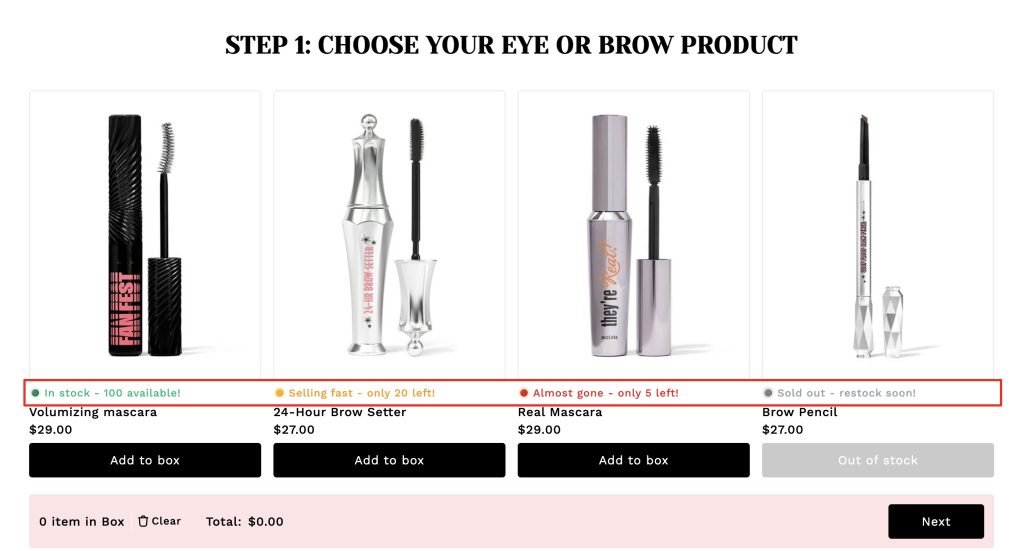
It’s not about creating false pressure. It’s about giving your customer the full picture, so they can make a confident choice before their perfect item is gone for good.

Why This Tiny Badge is a Conversion Powerhouse #

Low Stock Counters do more than just manage inventory; they manage customer psychology.

1. Stop Analysis Paralysis (The Choice Paradox) #

When a customer is faced with 50+ items in a box builder, they often freeze. Data shows that scarcity narrows focus. A Low Stock Counter acts as a “visual magnet”, helping the customer choose the high-demand items first. It simplifies the decision-making process by identifying which choices are time-sensitive.

2. Leverage Loss Aversion #

Psychological studies show that the pain of losing something is twice as powerful as the joy of gaining it. When a shopper sees “Only X left”, they don’t just see a product; they see a potential loss. They are motivated to complete the box to “save” the item they’ve already mentally claimed.

3. Boost Real-Time Conversion Rates #

E-commerce benchmarks consistently show that clear scarcity indicators can increase Add-to-Cart rates by 20% to 30%. By removing the “safety” of coming back later, you significantly reduce the chance of the customer being distracted by a notification or another tab.

How to Set It Up in Easify Box Builder #

Step 1: Activate the Booster #

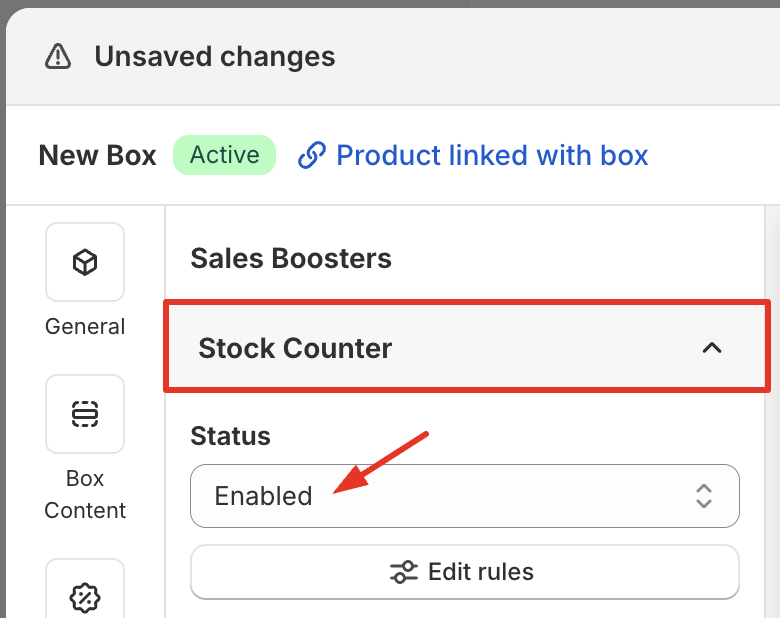
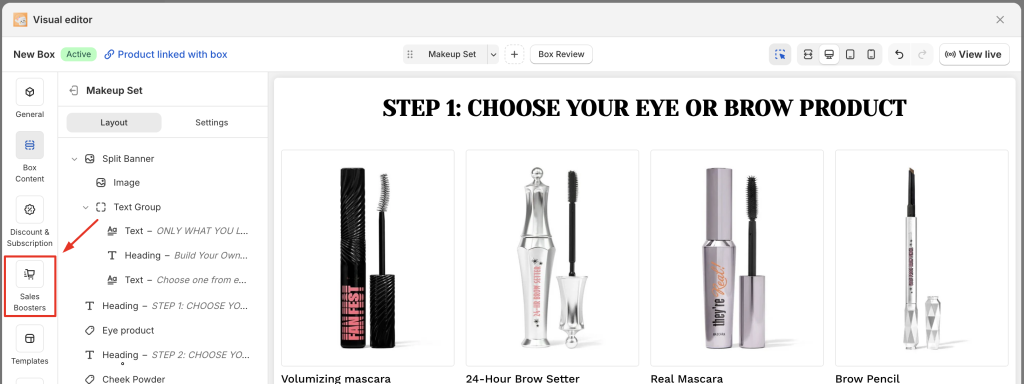
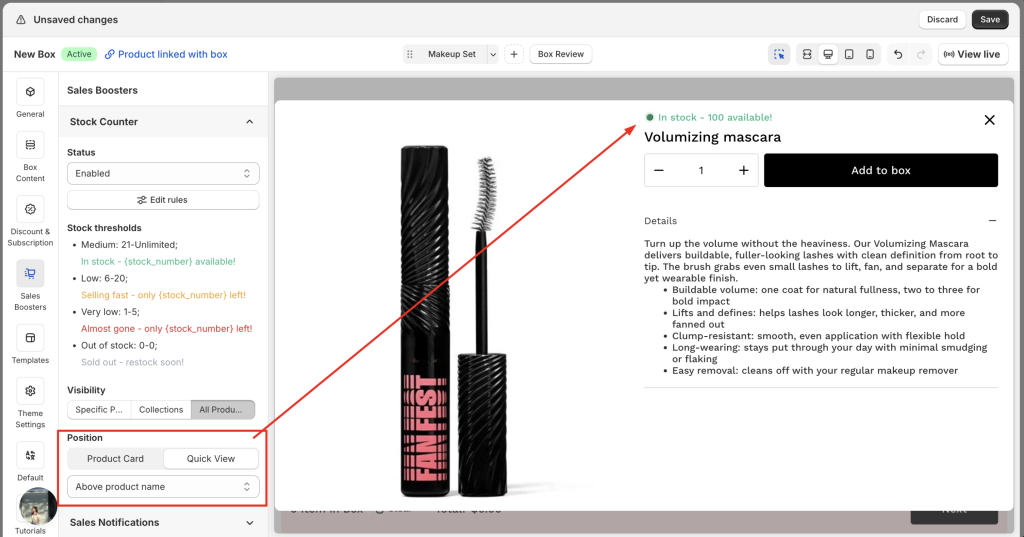
Navigate to the Sales Boosters tab in your left-hand menu, expand the Stock Counter section, and change the status to “Enabled”.
Step 2: Customize Your Logic #

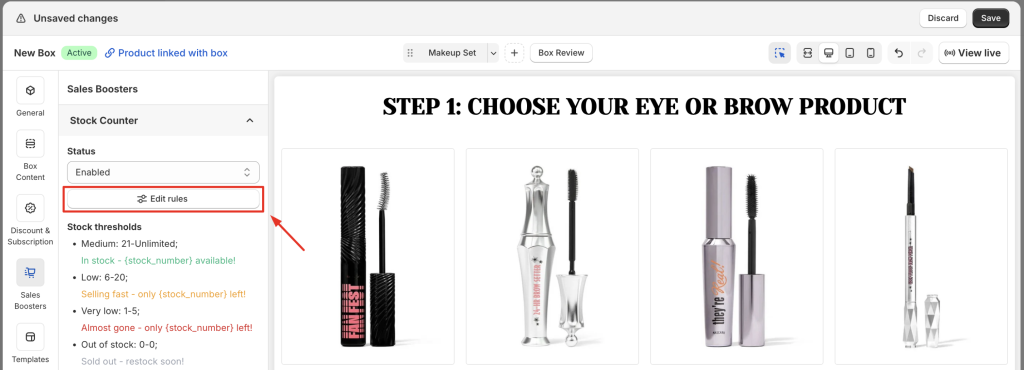
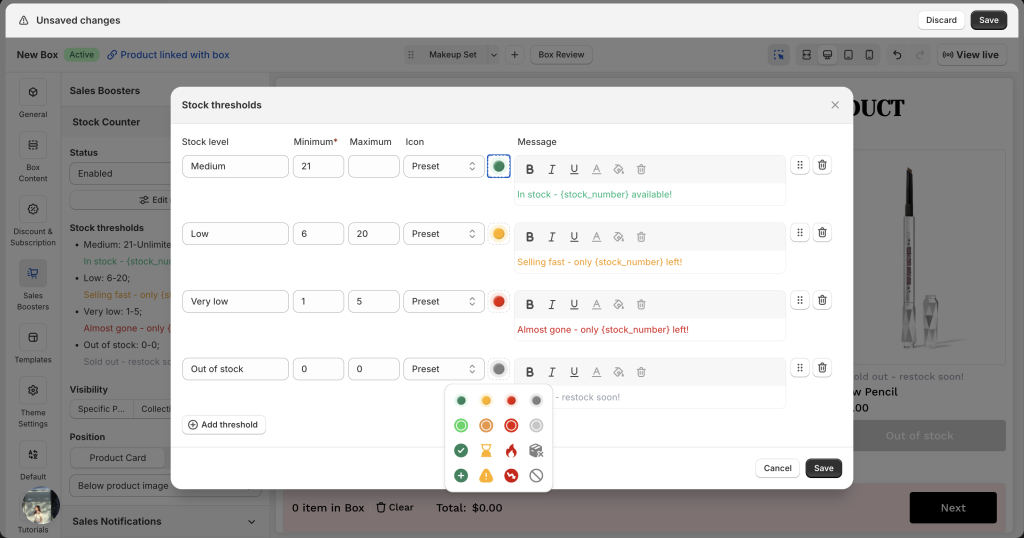
We provide four default stock statuses, but we recommend clicking “Edit rules” to truly align the tool with your business logic.
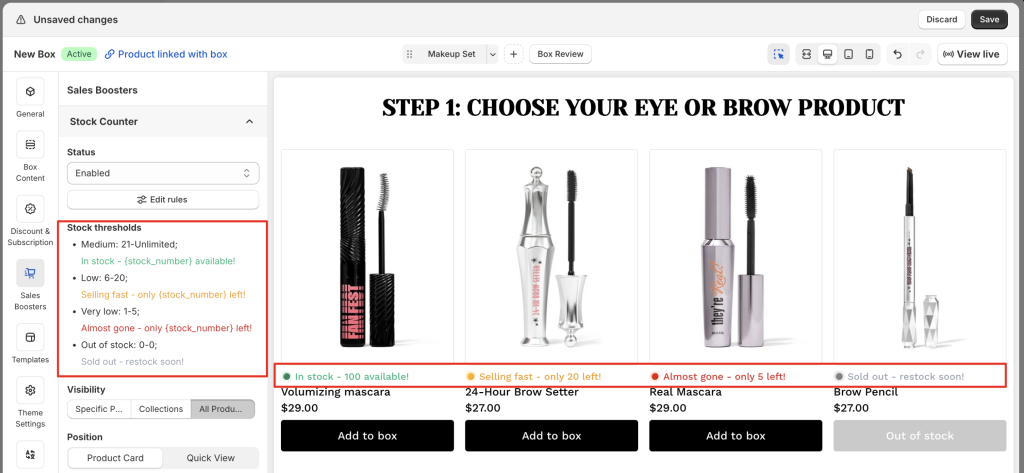
  • Define Thresholds: Set exactly when the “Low Stock” alert triggers (e.g., only when inventory is below 10 units).
  • Elevate Brand Voice: Update the default text to match your brand’s personality, whether that’s “Last 5 for the Season” or “Our Boutique Favorite – Moving Fast!”.
  • Visual Alignment: Customize the badge colors, icons, and styles to ensure the alerts look like a native, premium part of your box page design.
Step 3: Target Your Impact #

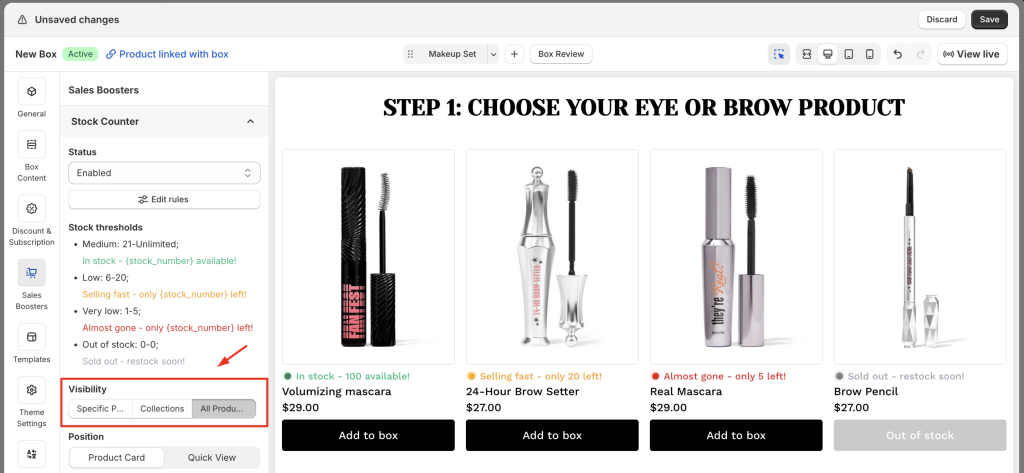
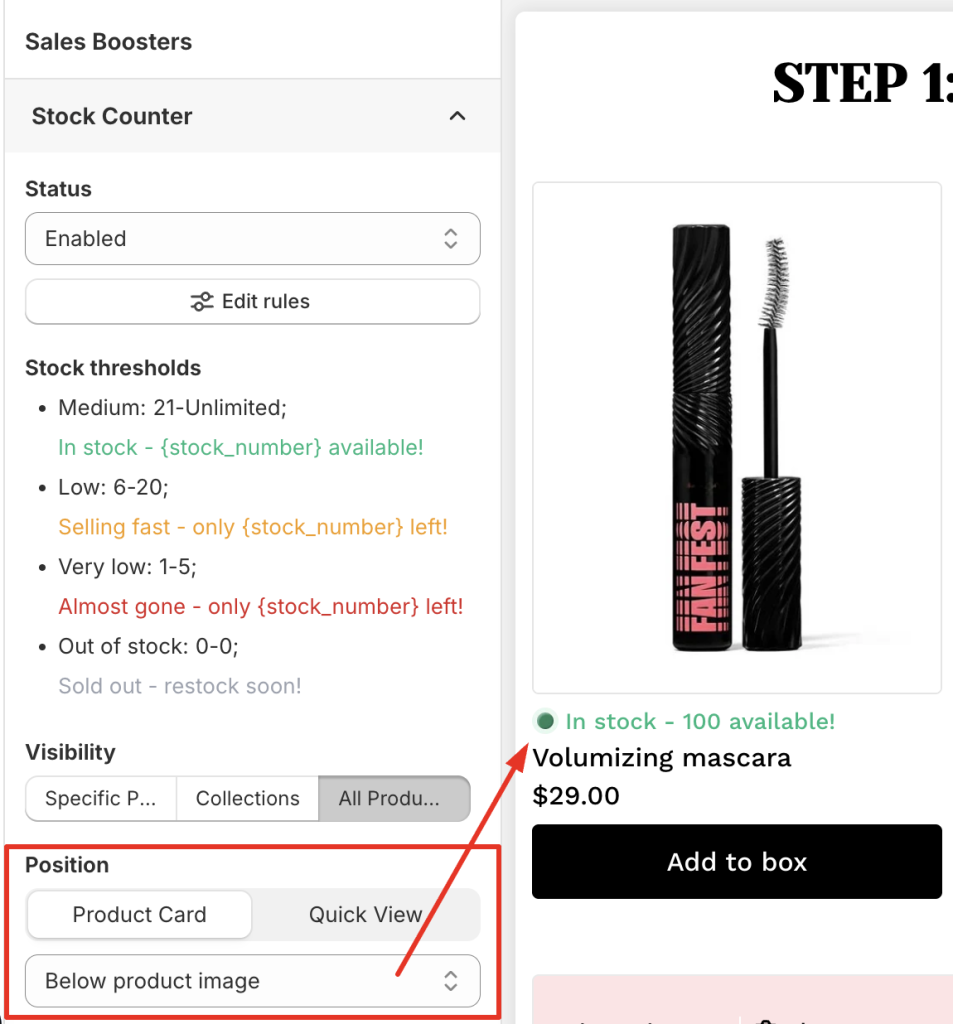
You have full control over where the urgency appears:

  • Selection Logic: Choose to display stock levels for all products, specific collections, or only your most exclusive items.
  • Placement Strategy: Select the exact position of the badge on your Product Cards and within the Quick View Popups to ensure it is visible but never intrusive.
Step 4: Go Live #

Click Save. Your box page is now transformed from a static catalog into a high-performance sales engine.

Pro-Tips: How to Make Scarcity Work for You #

To ensure your scarcity strategy remains a conversion driver and not a distraction, apply these advanced tactics:

  • The “Anchor” Strategy: Focus your inventory alerts on your “Anchor Products” – the bestsellers that people usually build their boxes around. If the anchor is low, the whole box gets sold faster.
  • Don’t Over-Saturate: If 90% of your products show “Low Stock”, the nudge loses its power and begins to look like a technical error. Keep your threshold low enough that only a few items trigger the badge at once.
  • Test Messaging: Constantly test your copy. Try different phrases like “Only X left”, “Hurry! Only {x} left”, or “Low Stock” to see which resonates more with your specific audience. Clear and factual always beats sensational.
  • Keep It Honest: Never use fake scarcity. Modern Shopify shoppers are savvy; they can sense an artificial counter. Use the booster only for items that actually move quickly or have finite stock. This builds long-term trust and ensures that when you say “Low Stock”, your customers take it seriously.

Ready to let your inventory drive your revenue? Turn on your Low Stock Counter today and turn “browsing” into “buying”.

What’s Next? Once you’ve mastered Item-level urgency, learn how to build Store-level trust. Explore our guide on Sales Notifications →

Table of Contents
  • What is a Low Stock Counter?
  • Why This Tiny Badge is a Conversion Powerhouse
    • 1. Stop Analysis Paralysis (The Choice Paradox)
    • 2. Leverage Loss Aversion
    • 3. Boost Real-Time Conversion Rates
  • How to Set It Up in Easify Box Builder
    • Step 1: Activate the Booster
    • Step 2: Customize Your Logic
    • Step 3: Target Your Impact
    • Step 4: Go Live
  • Pro-Tips: How to Make Scarcity Work for You
Essentials Logo

Make the Complex Simple for Shopify Stores

Our AppsHelp CenterPartner ProgramPrivacy PolicyTerms of ServiceBlogContact Us

Copyright © 2025 Easify. All rights reserved.

Close
Search

Hit enter to search or ESC to close

cookie By using this website, you agree to our cookie policy. Close