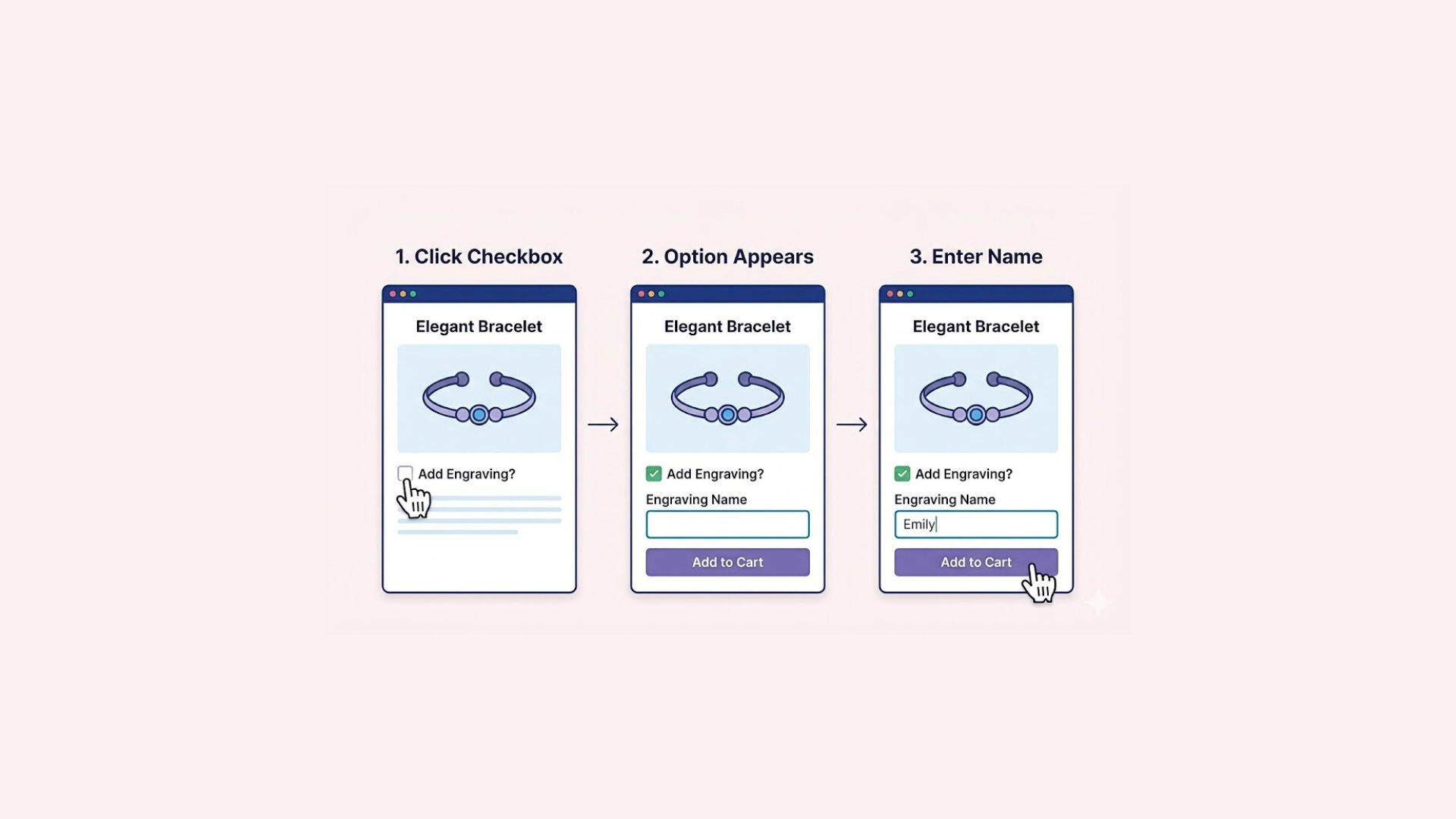

Instructional videos can be a powerful addition to Shopify product pages—especially for products that require sizing or measurements. Whether it’s showing customers how to measure their wrist for a bracelet or determine the correct ring size, the right video at the right time can reduce confusion, increase buyer confidence, and lower return rates.
However, many Shopify merchants run into a common challenge: how do you display different videos for different product types without cluttering every product page or diving into complex theme code? A video that’s helpful for bracelets doesn’t belong on ring products, and showing everything everywhere often creates more friction than clarity.
In this article, we’ll walk through a simple and reliable approach to adding product-specific videos on Shopify—no coding required.
Why Metafields Can Be Tricky for Videos
On paper, Shopify metafields sound like the perfect solution for product-specific videos. You store a video URL or embed code in a metafield, reference it in your theme, and conditionally show it based on product type or collection. In reality, things often don’t work as smoothly—especially when YouTube videos are involved.
Here are the most common reasons merchants run into issues.
1. HTML and iframe Content Is Often Restricted
Most YouTube videos are embedded using an <iframe>. However, not all metafield types handle raw HTML well. If the metafield is set up as plain text or a URL type, Shopify may sanitize or ignore iframe code entirely. As a result, the video simply doesn’t render on the product page—even though the metafield technically contains data.
This is why the same embed code may work when hard-coded into the product template, but fail when pulled from a metafield.
2. Theme and Page Builder Limitations
Many Shopify themes and page builders place restrictions on how dynamic content is rendered. Even if your metafield is set up correctly, the theme may not support outputting iframe content inside certain sections or blocks.
In some cases:
- The metafield value is not accessible in the page builder
- Custom Liquid blocks strip or escape HTML
- JavaScript-based builders don’t re-render embedded iframes properly
This makes debugging especially frustrating, because there’s often no clear error message—just a missing video.
3. Conditional Logic Quickly Gets Complicated
Showing different videos for bracelets, rings, and other product types usually requires additional logic, such as:
- Checking product types
- Matching collections
- Using tags as conditions
All of this logic has to be written and maintained in Liquid. As your catalog grows, this approach becomes harder to scale and easier to break. A small change—like renaming a collection or adding a new product type—can cause videos to stop appearing altogether.
4. Metafields Are Not Always Merchant-Friendly
Even when everything is technically correct, metafields aren’t always easy to manage on a day-to-day basis:
- Updating iframe code inside metafields is error-prone
- Non-technical team members may accidentally break formatting
- There’s no visual preview of the video while editing
For stores that need flexibility and frequent updates, this quickly becomes a maintenance burden.
A Simpler Approach: Using Easify Custom Product Options
Instead of relying on metafields and custom Liquid logic, a much simpler and more reliable way to add product-specific instructional videos is to use Easify Custom Product Options. The app is designed to handle rich content and conditional display without requiring any theme edits, making it an ideal solution for merchants who want flexibility without technical complexity.
Here’s how to do it, step-by-step:
Step 1: Install Easify and Create a New Option Set
Start by installing Easify Custom Product Options from the Shopify App Store. Once installed, follow the in-app instructions to active it.
When the app is activated, click on the Create option set button.
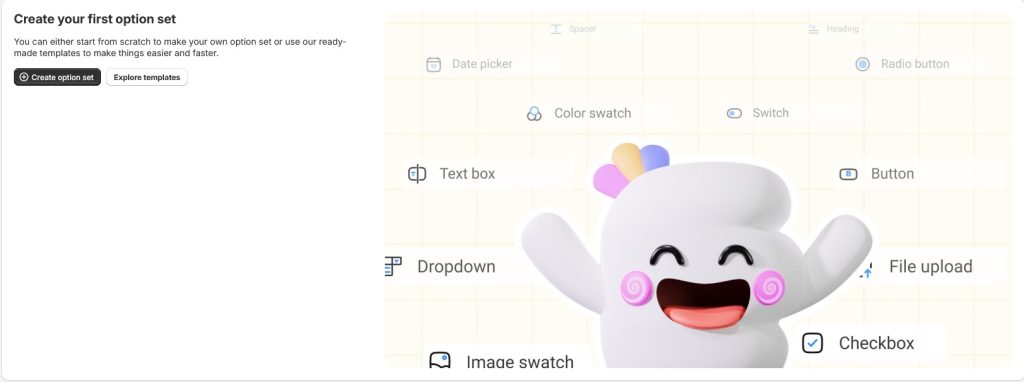
An option set is where you’ll group everything related to your instructional video—such as the collapsible row, the video embed, and any visual dividers. Think of it as a container that can later be assigned to specific products or collections.
Step 2: Create a Collapsible Row Using Option Group
Inside your option set, add a new option and choose the Option Group type. This option group will act as a collapsible row on the product page.
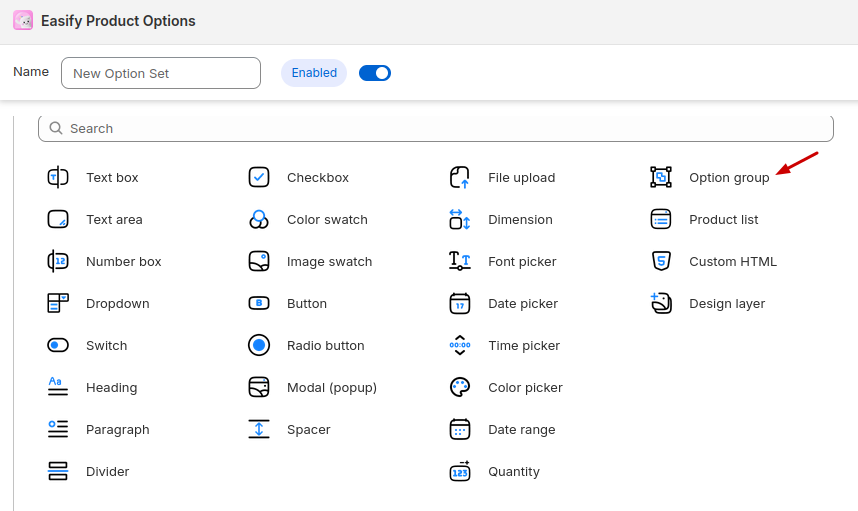
Add a clear, descriptive label that tells customers exactly what the content is about, such as:
- “How to Measure Your Wrist” for bracelet products
- “Ring Size Guide” for ring products
These labels become the clickable titles customers see on the product page, so clarity is key. A well-labeled collapsible row helps customers find sizing help quickly without cluttering the page.
Step 3: Embed the YouTube Video
Within the Option Group, click Add option and select the Custom HTML option type.
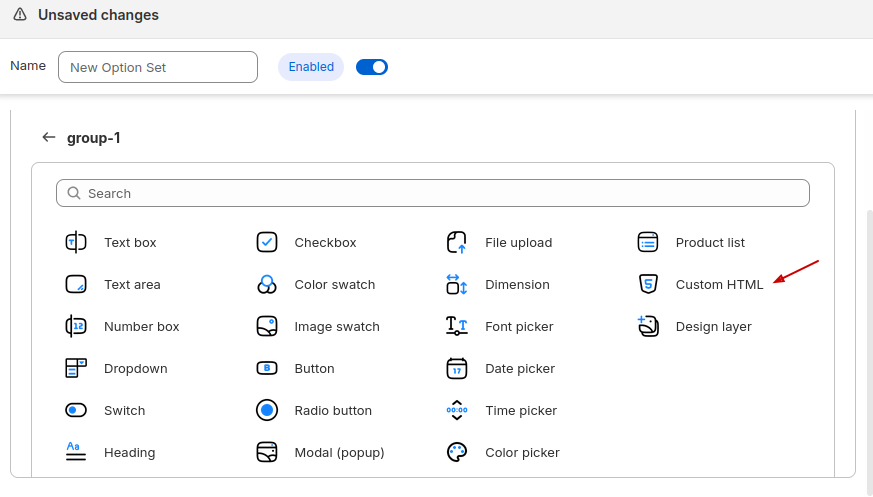
This option allows you to embed rich content, including videos.
Next:
- Open your YouTube video
- Click Share → Embed
- Copy the iframe embed code
- Paste it directly into the HTML option field
Once saved, the video will appear inside the collapsible row exactly where customers expect it.
Step 5: Assign the Option Set to Collections or Products
Once your option set is ready, it’s time to control where it appears.
Easify lets you assign option sets to:
- Specific products, or
- Entire collections
For example:
- Assign the wrist measurement video option set to your Bracelet collection
- Assign the ring sizing video option set to your Ring collection
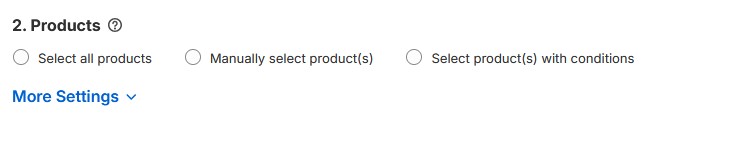
Using collection-based assignment is often the best approach because it scales effortlessly. When you add new bracelet or ring products in the future, the correct instructional video will automatically appear—no extra setup required.
Final Thoughts
Adding instructional videos to your Shopify product pages can make a significant difference in how confident customers feel before purchasing—especially for products that require measurements or sizing decisions. While metafields may seem like the logical solution at first, they often introduce unnecessary complexity when working with embedded videos, conditional logic, and theme limitations.
Using Easify Custom Product Options offers a more practical alternative. It allows you to embed videos directly, organize them in clean collapsible rows, and control where they appear—all without writing Liquid code or modifying your theme.
The end result is a better shopping experience: customers get the right guidance at the right time, product pages stay uncluttered, and you spend less time troubleshooting technical issues. If your goal is to show product-specific videos reliably and maintain them with ease, this approach strikes the right balance between flexibility and simplicity.
Read more: